DP-700 Episode 6: Batch Ingestion: Shortcuts, Mirroring, Pipelines

PowerBI consultant ·
Welcome to Episode 6 of our DP-700 series. In Episode 1 we looked at workspace settings, in Episode 2 at lifecycle management, in Episode 3 at security and governance, in Episode 4 at orchestration, and in Episode 5 at loading patterns and how to choose a store and a tool. This episode continues the second skill area, Ingest and transform data, with the three ways Fabric brings batch data in. These are the three topics from the session outline:
- Create and manage OneLake shortcuts
- Implement mirroring
- Ingest data by using pipelines
The big idea is simple. A shortcut references data where it already lives. Mirroring replicates a database into OneLake and keeps it in sync. A pipeline copies data on a schedule that you control. Each one is right in a different situation, and exam questions are mostly about spotting the situation.
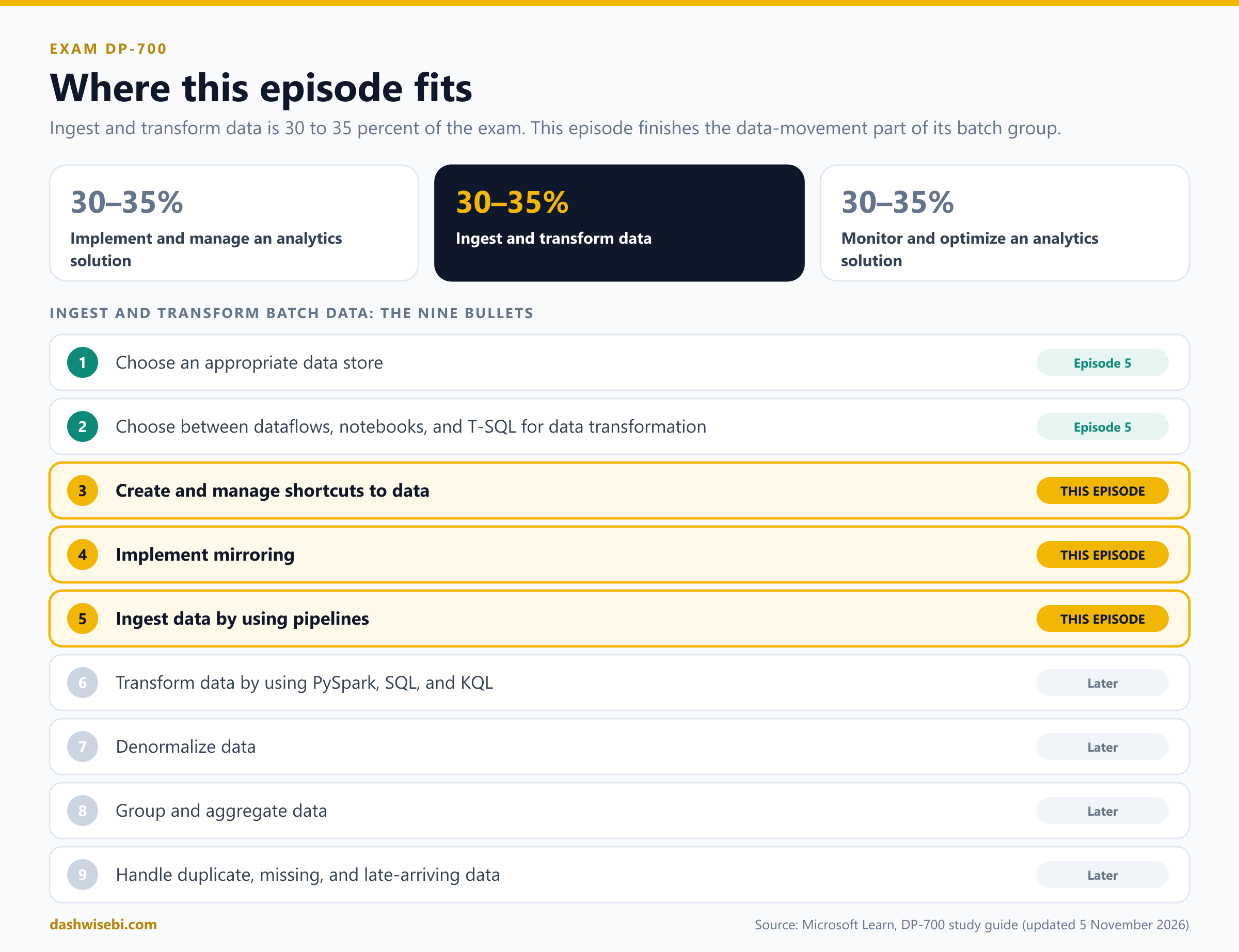
A note on wording. The study guide Microsoft updated on 5 November 2026 lists these as "Create and manage shortcuts to data", "Implement mirroring" and "Ingest data by using pipelines", in the group Ingest and transform batch data. The two bullets about choosing a store and a transformation tool were covered in Episode 5. The four bullets about transforming, denormalizing, aggregating and cleaning data come in later episodes.
The big picture: reference, replicate or copy
Before the details, hold this picture in your head. All three options make outside data usable in Fabric, but they answer three different questions.
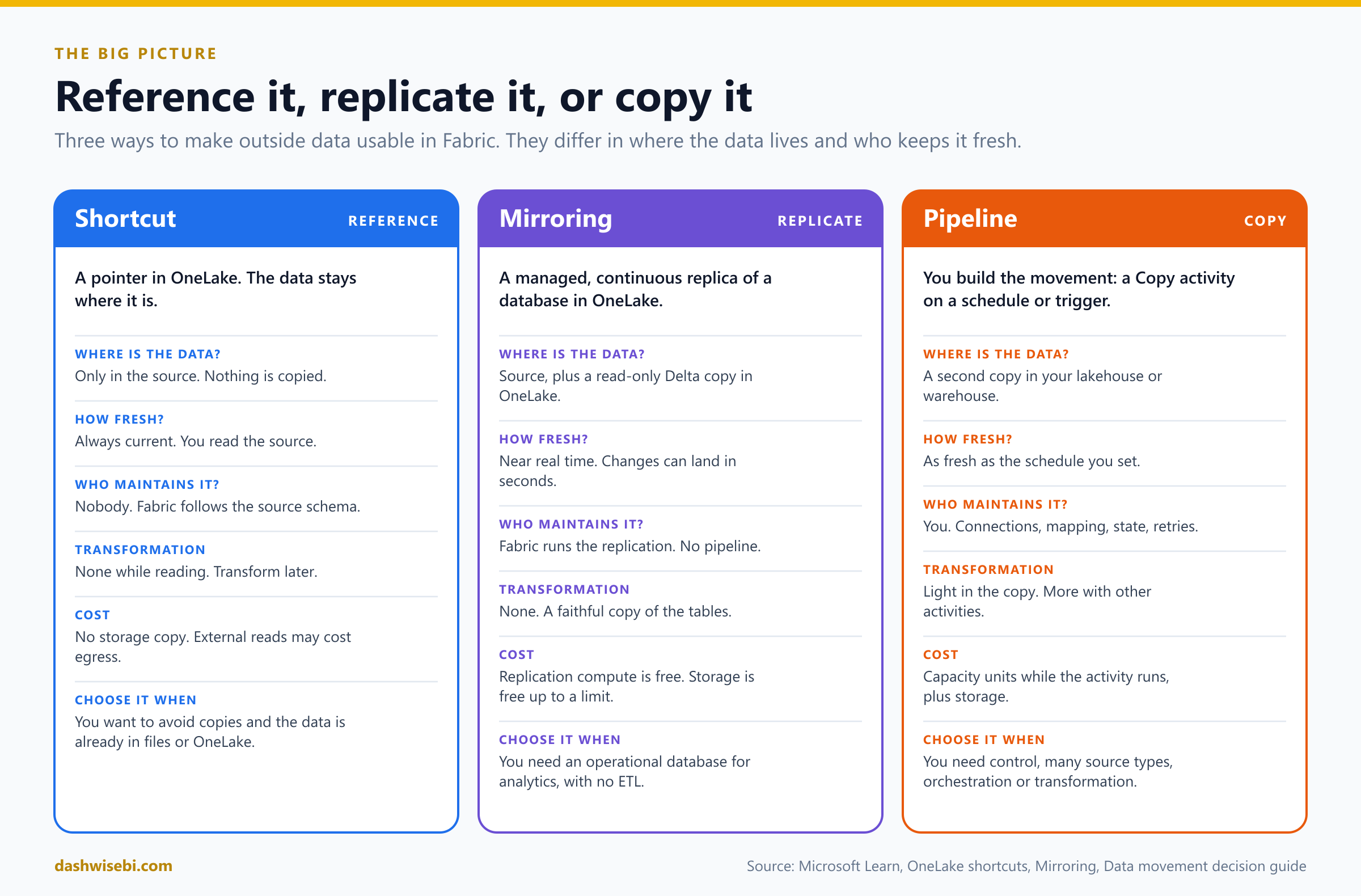
- Shortcut: reference. Nothing is copied. A folder in OneLake points to data somewhere else, and every read goes to the source.
- Mirroring: replicate. Fabric makes a read-only Delta copy of a database in OneLake and keeps it fresh, in near real time, without a pipeline.
- Pipeline: copy. You build the movement yourself, on a schedule or a trigger, with as much control and transformation as you need.
A useful rule of thumb from Microsoft's own guidance: ask how much work you want to own. A shortcut is the least work and does the least. A pipeline is the most work and does the most. Mirroring sits in between, but it is limited to databases and does no transformation.
1. Create and manage OneLake shortcuts
What a shortcut is
A shortcut is an object in OneLake that points to another storage location. The place it points to is the target path. The place where the shortcut appears is the shortcut path. It shows up as a normal folder, so anything that can read OneLake can read through it.
Think of a symbolic link. The shortcut is independent of the target: delete the shortcut and the target stays. Move, rename or delete the target and the shortcut can break. Shortcuts also stay in step with the source. Schema changes in a shortcut table are picked up automatically, with no manual refresh.
Where you can create a shortcut
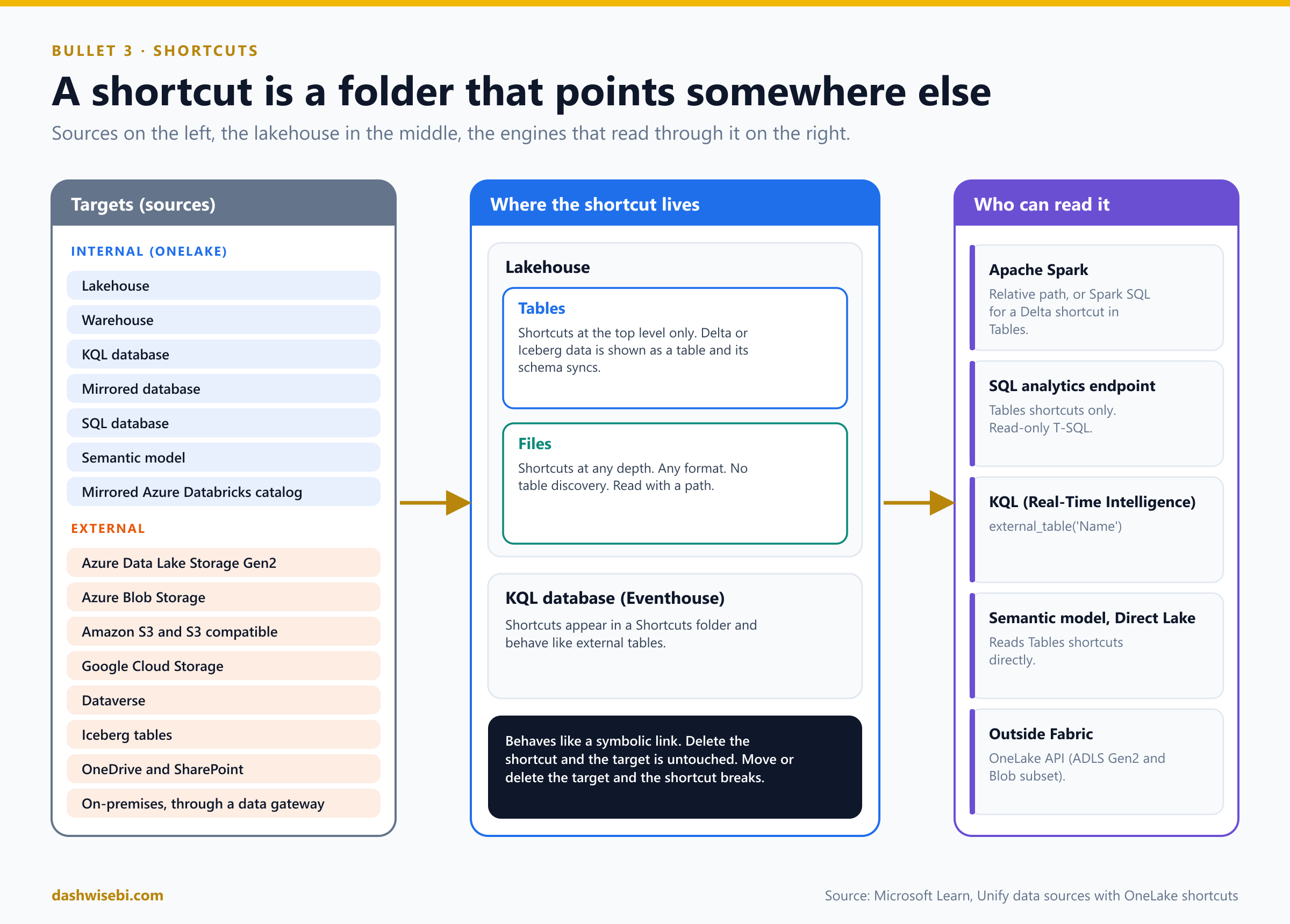
You can create shortcuts in two kinds of item: a lakehouse and a KQL database. You can use the Fabric portal, or the REST API to script it. A warehouse can be the target of a shortcut, but it is not a place where you create one.
In a lakehouse the folder you pick matters a lot:
- Tables folder. For structured data. You can create shortcuts only at the top level, never in a subfolder. If the target holds a supported table format such as Delta (or Iceberg), the lakehouse recognizes it as a table and syncs its schema. A shortcut name with a space is not recognized as a Delta table, because Delta does not allow spaces in table names.
- Files folder. For unstructured or semi-structured data. Shortcuts can be at any level of the folder tree and can point to data in any format. Nothing is discovered as a table here.
- Schema shortcut. A shortcut in the Tables area can point to a single table or to a schema, which is a parent folder of several tables. Schema shortcuts exist only in a schema-enabled lakehouse.
In a KQL database, a shortcut appears in the Shortcuts folder and behaves like an external table. You query it with the external_table() function. Eventhouses also support database shortcuts, where you share a whole database or chosen tables, shortcut tables, materialized views and functions. The source and the shortcut must be in the same tenant and region.
Where a shortcut can point
- Internal (OneLake): lakehouses, warehouses, KQL databases, mirrored databases, SQL databases in Fabric, semantic models and mirrored Azure Databricks catalogs. The item types do not need to match: a lakehouse shortcut can point to a warehouse. It can point into the same item, another item in the same workspace, or an item in a different workspace.
- External: Azure Data Lake Storage Gen2, Azure Blob Storage, Amazon S3, S3-compatible storage, Google Cloud Storage, Dataverse, Iceberg tables, and OneDrive and SharePoint. Sources that sit on premises or behind a network boundary can be reached through an on-premises data gateway.
Who can read through a shortcut
Any service that can read OneLake can use a shortcut, and it simply looks like another folder.
- Spark reads a shortcut with a relative path. For a Delta shortcut in Tables you can also use Spark SQL as if it were a managed table.
- The SQL analytics endpoint reads shortcuts in the Tables section.
- KQL reads them as external tables.
- A semantic model in Direct Lake mode can read a shortcut in Tables directly.
- Applications outside Fabric use the OneLake API, which supports a subset of the ADLS Gen2 and Blob APIs.
# Files shortcut: any format, read with a relative path
df = spark.read.format("csv").option("header", "true").load("Files/s3_sales/2026/")

# Tables shortcut to a Delta table: read it like a managed table
df = spark.read.format("delta").load("Tables/dim_customer")
df = spark.sql("SELECT * FROM MyLakehouse.dim_customer LIMIT 1000")
-- T-SQL through the lakehouse SQL analytics endpoint (Tables shortcuts only)
SELECT TOP (100) * FROM [MyLakehouse].[dbo].[dim_customer];
// KQL in a KQL database: a shortcut is an external table
external_table('dim_customer')
| take 100Create a shortcut in the portal
- Open the lakehouse or KQL database and right-click a folder in the Explorer pane.
- Choose New shortcut. In a schema-enabled lakehouse you may also see New table shortcut or New schema shortcut. In a KQL database use New, then OneLake shortcut.
- Pick the source: an internal item under Microsoft OneLake, or an external source.
- For an internal source, choose the connection method: pass-through (the default) or delegated identity. For an external source, you pick or create a connection.
- Expand Tables or Files and select the folders to connect. Folders that hold valid Delta or Iceberg tables show a table icon. You can select up to 50 subfolders in one go.
- Review the names, then select Create. The shortcut appears with a shortcut symbol, and its properties show a Shortcut Type.
To do the same thing from code, call the Fabric REST API for shortcuts. The body names the shortcut, the folder where it goes, and the target. This one points a lakehouse Files folder at a table in another lakehouse:
POST https://api.fabric.microsoft.com/v1/workspaces/{workspaceId}/items/{lakehouseId}/shortcuts

{
  "path": "Files",
  "name": "dim_customer_link",
  "target": {
    "oneLake": {
      "workspaceId": "{sourceWorkspaceId}",
      "itemId": "{sourceItemId}",
      "path": "Tables/dim_customer"
    }
  }
}
Each external source type has its own target shape and needs a connectionId. Check the REST reference for the exact body when you build one.
Security: whose identity reads the target?
Shortcut security is a favorite exam topic because it has two models and a few exceptions.
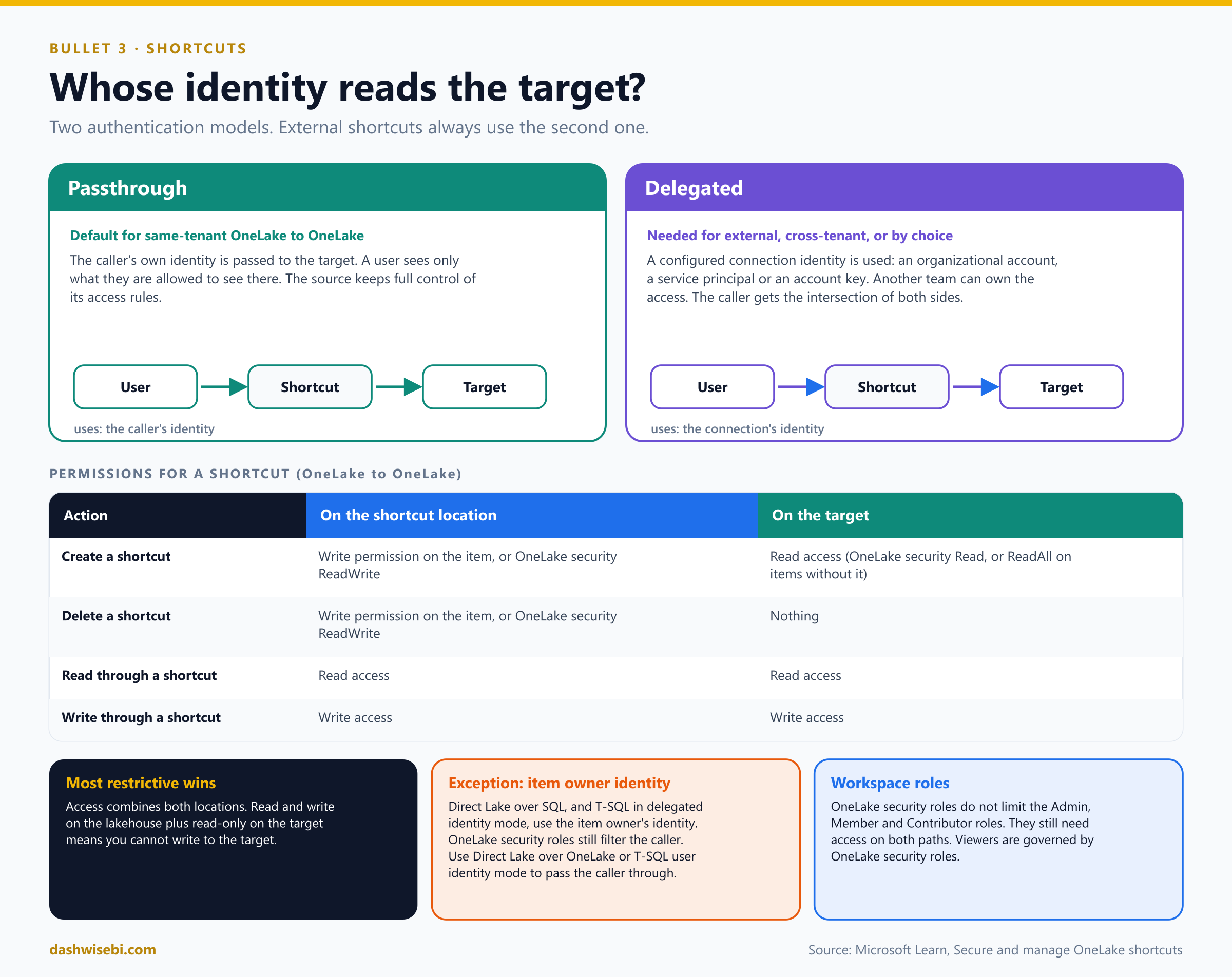
- Passthrough. The caller's own identity is sent to the target. A user sees only what they can already see there, and the owner of the data keeps full control. This is the default for same-tenant OneLake-to-OneLake shortcuts.
- Delegated. A configured connection identity is used instead: an organizational account, a service principal or an account key. This lets another team own access. External shortcuts and cross-tenant OneLake shortcuts always use delegated authentication. A same-tenant OneLake shortcut is delegated only if you choose it when you create it. To switch an existing shortcut between the two, delete it and create it again.
To create a shortcut you need write permission on the item where it goes, plus read access to the target. To delete one you need only write permission on the item that holds it. When someone uses a shortcut, Fabric combines the permissions of both locations and the most restrictive one wins. So a user with read and write on the lakehouse but only read on the target cannot write to the target.
Two exceptions are worth memorizing:
- With a semantic model in Direct Lake over SQL, or T-SQL in delegated identity mode, the calling user's identity is not passed to the target. The item owner's identity is used, and OneLake security roles then filter what the caller can see. To pass the caller through, use Direct Lake over OneLake, or T-SQL in user identity mode.
- OneLake security roles do not restrict users in the Admin, Member and Contributor workspace roles. Those users still need access on both paths. Viewers, and users with item Read permission, are governed by the OneLake security roles.
For delegated shortcuts, a caller gets the intersection of their own security and the connection identity's security. Column-level security can be set on both the producer and consumer side. Row-level security can be set on the producer side only.
Deletes, caching and limits
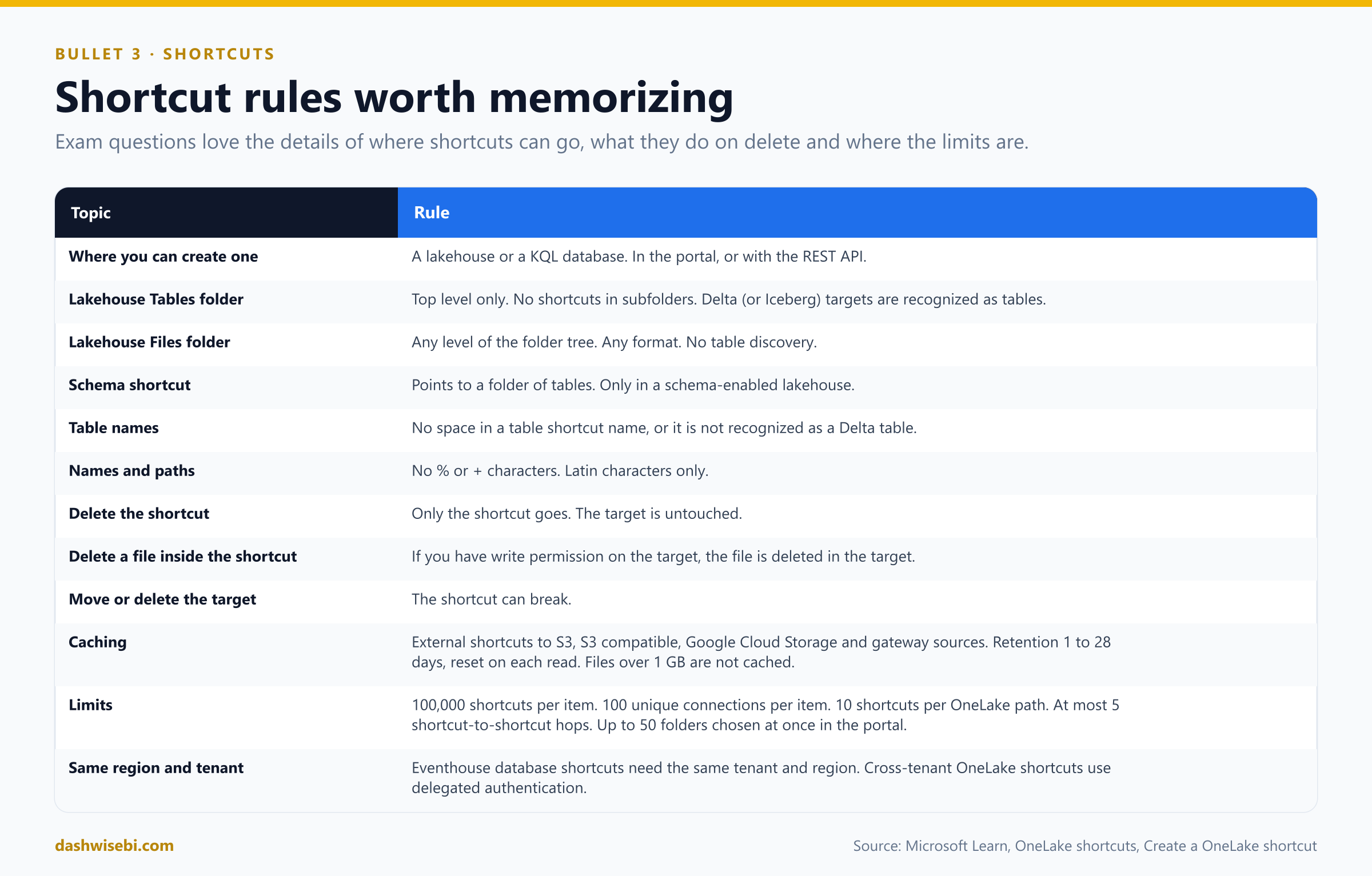
- Deletes do not cascade. Deleting a shortcut removes only the shortcut. But if you delete a file or folder inside a shortcut, and you have delete permission in the target, it is deleted in the target too. This is the classic trap.
- Caching reduces the egress cost of cross-cloud reads. When OneLake reads a file through an external shortcut, it can keep a copy in a cache for the workspace and serve later reads from there. You turn it on in Workspace settings, OneLake tab, and choose a retention period from 1 to 28 days. Each read resets the clock. Files over 1 GB are not cached. It supports Google Cloud Storage, S3, S3-compatible and on-premises gateway shortcuts.
- Limits. 100,000 shortcuts per item. 100 unique connections per item (internal shortcuts do not count). 10 shortcuts on a single OneLake path. At most 5 shortcut-to-shortcut hops. Names and paths cannot contain
%or+, and non-Latin characters are not supported. It can take up to a minute for the Table API to see a new shortcut. - Lineage. The workspace lineage view shows shortcut relationships between items in one workspace. Shortcuts to locations outside the workspace do not appear, and lineage for shortcuts to warehouses and semantic models is not available yet.
When a shortcut is the right answer
Use a shortcut to avoid edge copies and the delay that staging adds: the data is read in place, so it is as fresh as the source. It is a good fit when the data is already in files or in another OneLake item and you do not need to change it on the way in. It is a poor fit when you need to transform on load, when you must isolate analytics from the source's performance, or when the source cannot handle read traffic. Then copy it.
2. Implement mirroring
What mirroring is
Mirroring continuously replicates an operational data source into OneLake. You make a secure connection, choose a whole database or selected tables, and Fabric keeps a replica in sync. The replica is stored as Delta tables (Parquet files with a Delta log) in an item called a mirrored database. It is a fully managed service: you do not host, schedule or maintain anything, and there is no pipeline to build.
Creating a mirrored database gives you the replication process itself and a SQL analytics endpoint on the replicated tables. You can query it with the SQL query editor, SSMS and the MSSQL extension for VS Code.
The three types
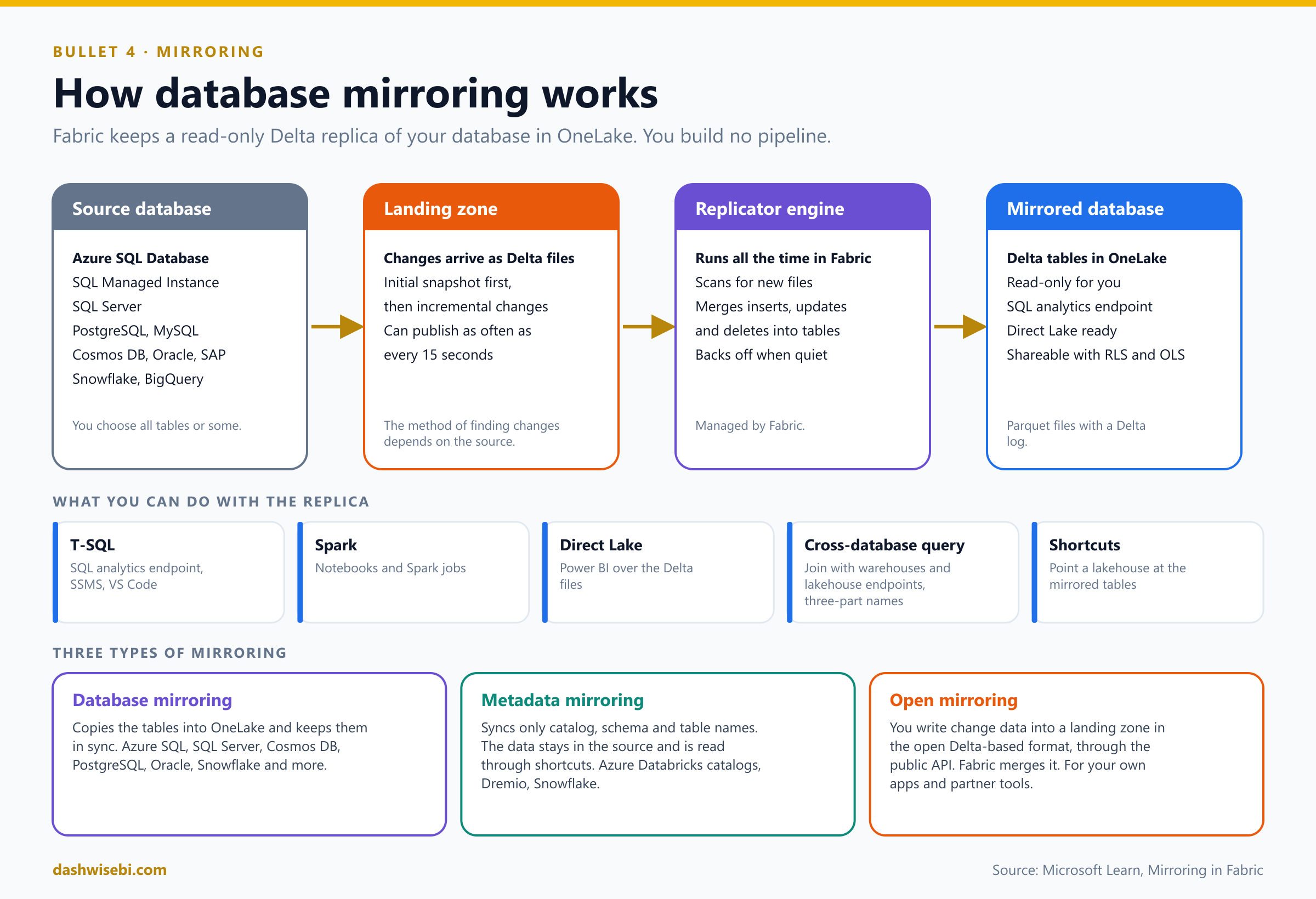
- Database mirroring replicates the tables themselves into OneLake and keeps them in sync.
- Metadata mirroring does not move data. It syncs only metadata (catalog, schema and table names) and uses shortcuts so the data stays in the source. The usual example is an Azure Databricks catalog. Because it relies on shortcuts, it also supports cross-tenant sharing of live data.
- Open mirroring lets any application or partner tool write its own change data into a landing zone in OneLake, using the open Delta-based format and public APIs. Fabric then merges the changes into Delta tables.
How database mirroring works
- The source publishes Delta files to a landing zone in Fabric: first a snapshot, then incremental changes. The way changes are found depends on the source. In SQL Server 2025, for example, the engine scans the transaction log at a high frequency.
- A replicator engine in Fabric runs all the time, looks for new files, and merges the inserts, updates and deletes into the target Delta tables. Changes can be published as often as every 15 seconds. Backoff logic slows the checks when activity is low, so the source is not burdened.
- The tables are ready to use everywhere in Fabric.
How "near real time" it is depends on the regions of the source and destination, the volume and frequency of changes, the network, and (for some sources) the compute on the on-premises data gateway.
What you can mirror
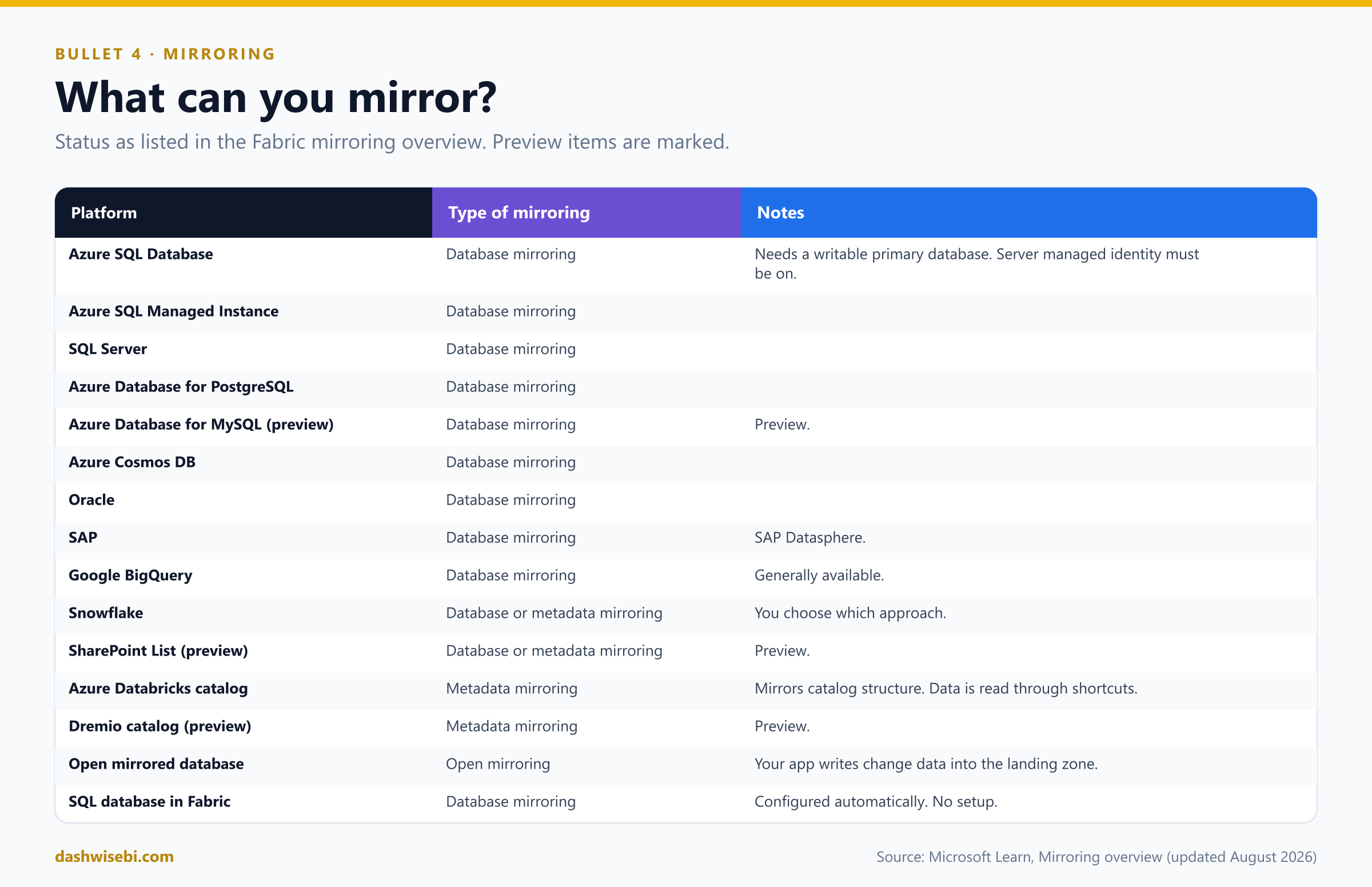
The list grows often. The exam is unlikely to ask you to recite it, but you should know the type for the well-known ones: Azure SQL, SQL Server, Cosmos DB, PostgreSQL and Oracle use database mirroring; Azure Databricks uses metadata mirroring; Snowflake supports both; and your own app uses open mirroring. A SQL database in Fabric is mirrored automatically for analytics, with no setup.
Setting it up (Azure SQL Database)
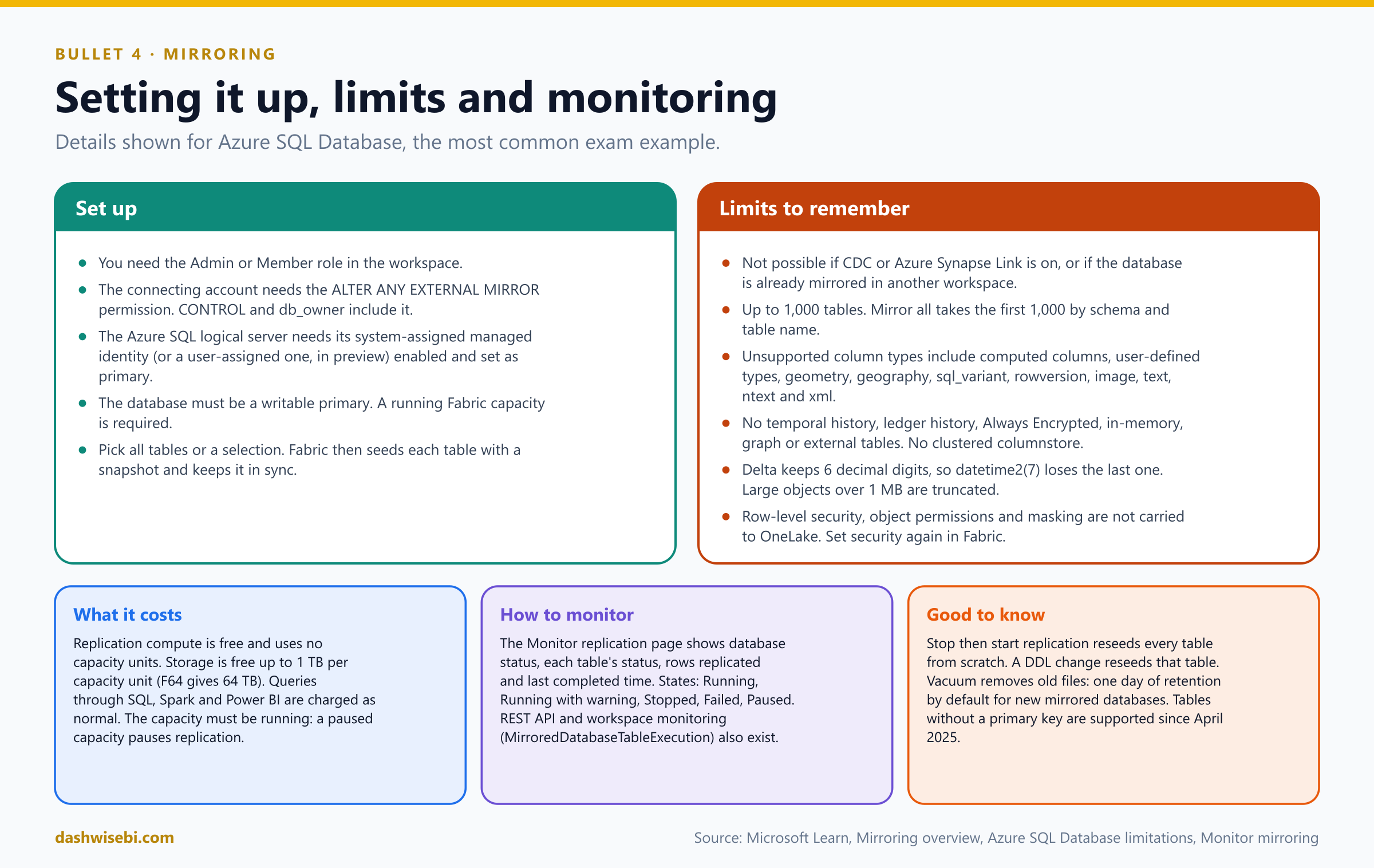
- You need the Admin or Member role in the workspace.
- The account that connects needs the ALTER ANY EXTERNAL MIRROR permission. It is included in higher permissions such as CONTROL and the db_owner role.
- The Azure SQL logical server needs a managed identity (system-assigned, or user-assigned in preview) that is enabled and set as the primary identity.
- The database must be a writable primary, and a Fabric capacity must be running.
-- Run in the source Azure SQL database. The user name is made up for this post.
GRANT ALTER ANY EXTERNAL MIRROR TO [fabric_mirroring_user];
Then in Fabric you create a mirrored database, create or pick a connection to the source, choose Mirror all data or selected tables, and start mirroring. Fabric seeds each table with a snapshot and then keeps it up to date.
Limits and behaviors to know
- A database cannot be mirrored if CDC or Azure Synapse Link for SQL is on, if it is already mirrored in another workspace, or if delayed transaction durability is enabled.
- A maximum of 1,000 tables. With Mirror all data, the first 1,000 tables by schema name and then table name are taken.
- Columns that cannot be mirrored include computed columns, user-defined types, geometry, geography, sql_variant, rowversion and timestamp, image, text, ntext and xml. Tables with json or vector columns cannot be mirrored.
- Tables with temporal history, ledger history, Always Encrypted, in-memory, graph or external tables cannot be mirrored. Clustered columnstore indexes are not supported.
- Delta keeps six decimal digits, so
datetime2(7)loses its seventh digit. Large object columns over 1 MB are truncated to 1 MB. - Tables without a primary key can be mirrored since April 2025.
- Row-level security, object-level permissions and dynamic data masking are not carried over to OneLake. You set up security again in Fabric.
- A DDL change on a mirrored table makes Fabric reseed that table. Stopping mirroring turns it off completely, and starting it again reseeds every table from scratch.
- Mirroring across different Microsoft Entra tenants is not supported.
Cost
For database mirroring and open mirroring, the replication compute is free and does not use your capacity units. Storage for the replica is free up to a limit: one terabyte per capacity unit you buy, so an F64 gives 64 TB of free mirroring storage. You pay for OneLake storage above that limit, or while the capacity is paused. Querying the mirrored data with SQL, Spark or Power BI is charged at the normal rates, and so are direct requests to OneLake. A running capacity is required: a paused or deleted capacity stops replication.
Monitoring and retention
- The Monitor replication page shows the database status and, for each table, its status, the rows replicated (a running total of inserts, updates and deletes applied) and the last completed time.
- Database statuses are Running, Running with warning (transient errors), Stopping or Stopped, Failed (a fatal error that cannot be recovered) and Paused (the capacity was paused and resumed). Table statuses are Running, Running with warning, Stopping or Stopped, and Failed.
- You can also read the status with the REST API or SDK, and enable workspace monitoring to get detailed logs in the
MirroredDatabaseTableExecutiontable of the monitoring KQL database. - Mirroring runs vacuum to remove old files. The default retention is one day for mirrored databases created in the portal after mid-June 2025, and seven days for older ones. Set it in Settings, Delta table management, or with the
retentionInDaysproperty. A longer retention allows Delta time travel but uses more storage.
Using a mirrored database
Once the data is in OneLake you can: query it with T-SQL on the SQL analytics endpoint; run cross-database queries that join a mirrored database, a warehouse and lakehouse endpoints, using three-part names; read it with Spark in notebooks; build a Direct Lake semantic model for fast, near real-time reports; point shortcuts at it; and share it with other people, which also gives them the SQL analytics endpoint, with row-level and object-level security available. Cross-tenant sharing creates a read-only shortcut in the consumer's tenant.
-- Cross-database query: three-part names across a mirrored database and a warehouse
SELECT s.OrderId, s.Amount, a.AffiliationName
FROM   ContosoWarehouse.dbo.ContosoSalesTable AS s
JOIN   MirroredSalesDb.dbo.Affiliation        AS a
       ON a.AffiliationId = s.RecordTypeID;
Mirroring versus the other options
- Versus a shortcut: mirroring gives you a real copy in OneLake, so heavy analytics never touch the operational database. A shortcut reads the source every time.
- Versus a pipeline: mirroring is free, has no schedule to manage and handles changes for you, but you cannot transform the data, choose the destination or the load behavior, or add other steps. The destination is always a read-only mirrored database.
3. Ingest data by using pipelines
Pipelines and the Copy activity
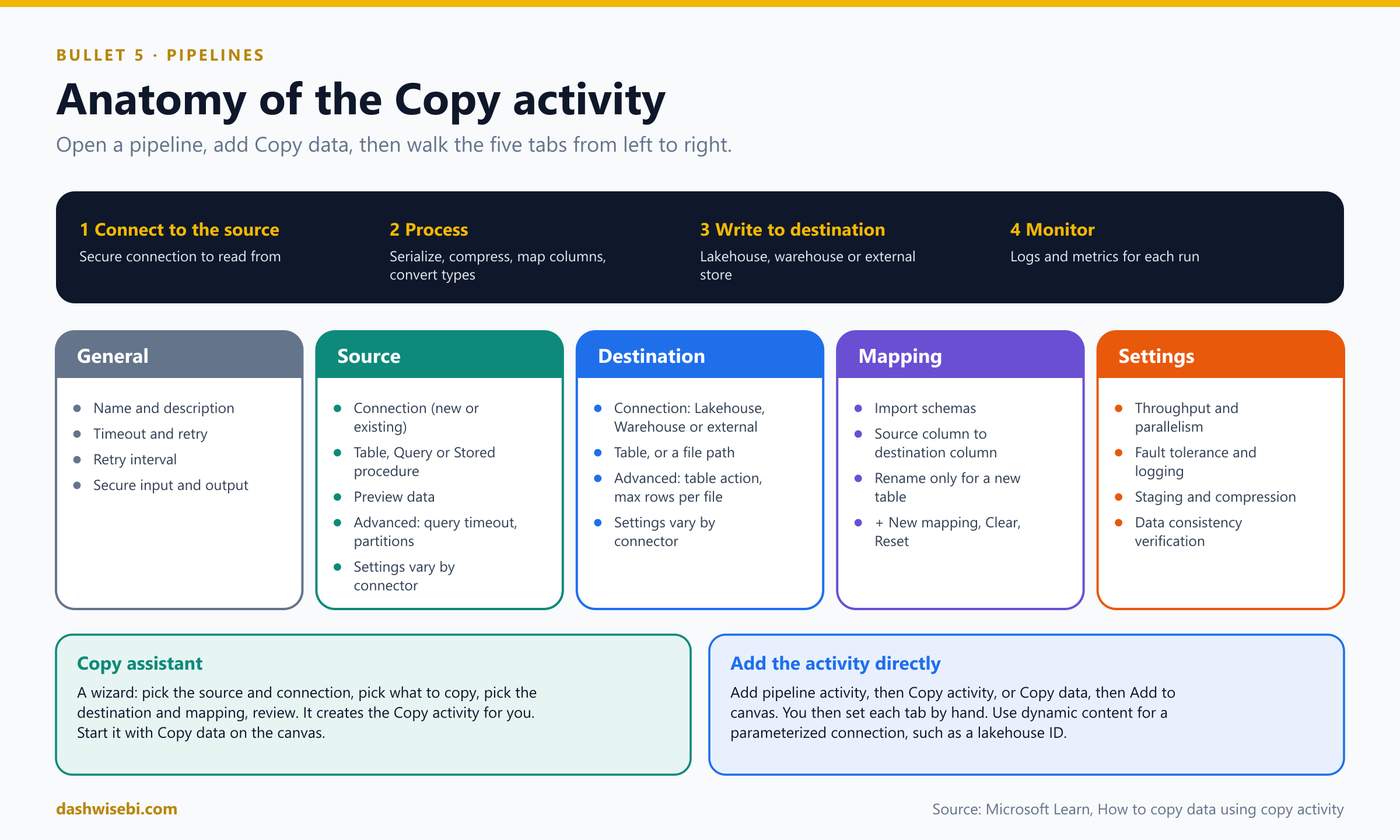
A pipeline in Fabric Data Factory orchestrates activities. Its main data-movement tool is the Copy activity, which moves data between stores, mostly in the cloud. In Episode 4 we focused on the orchestration around it. Here we look at the copy itself. When you run a Copy activity, the service does four things: it connects to the source, processes the data (serializing, compressing, mapping columns and converting types), writes to the destination, and records logs and metrics you can monitor.
If you need only to copy and do not need transformations or a larger pipeline, a Copy job may be better. We will compare them in a moment.
Two ways to add a Copy activity
- Copy assistant. Select Copy data on the canvas (or Use copy assistant from the Copy data list on the Activities tab). A wizard asks for the source and its connection, what to copy, the destination and the mapping, then a review. It then adds a configured Copy activity to the canvas.
- Add it directly. Choose Add pipeline activity, then Copy activity, or Copy data, then Add to canvas. Then you set each tab yourself.
The five tabs
- General: name, description, timeout, retry settings and secure input and output.
- Source: pick a connection (new or existing, with Test connection and Edit). For a database you give a table, or a Query or a Stored procedure. Preview data shows what you will read. Advanced settings, such as query timeout and partitioning, depend on the connector.
- Destination: pick the connection, which can be a Fabric store in your workspace such as a lakehouse, or an external store. Then set a table, or a file path. Advanced settings, such as table action and maximum rows per file, depend on the connector.
- Mapping: Import schemas to get the columns, then map source columns to destination columns. If the copy creates a new table you can rename the destination columns. If you write to an existing table you cannot. You can also add a new mapping, clear all mappings, or reset them.
- Settings: performance, fault tolerance, logging, staging and more (next).
The Settings tab
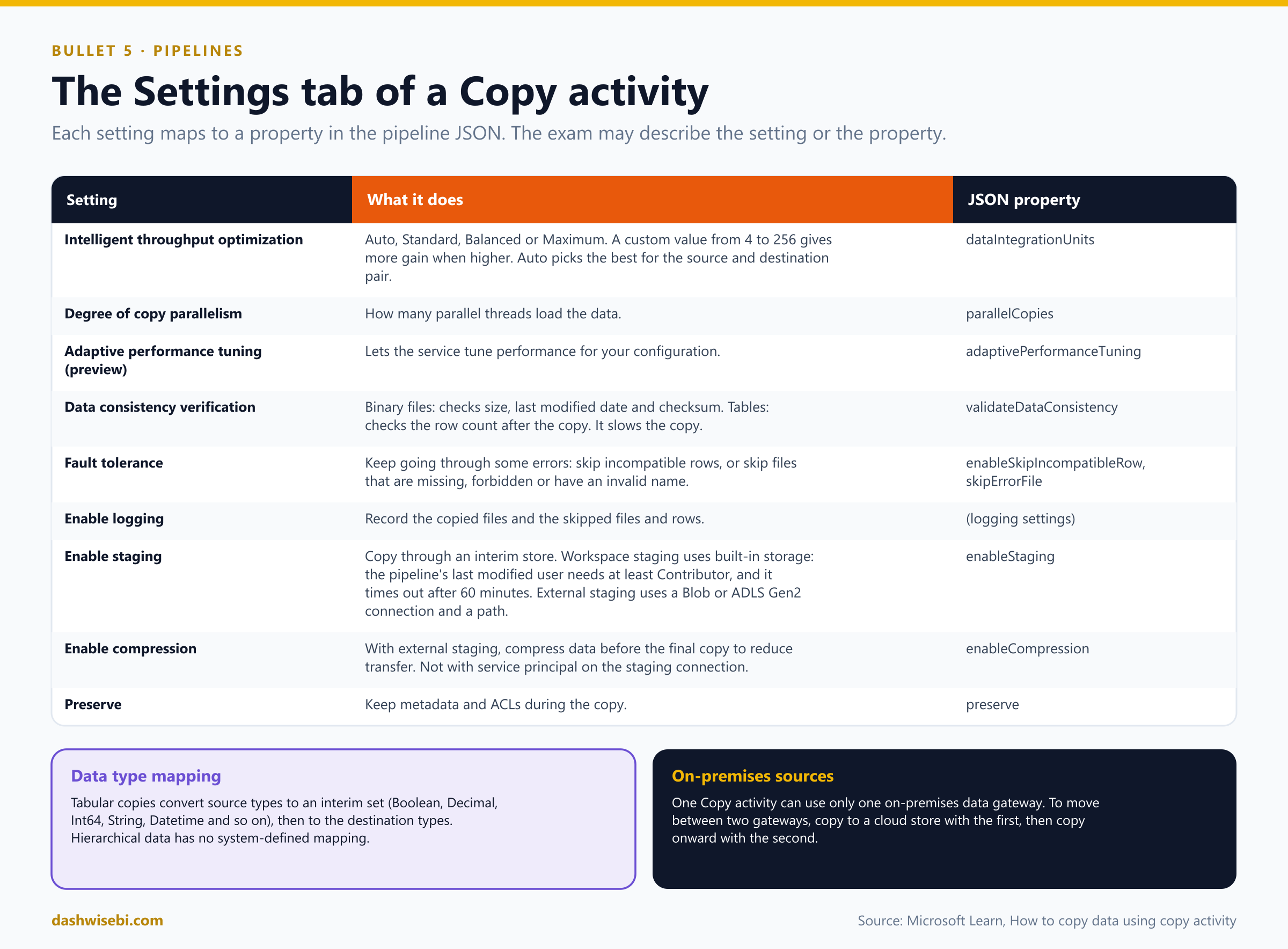
- Intelligent throughput optimization chooses how much compute the copy uses: Auto, Standard, Balanced or Maximum, or a custom value from 4 to 256 where a higher value means more gain. Auto adapts to the source and destination pair and the shape of the data. It maps to
dataIntegrationUnits. - Degree of copy parallelism sets how many parallel threads load the data (
parallelCopies). - Data consistency verification (
validateDataConsistency) checks a binary-file copy by file size, last modified date and checksum. For tabular data it checks that the rows read equal the rows copied plus any incompatible rows you chose to skip. It costs performance. - Fault tolerance lets the copy carry on through some errors: skip incompatible rows, or skip files that went missing, are forbidden or have an invalid name. Enable logging records which files and rows were skipped.
- Enable staging copies through an interim store. With Workspace staging, the pipeline's last modified user needs at least the Contributor role, and it times out after 60 minutes, so for long-running jobs use External staging with an Azure Blob Storage or ADLS Gen2 connection. With external staging you can also enable compression, but not when the staging connection uses a service principal. Turn staging on only where it helps.
- Preserve keeps metadata and ACLs during the copy.
"typeProperties": {            // trimmed: the Settings tab shows up as properties
  "dataIntegrationUnits": 16,
  "parallelCopies": 8,
  "validateDataConsistency": true,
  "enableSkipIncompatibleRow": true,
  "enableStaging": false
}
Data type mapping
For tabular data, the copy first converts source types to an interim set used by Data Factory (Boolean, Byte, Byte array, Datetime, DatetimeOffset, Decimal, Double, GUID, Int16, Int32, Int64, String, Timespan and so on), then converts them to the destination's native types. Hierarchical sources and destinations, such as JSON documents, have no system-defined type conversion.
Parameters and dynamic content
You can parameterize almost anything in a Copy activity. In the Connection list choose Use dynamic content, add a pipeline parameter, and give it the connection ID of a lakehouse or warehouse. The lakehouse ID appears in the URL after /lakehouses/. This is how one pipeline serves many tables or environments.
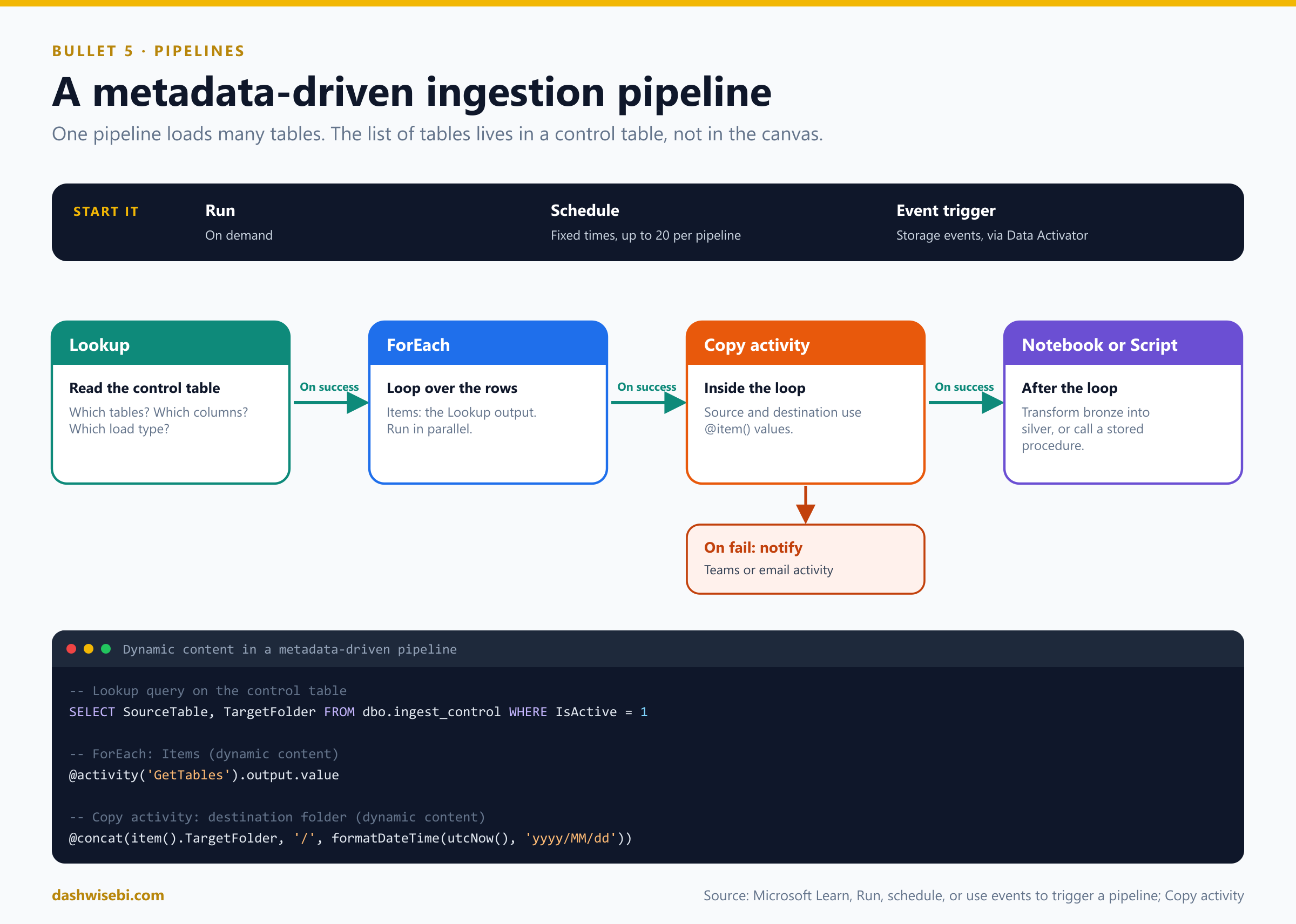
The common design for ingesting many tables is metadata-driven: a Lookup reads a control table that lists what to load, a ForEach loops over the rows, and a Copy activity inside the loop uses @item() values for the source table and destination folder. After the loop, a notebook or a script activity transforms the data. A failure path sends a notification. The control table drives the work, so adding a table means adding a row, not editing the pipeline.
Starting a pipeline
- On demand. Select Run. You are prompted to save first. Progress shows in the Output tab, and each finished activity gets a green check.
- Schedule. Set a start and end date, a frequency and a time zone. There is no open-ended schedule, so use a far-future end date. You can add up to 20 schedules to one pipeline, pass parameter values from the schedule (the names must match the pipeline's parameters), and set email failure notifications for scheduled runs. They are not sent for on-demand runs. Interval-based schedules are in preview.
- Event trigger. Start a pipeline when a file is created or deleted in storage, using Data Activator and an eventstream behind the scenes. The trigger passes the file and folder name to the pipeline:
@pipeline()?.TriggerEvent?.FileName. The?matters, because the value is empty when you test by hand. - Run conditions (preview) let a run wait for upstream runs, required data or time windows before its activities begin.
Copy activity or Copy job?
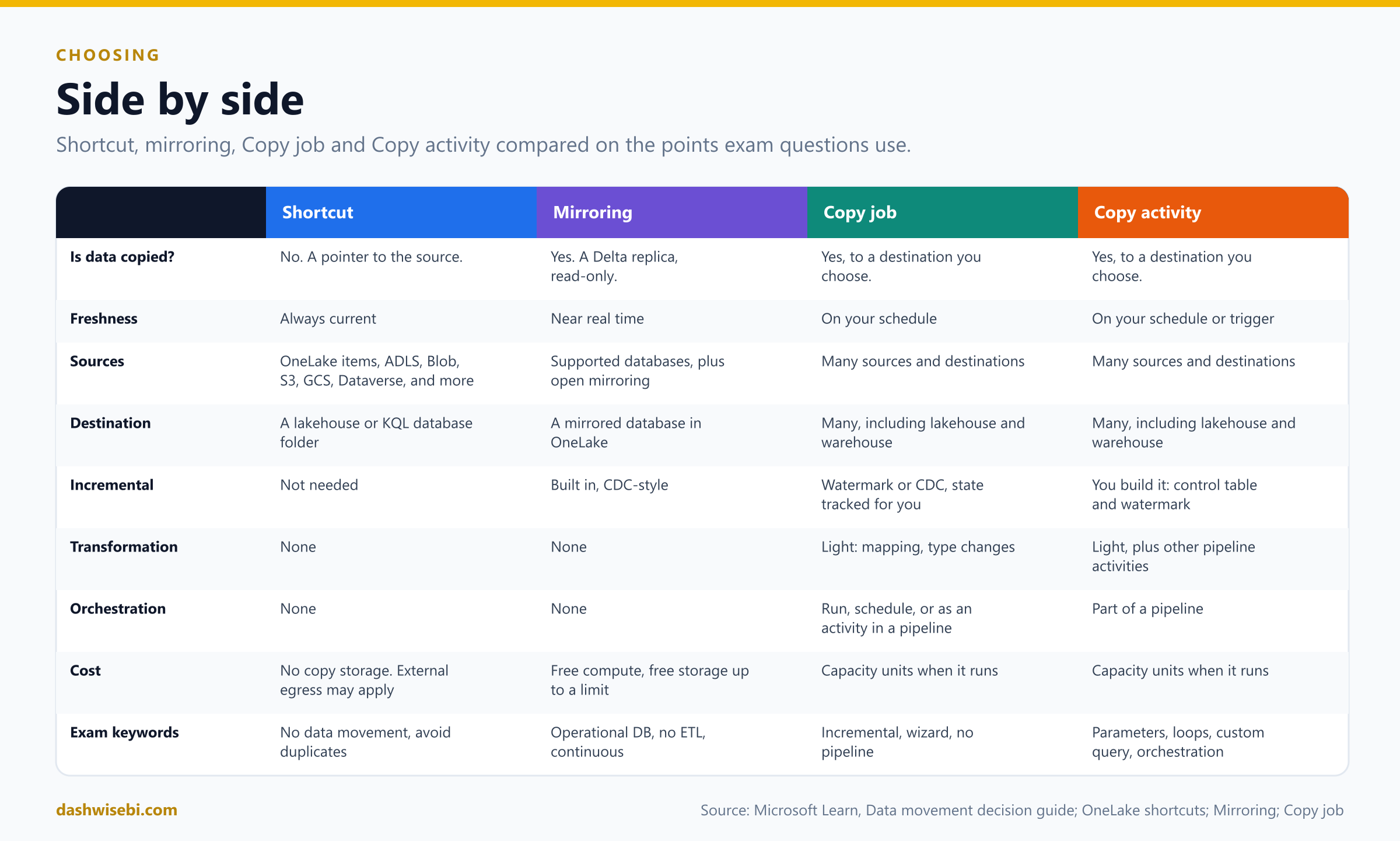
Both do the copying, and both use the same type mapping. The difference is how much you build.
- A Copy job is a standalone item for moving data without building a pipeline. It supports full copy, incremental copy (watermark or CDC) and CDC replication. It tracks the state of the last successful run for you, can append, merge, overwrite or keep history with SCD Type 2, can create tables, and can truncate the destination before a full load. If it fails it resumes from the end of the last good run.
- A Copy activity sits inside a pipeline. It is fully customizable and supports parameters, metadata-driven designs and user-defined queries, and it fits into orchestration with dependencies and error handling. But you track the state for incremental loads, as we saw with the watermark pipeline in Episode 5.
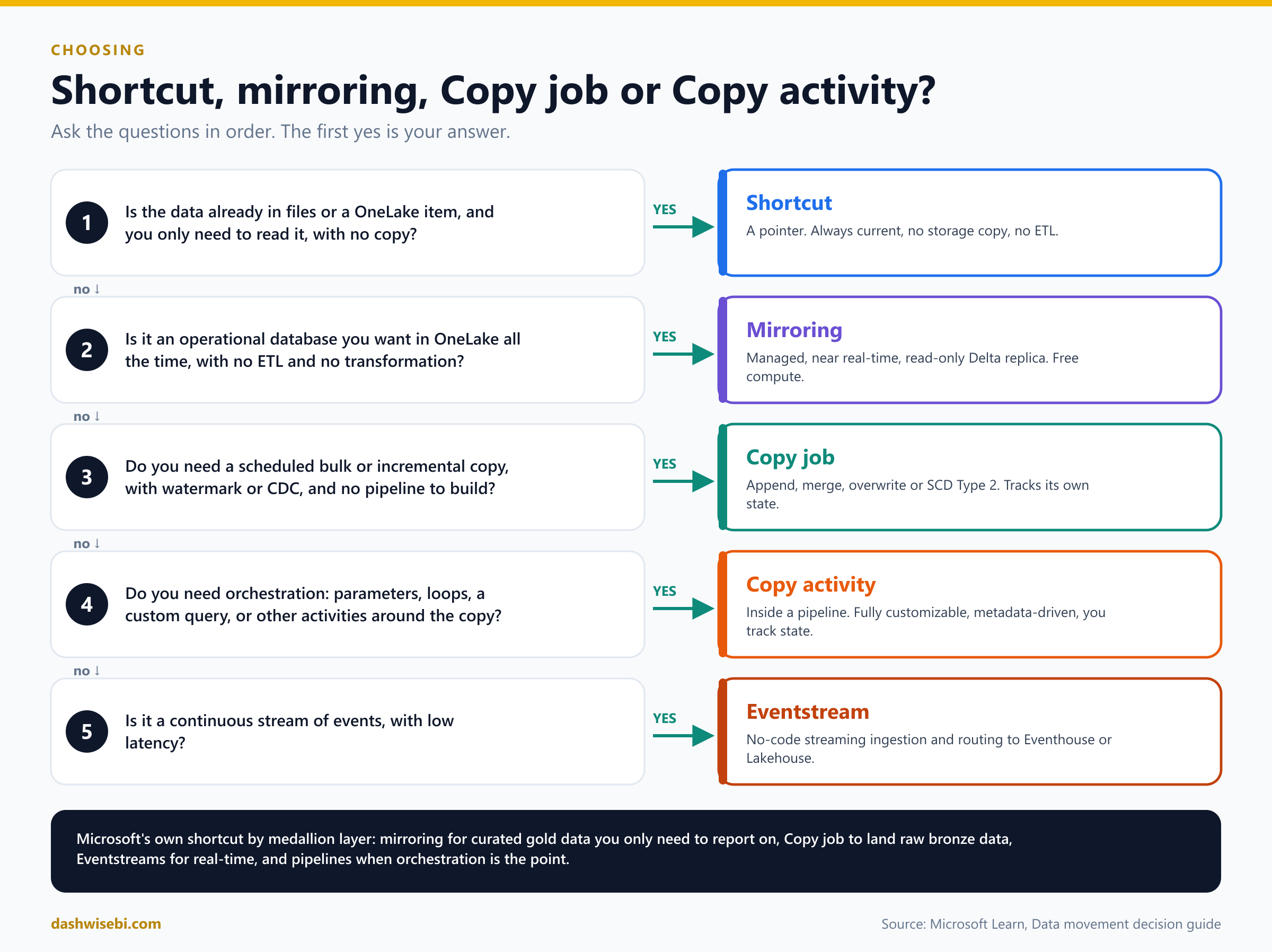
Microsoft's guidance by medallion layer is a handy summary: for curated gold data that you just need to report on, use mirroring; for raw bronze ingestion where you soon need mapping, scheduling and incremental loading, start with a Copy job; for real-time events use an eventstream; and when you need complex orchestration, use pipelines with Copy activities.
Choosing the right option
Ask the questions in order. The first yes is your answer.
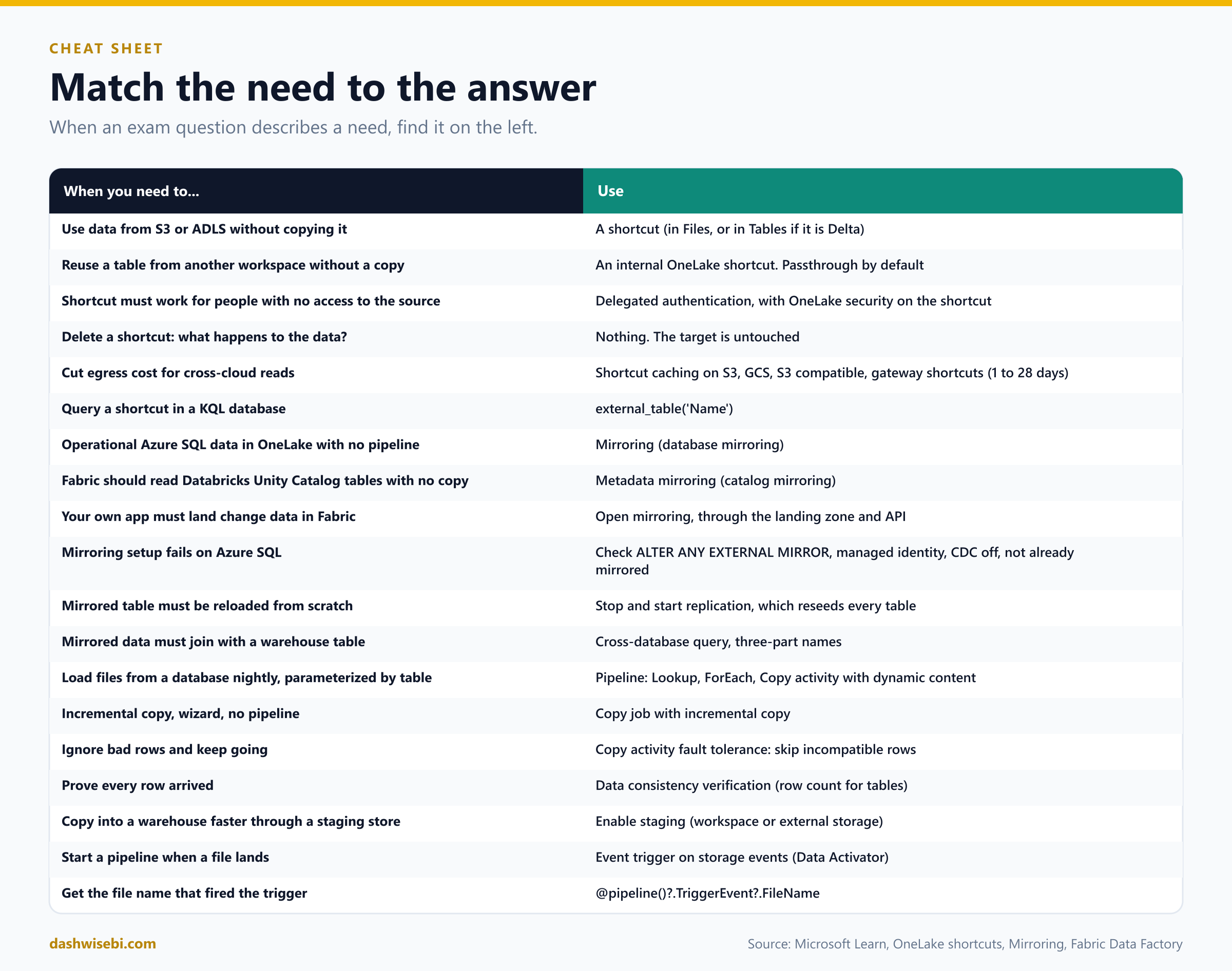
When an exam question describes a need, find it on the left and pick the answer on the right.
Common mix-ups
- "A shortcut copies the data into the lakehouse." It copies nothing. It is a pointer, and every read goes to the source.
- "Deleting a shortcut deletes the source data." It does not. But deleting a file inside the shortcut deletes it in the target if you have permission.
- "You can create a shortcut in a subfolder of Tables." Only at the top level. Use Files if you need depth.
- "You can create shortcuts in a warehouse." A warehouse can be a target, but shortcuts are created in lakehouses and KQL databases.
- "A shortcut named with a space still shows up as a table." It does not. Delta does not allow spaces.
- "External shortcuts pass the user's identity to S3." External shortcuts always use delegated authentication, with a connection.
- "Direct Lake over SQL passes each user's identity to the shortcut target." It uses the item owner's identity. OneLake security roles still filter the caller.
- "OneLake security roles limit workspace Admins and Contributors." They do not. Those roles still need access on both paths.
- "Shortcut caching works for every source." It supports S3, S3-compatible, Google Cloud Storage and gateway shortcuts. Files over 1 GB are not cached.
- "Mirroring is a pipeline you schedule." It is a managed, continuous replication with no schedule.
- "Mirroring lets you transform data on the way in." It does not. It is a faithful, read-only copy.
- "You can write to a mirrored database." It is read-only. The exception is open mirroring, where your app writes change data into the landing zone.
- "Mirroring works with CDC turned on." An Azure SQL database with CDC (or Azure Synapse Link) enabled cannot be mirrored.
- "Mirroring costs capacity units for the replication." The replication compute is free. Querying costs capacity as normal, and the capacity must be running.
- "Row-level security on the source follows the data into OneLake." It does not. Set it up again in Fabric.
- "Restarting mirroring resumes where it stopped." Stopping and starting reseeds all the tables.
- "Metadata mirroring copies the Databricks tables." It syncs catalog metadata and reads the data in place through shortcuts.
- "A Copy activity remembers the last watermark." It does not. You track state yourself. A Copy job tracks it for you.
- "Workspace staging works for any job length." It times out after 60 minutes. Use external storage for long jobs.
- "Data consistency verification is free." It checks files or row counts and slows the copy.
- "A pipeline schedule can run forever with no end date." It needs an end date. Use one far in the future.
- "Failure notifications also cover on-demand runs." They apply to scheduled runs only.
Try these scenarios
Eight exam-style questions. Cover the answers and test yourself.
1. Raw files in S3, and a big egress bill
A team stores raw clickstream files in Amazon S3. Data engineers read them from Fabric notebooks every day, and the cross-cloud transfer cost is growing. They do not want to copy the data. What do you do?
Answer: Create an S3 shortcut in the lakehouse Files folder, and turn on shortcut caching in the workspace OneLake settings, with a retention period that matches how often the files are re-read (1 to 28 days). Files over 1 GB are not cached.
2. The dimension table in another workspace
Analysts need a customer dimension that lives in a lakehouse in another workspace. Nobody wants a second copy, and each analyst must see only what they are allowed to see in the source. What do you build?
Answer: A same-tenant internal OneLake shortcut with passthrough authentication (the default). The caller's identity is used at the target, and the most restrictive permission applies.
3. The report that shows too much
A Power BI semantic model in Direct Lake over SQL reads a shortcut. Users who have no access to the target can still see its data. Why, and how do you fix it?
Answer: Direct Lake over SQL uses the item owner's identity to reach the target, not the caller's. Use Direct Lake over OneLake (or T-SQL in user identity mode) so the caller's identity is passed through, and use OneLake security roles to filter what each user sees.
4. Mirroring will not start
You try to mirror an Azure SQL database and the setup refuses it. The account has the right permission and the server identity is on. What do you check?
Answer: Whether CDC or Azure Synapse Link for SQL is enabled on the database, whether it is already mirrored in another workspace, and whether delayed transaction durability is on. Any of these blocks mirroring. If you need CDC, use a Copy job or a pipeline instead.
5. Dashboards without touching production
Executives want near real-time dashboards on an Azure SQL operational database. The DBA will not allow reporting queries on the production server, and nobody wants to build ETL. What is the simplest design?
Answer: Mirror the database into Fabric, then build a Direct Lake semantic model over the mirrored tables. Replication compute and storage (up to the limit) are free, and queries run against the replica, not production.
6. One hundred and twenty tables, every night
You must load 120 tables from an on-premises database into a lakehouse each night. Each table goes to its own folder, and the list changes often. How do you build it without 120 Copy activities?
Answer: A metadata-driven pipeline: a Lookup reads a control table, a ForEach loops over it, and one Copy activity uses @item() values in dynamic content for the source and destination. Add a schedule. The on-premises source needs a data gateway, and one Copy activity can use only one gateway.
7. Skip the bad rows, but prove the counts
A copy occasionally fails on a few rows that cannot be converted. The business wants the job to finish, and wants to be sure nothing else was lost. Which settings do you use?
Answer: Fault tolerance (skip incompatible rows) with Enable logging to record what was skipped, plus data consistency verification. For tables it checks that rows read equal rows copied plus rows skipped.
8. Databricks tables, no copy
Your company keeps its governed tables in Azure Databricks Unity Catalog. Fabric users should see them in OneLake without copying anything. What do you set up?
Answer: Metadata mirroring of the Azure Databricks catalog. Fabric mirrors the catalog structure, and the data is read in place through shortcuts.
Where to go next
- In a trial workspace, create a lakehouse and add two shortcuts: one to a table in another lakehouse (Tables) and one to a folder in Azure Blob Storage or S3 (Files). Read both from a notebook, the SQL analytics endpoint and, if you have an Eventhouse, as an external table.
- Mirror a small Azure SQL database. Watch the Monitor replication page, change a row, and see how fast it arrives. Then stop and start mirroring and notice the reseed.
- Build the metadata-driven pipeline from the diagram with three tables, then add a schedule and a storage event trigger on a folder.
- Turn on fault tolerance and data consistency verification in a Copy activity and run it on a file with a few bad rows.
- Read the sources behind this post: DP-700 study guide, OneLake shortcuts, Secure and manage OneLake shortcuts, Create a same-tenant OneLake shortcut, Mirroring, Limitations for mirrored databases from Azure SQL Database, Monitor mirrored database replication, How to copy data using the copy activity, What is Copy job, Run, schedule, or use events to trigger a pipeline, Comparing Copy job, mirroring, copy activity and eventstreams and Fabric decision guide: copy activity, dataflow, Eventstream or Spark.
Keep reading
DP-700 Episode 9: Resolving Errors II & Optimization I
DP-700 study guide: fix Eventstream, T-SQL and OneLake shortcut errors, then tune Lakehouse tables and pipeline Copy activities in Microsoft Fabric.
DP-700 Episode 4: Orchestrate Processes
DP-700 study guide to orchestration in Fabric: Dataflow Gen2 vs pipeline vs notebook, schedules, event triggers, parameters, expressions and notebook patterns.