DP-700: Fabric Overview & Workspace Settings

PowerBI consultant ·
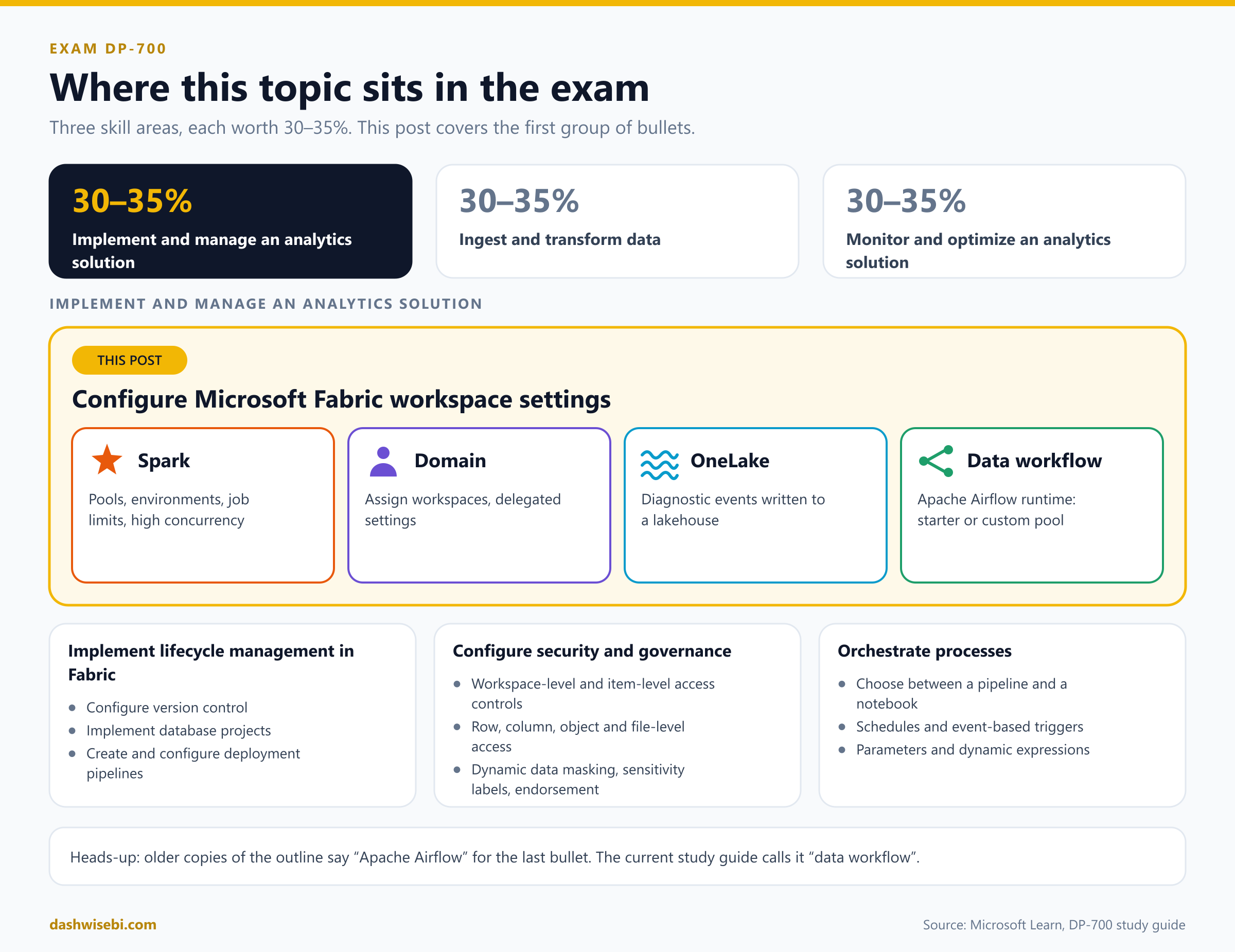
The DP-700 exam (Microsoft Certified: Fabric Data Engineer Associate) gives you 100 minutes and needs a score of 700 to pass. A third of it, 30 to 35 percent, sits in one skill area: Implement and manage an analytics solution. Its first group of bullets is about workspace settings, and that is what this post covers.
The four bullets in the study guide are:
Configure Spark workspace settings
Configure domain workspace settings
Configure OneLake workspace settings
Configure data workflow workspace settings
One thing to know before you start: older copies of the outline call the last bullet "Apache Airflow workspace settings". The current study guide says "data workflow". They are the same thing. In Fabric, the data workflow settings are the runtime settings for Apache Airflow jobs, so this post covers it under both names.
If you are new to Fabric, read Fabric Overview, Domains, Workspaces & OneLake first. It covers the building blocks this post takes for granted.
Fabric overview: why settings live at several levels
Fabric is one SaaS platform. A capacity provides the compute, a workspace holds your items and runs on a capacity, and OneLake stores the data. A tenant has many workspaces, often grouped into domains.
Because of that, no single place controls everything. A setting can be owned by the tenant, a capacity, a domain, a workspace, or an item, and a lot of exam questions are really asking "who can change this?"
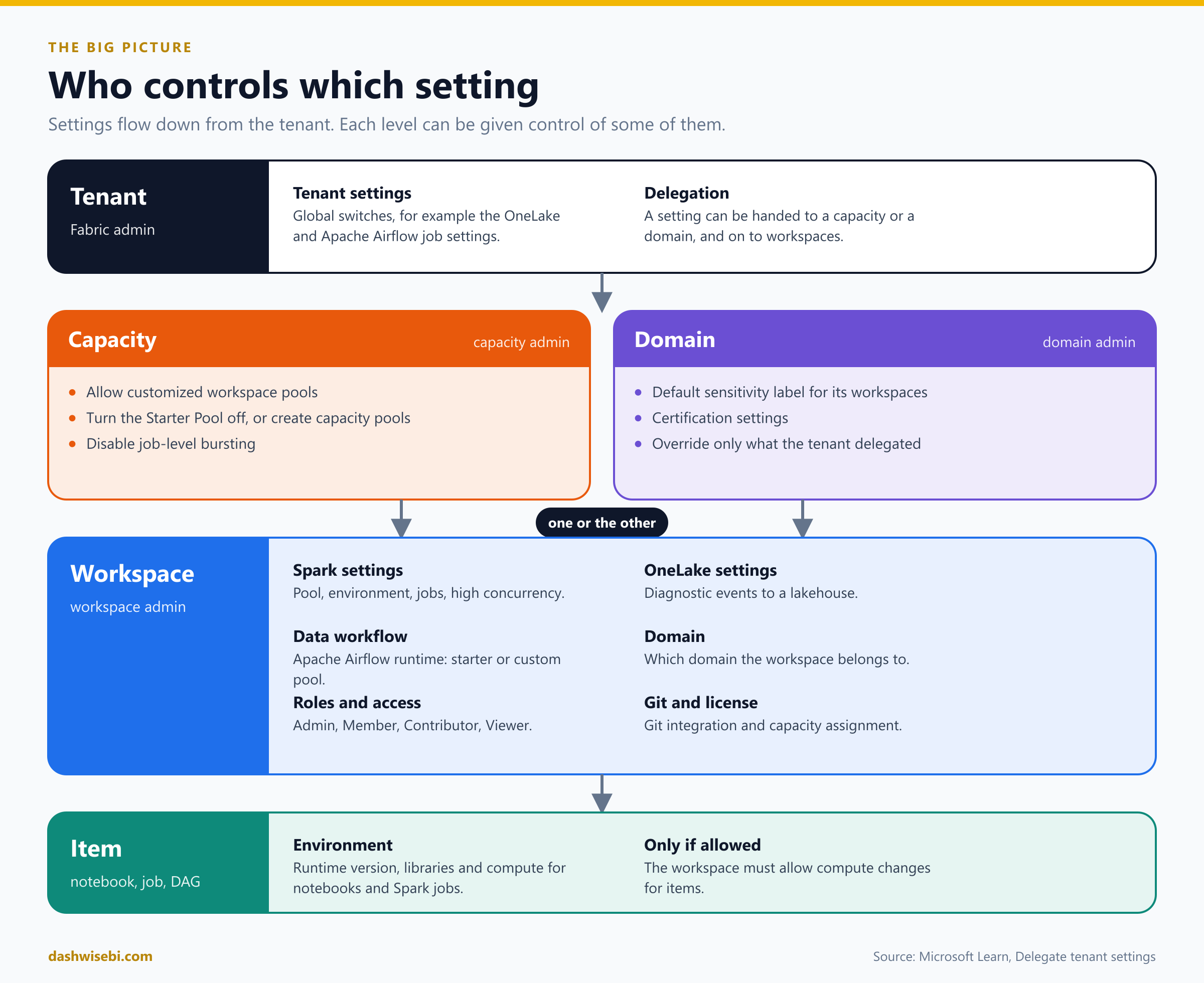
The rules of delegation are worth memorising:
Tenant settings are global and controlled by Fabric admins.
A tenant setting can be delegated to a capacity or to a domain, but not both. That keeps it clear who is in charge.
From there, certain settings can be delegated further, to workspaces. Tenant admins can also delegate straight to workspaces, skipping the middle layer.
Domain, capacity and workspace admins can override a setting, and the override only affects what sits below them.
Everything in the rest of this post is a setting that a workspace admin controls, plus the capacity or tenant switches that decide whether they are allowed to.
1. Configure Spark workspace settings
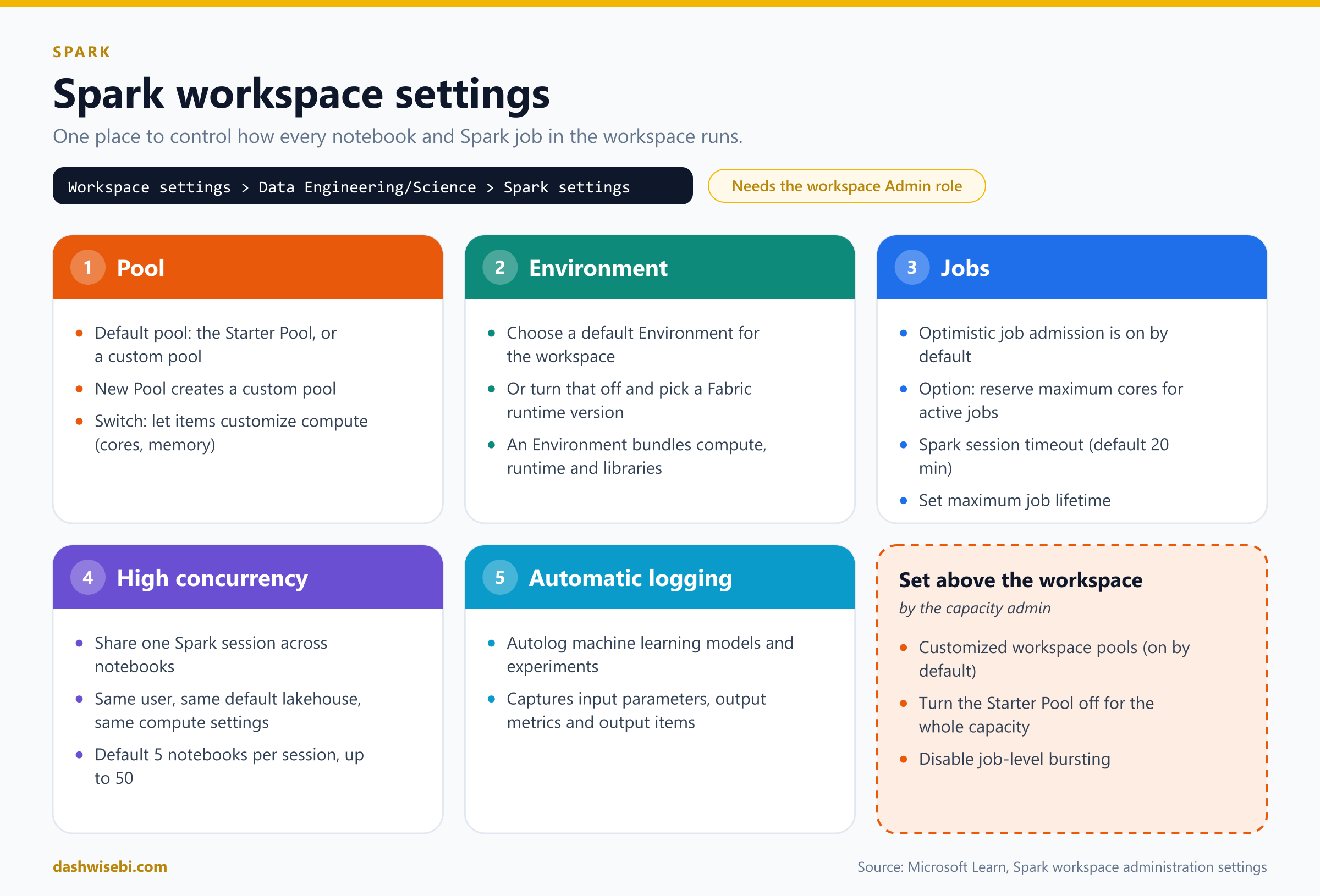
Every notebook and Spark job in a workspace runs under its Spark settings. You find them in Workspace settings, then Data Engineering/Science, then Spark settings, and you need the workspace Admin role to change them.
The Pool tab: starter pool or custom pool
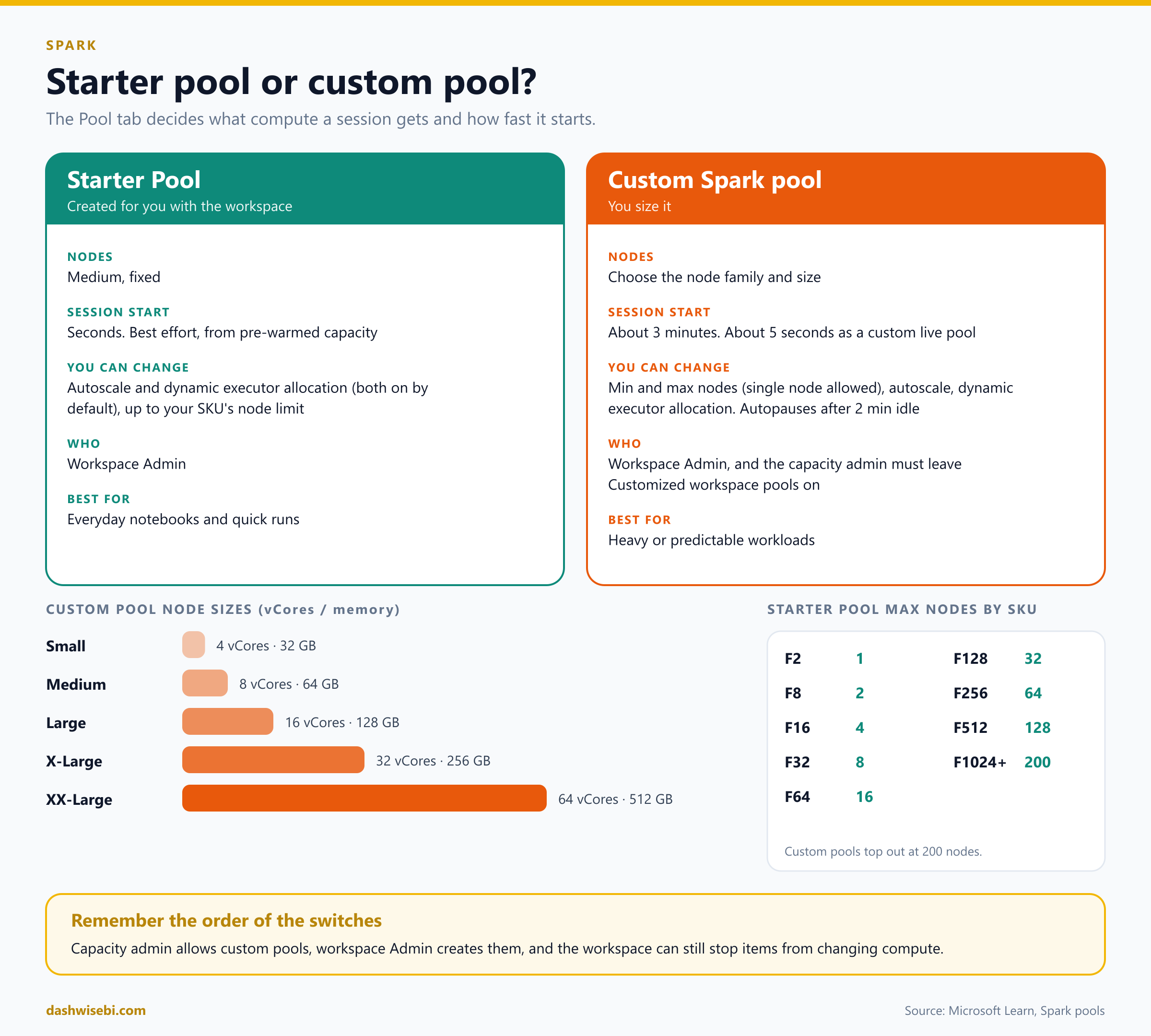
When you create a workspace, Fabric creates a starter pool for it. It uses Medium nodes and comes from pre-warmed capacity, so sessions typically start in seconds. That is a best-effort optimisation: if no pre-warmed capacity is free, Fabric falls back to on-demand capacity, which takes longer.
When you need more control, you create a custom Spark pool with New Pool. You choose the node family and size, set minimum and maximum nodes, and turn autoscale and dynamic executor allocation on or off. A minimum of one node gives you a single-node pool, where the driver and executor share a node.
The facts the exam likes:
Creating a custom pool needs the workspace Admin role and the capacity admin must leave Customized workspace pools switched on in the capacity's Spark Compute settings. It is on by default.
Node sizes are Small (4 vCores, 32 GB), Medium (8, 64), Large (16, 128), X-Large (32, 256) and XX-Large (64, 512).
A custom pool takes about three minutes to start. Configured as a custom live pool with an environment that uses Full publishing mode, it starts in about five seconds.
Custom pools autopause after two minutes of inactivity and support up to 200 nodes.
The starter pool's maximum node count depends on the capacity SKU: 1 on an F2, 8 on an F32, 16 on an F64, 32 on an F128, and 200 from an F1024 up.
The capacity admin has two more levers. They can disable the starter pool for every workspace on the capacity, so people must use the custom pools the capacity admin creates. They can also switch off job-level bursting. Fabric allows a Spark job to burst to three times the base cores, so an F64 job could use 384 Spark VCores. With bursting disabled it is capped at 128, which leaves room for other users.
On the workspace's Pool tab there is also a switch to customize compute configuration for items. If a workspace admin turns it off, every environment in the workspace uses the default pool and its compute configuration, and individual notebooks cannot ask for different cores or memory.
The Environment tab
An Environment bundles the compute properties, the Fabric runtime version and the libraries that a notebook or Spark job needs. On this tab you pick a default Environment for the workspace. If you turn the default off, you pick a runtime version directly from a list.
When you publish an Environment, there are two modes. Quick publishes in about five seconds and installs libraries when the session starts. Full takes three to six minutes to publish and deploys the libraries as part of session startup, which takes one to three minutes. Full is the one you need for a custom live pool.
The Jobs tab
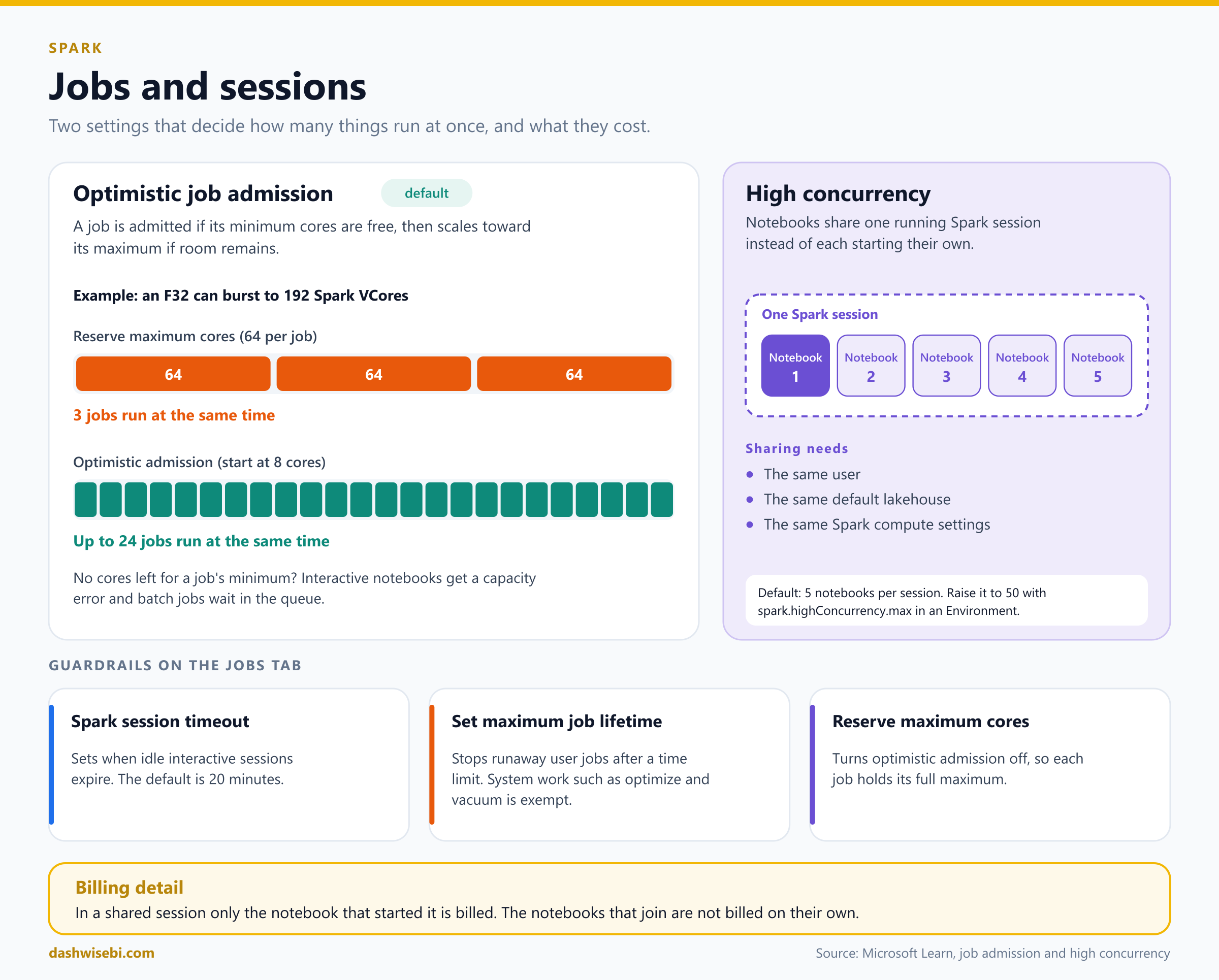
Every workspace uses optimistic job admission by default. A job is admitted if the cores for its minimum node count are free, then scales toward its maximum while room remains. Compare that with reserving maximum cores: on an F32, which can burst to 192 Spark VCores, three jobs that each reserve 64 cores fill the capacity, while optimistic admission lets up to 24 jobs start with 8 cores each.
If there are no cores left for a job's minimum, interactive notebooks and lakehouse operations get a capacity error, and batch jobs wait in a queue. The option Reserve maximum cores for active Spark jobs turns optimistic admission off.
The Jobs tab has two guardrails:
Spark session timeout sets when idle interactive sessions expire. The default is 20 minutes.
Set maximum job lifetime stops runaway jobs. When a user-submitted job passes the limit, Fabric cancels it. That covers notebook runs, Spark job definitions and Livy sessions. System-managed work, such as lakehouse table maintenance (optimize and vacuum) and materialized lake view refreshes, is not affected.
The High concurrency tab
Normally each notebook, and each notebook activity in a pipeline, starts its own Spark session. In high concurrency mode they share one. Each workload gets its own REPL core, so variables in one notebook do not overwrite another's, and later notebooks start much faster because the session is already running.
Sessions are only shared when three things match: the same user, the same default lakehouse and the same Spark compute settings. The default limit is five notebooks per session. You can raise it up to 50 by setting spark.highConcurrency.max in the Spark properties of an Environment. On the billing side, only the notebook that started the shared session is billed.
Automatic logging
The last tab turns on autologging for machine learning models and experiments (MLflow). It captures input parameters, output metrics and output items while a model trains.
2. Configure domain workspace settings
A domain groups workspaces by business area. When a workspace belongs to a domain, every item in it gets a domain attribute in its metadata. That helps people find content, because the OneLake catalog can be filtered by domain, and it lets some governance settings be handled by each business area. If you want the full picture of the domain roles, see the earlier post.
Three ways a workspace gets its domain
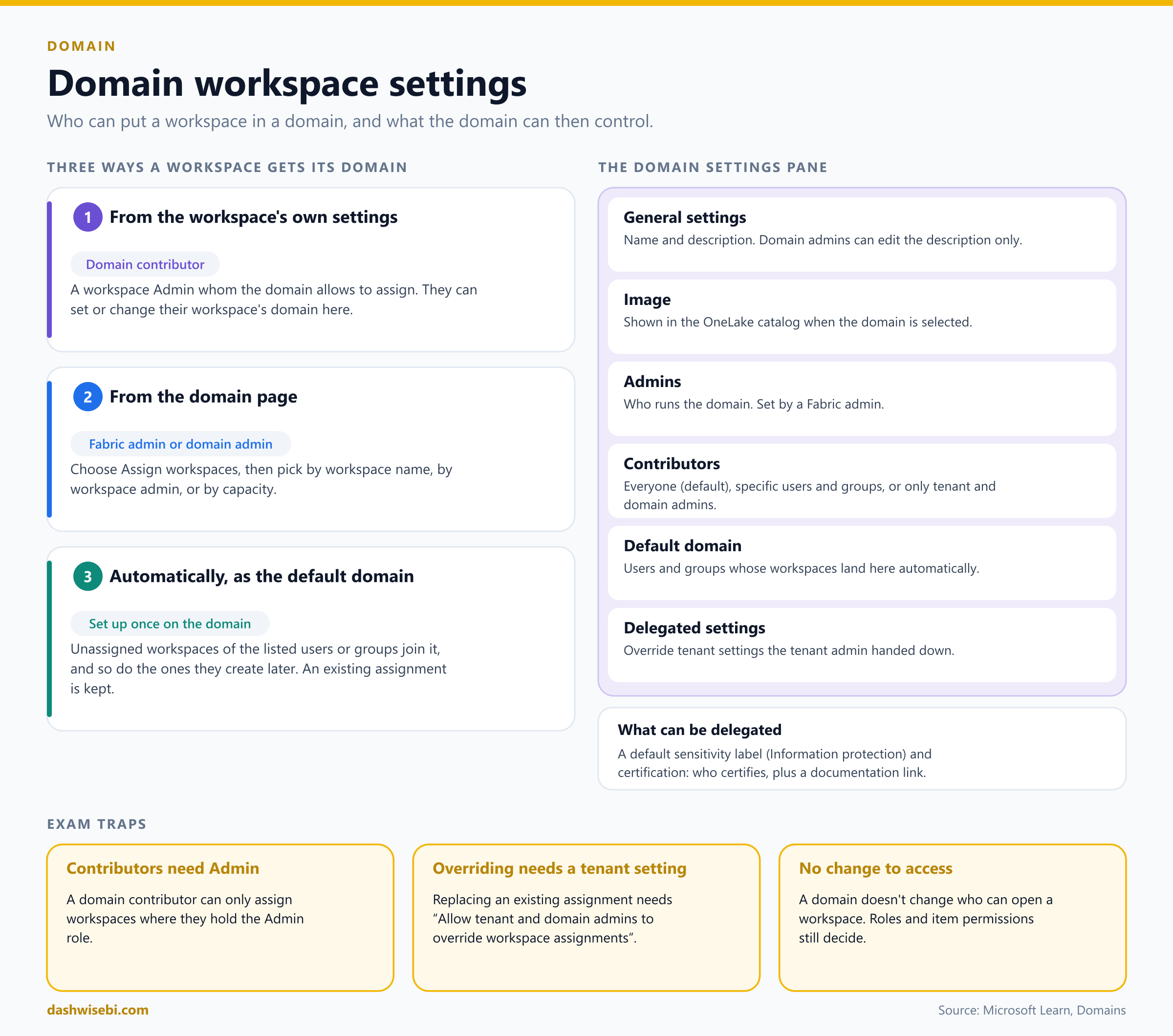
From the workspace's own settings. A domain contributor assigns the workspaces they administer. A domain contributor is a workspace admin that the domain allows to do this, so they must hold the Admin role in the workspace.
From the domain page. A Fabric admin or domain admin selects Assign workspaces and picks by workspace name, by workspace admin (users or security groups) or by capacity. The last two affect existing workspaces only, not ones created later. "My workspaces" are excluded.
Automatically, with a default domain. You list users or security groups on the domain. Their unassigned workspaces join it, and so do new workspaces they create. If a workspace already has a domain, that assignment is kept.
Replacing an existing assignment from the domain page only works if the tenant setting Allow tenant and domain admins to override workspace assignments (preview) is on.
The domain settings pane
On a domain, Domain settings has six tabs:
General settings: the name and description. Domain admins can edit the description only.
Image: shown in the OneLake catalog when the domain is selected.
Admins: who runs the domain. Only a Fabric admin sets this.
Contributors: who may assign workspaces. The options are everyone in the organisation (the default), specific users and groups, or only tenant admins and the domain's admins.
Default domain: the users and groups whose workspaces land here automatically.
Delegated settings: tenant settings the domain is allowed to override.
Two settings can be delegated to a domain. The first is a default sensitivity label for items in its workspaces (under Information protection), if that feature is enabled in your organisation. The second is certification: the domain can turn certification on or off for its items, name the certifiers, and link to its own documentation. Subdomains only have general settings, and their admins are the parent domain's admins.
Remember that domain assignment does not change who can see or open a workspace. Roles and item permissions still decide that, and every user in the tenant can see every domain in the catalog filter.
3. Configure OneLake workspace settings
At the workspace level, the OneLake settings are about OneLake diagnostics. When you switch them on, OneLake writes a log of data access events into a lakehouse you choose, so you can answer "who accessed what, when and how".
Turning it on
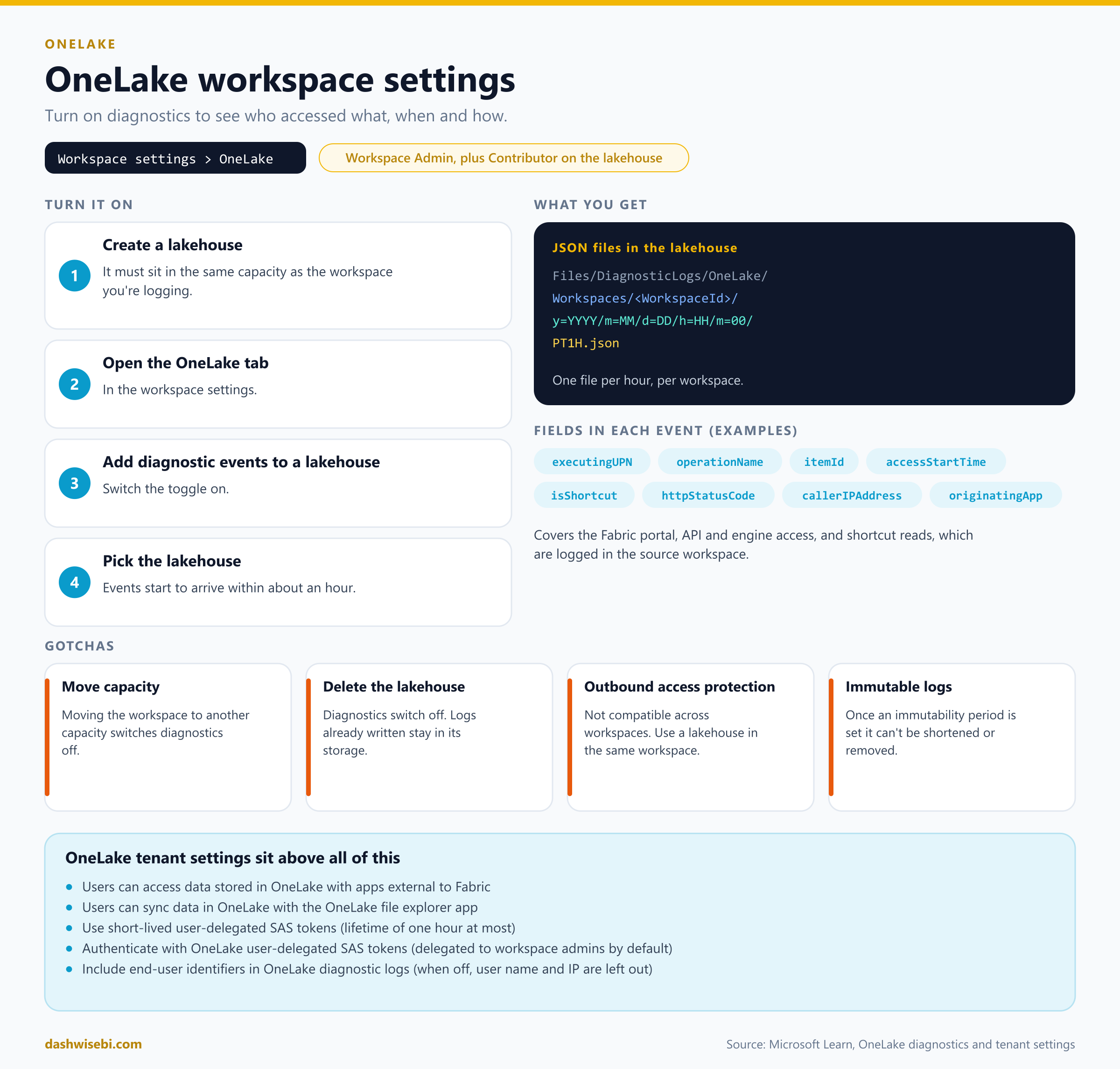
Create a lakehouse in the same capacity as the workspace you want to log.
Open Workspace settings and go to the OneLake tab.
Switch on Add diagnostic events to a lakehouse.
Select the lakehouse. Events start to arrive in up to an hour.
You need to be a workspace admin for the workspace you are logging and a contributor on the destination lakehouse. If the workspace uses private links for inbound protection, the lakehouse must be in the same virtual network. Microsoft recommends a dedicated workspace for the logs, which keeps permissions separate from operational workloads. To switch to another lakehouse later, use Replace lakehouse. Old events stay where they were.
What you get
The events are JSON files in the lakehouse, under Files/DiagnosticLogs/OneLake/Workspaces/<WorkspaceId>/, in folders by year, month, day and hour, with one file per hour. Each event includes fields such as workspaceId, itemId, executingUPN, operationName, accessStartTime, httpStatusCode, isShortcut and callerIPAddress.
The log covers actions in the Fabric portal, access through APIs, pipelines and engines, and reads through shortcuts, which are recorded in the source workspace. You can load the files into Delta tables and build a report on top.
Gotchas that make good exam questions
Moving the workspace to another capacity turns diagnostics off. Pick a lakehouse in the new capacity to turn it back on.
Deleting the destination lakehouse also turns diagnostics off for every workspace that used it. Logs already written remain in its storage.
Outbound access protection does not work with diagnostics across workspaces. To use both, choose a lakehouse in the same workspace.
Immutable logs use Azure immutable (write once, read many) storage. Nobody can change or delete the files during the retention period you set, and the period cannot be changed once applied. It adds no charge of its own, but storage grows, so schedule a cleanup job for files whose period has ended.
Changes to the diagnostic settings are themselves audited, as a ModifyOneLakeDiagnosticSettings event in the Microsoft 365 security logs.
OneLake tenant settings above the workspace
A few OneLake settings live at tenant level, in the admin portal. They decide what the workspace settings can do:
Users can access data stored in OneLake with apps external to Fabric covers ADLS API apps, the OneLake file explorer and Databricks.
Users can sync data in OneLake with the OneLake file explorer app controls the Windows file explorer app.
Use short-lived user-delegated SAS tokens lets users request user delegation keys. Keys and tokens last one hour at most.
Authenticate with OneLake user-delegated SAS tokens lets applications use those tokens. It is delegated to workspace admins by default, so a workspace admin can override it.
Include end-user identifiers in OneLake diagnostic logs controls whether the user name and IP address are recorded. When it is off, those fields are left out of new events.
4. Configure data workflow (Apache Airflow) workspace settings
An Apache Airflow job is a managed Airflow environment inside Fabric's Data Factory. You write Python DAGs (directed acyclic graphs) and Fabric runs them without you managing the infrastructure. It is the next generation of Azure Data Factory's Workflow Orchestration Manager. If you prefer a no-code approach, a pipeline is the better fit.
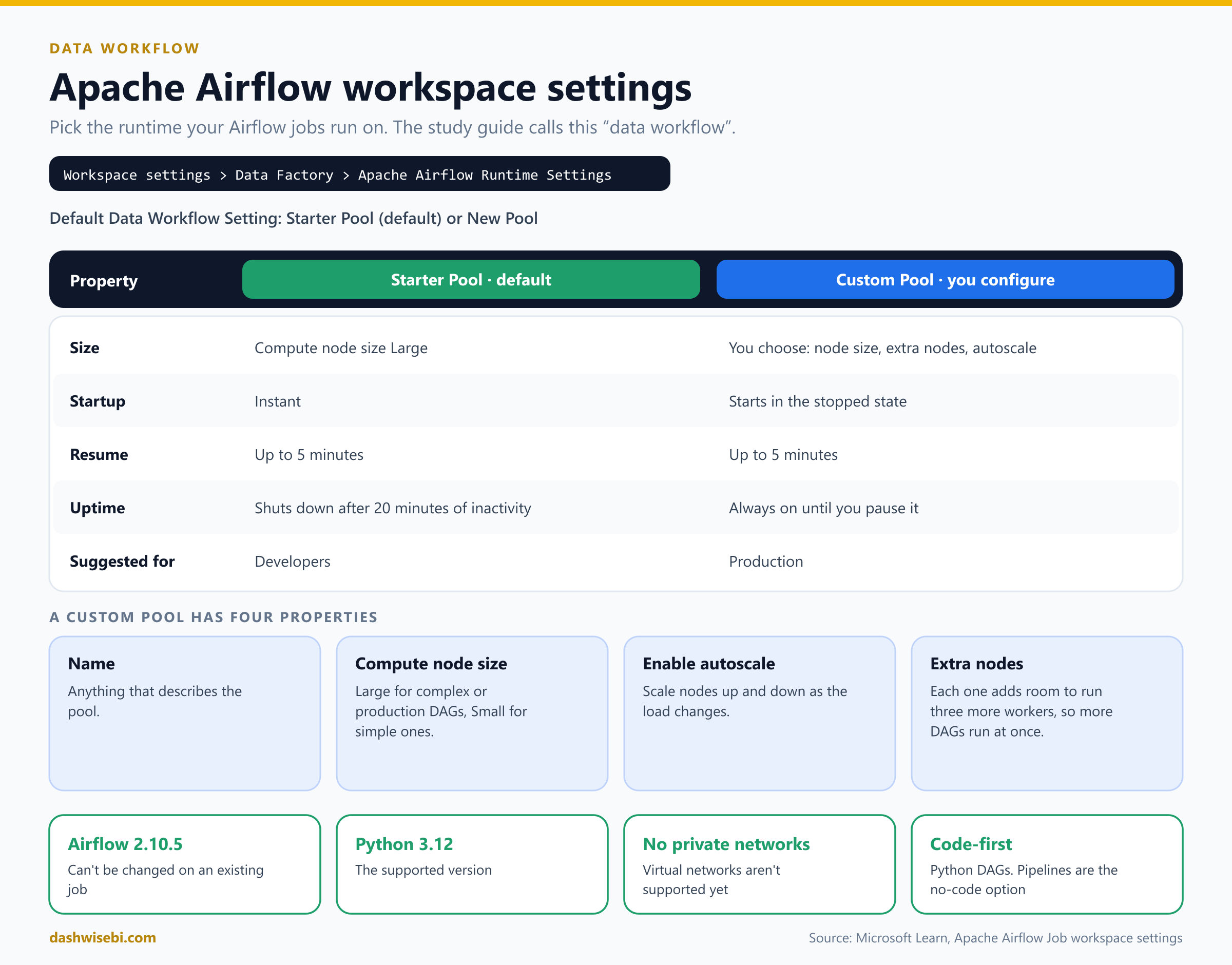
The workspace setting decides which runtime the jobs use. Go to Workspace settings, then the Data Factory section, then Apache Airflow Runtime Settings. The dropdown Default Data Workflow Setting starts on the starter pool, and New Pool creates a custom one.
Starter pool or custom pool
Starter pool (the default) uses a Large compute node, starts instantly, and shuts down after 20 minutes of inactivity. Resuming takes up to five minutes. It is meant for developers.
Custom pool lets you set the size. It starts in the stopped state, takes up to five minutes to resume, and stays on until you pause it, which suits production.
When you create a custom pool you set four things: a name, the compute node size (Large for complex or production DAGs, Small for simple ones), whether to enable autoscale, and the number of extra nodes. Each extra node gives the pool room to run three more workers, so more DAGs can run at once.
If the setting that lets items customize their compute configuration is turned off, the starter pool is used for every environment in the workspace.
Facts to remember
Fabric supports Apache Airflow 2.10.5 with Python 3.12. You cannot change the Airflow version of an existing job. Create a new one instead.
Private networks and virtual networks are not supported for Airflow jobs yet.
Supported features include Git sync, Azure Key Vault as a backend, installing private packages, autoscale, high availability, deferrable operators, and pause and resume time to live.
The cheat sheet
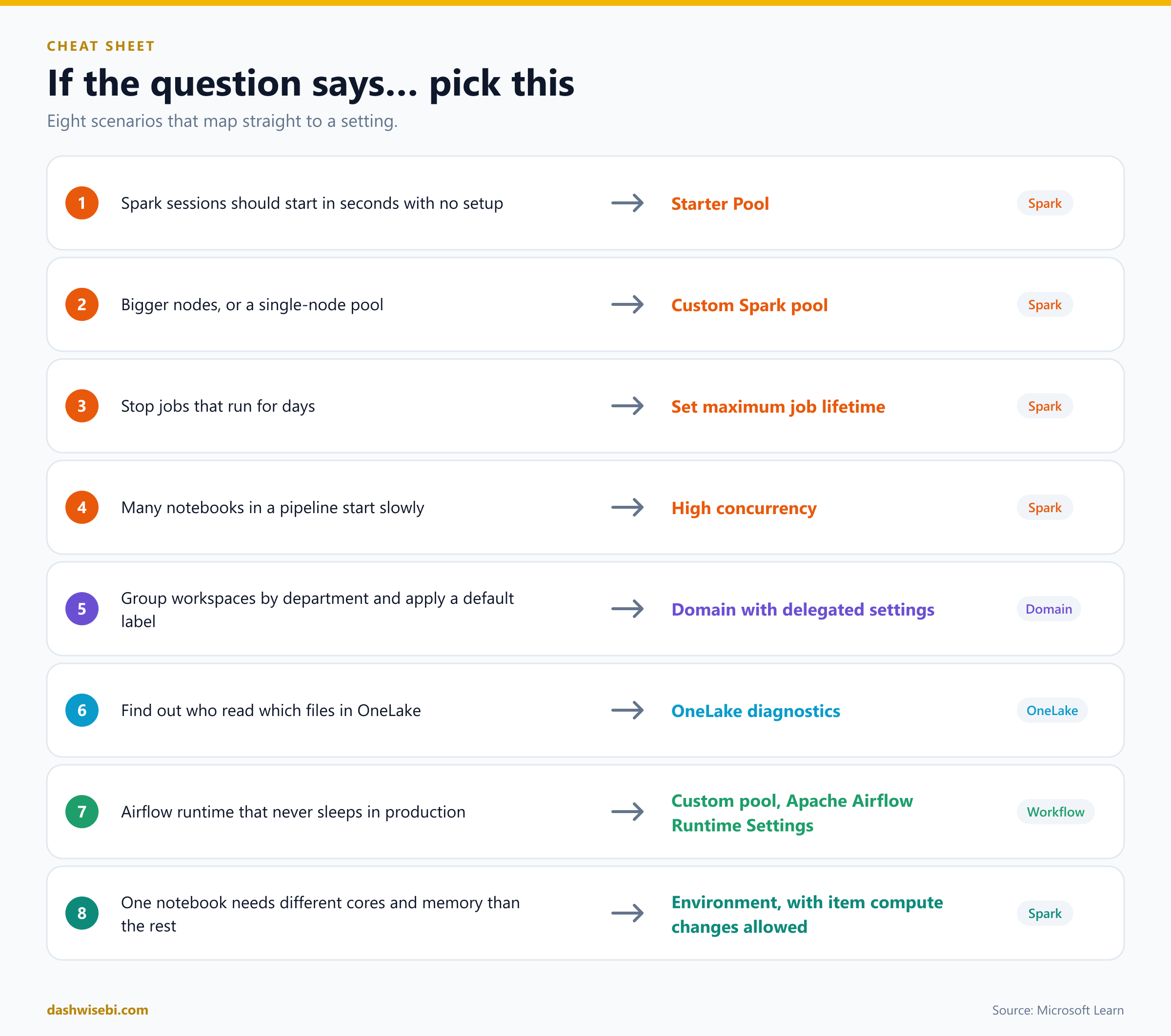
Try these scenarios
Here are six questions in the style of the exam. Cover the answers and see how many you get.
1. Slow session starts
A workspace admin changed the default pool from the starter pool to a custom pool. Notebooks now take about three minutes to start. What brings start times back to seconds without losing the custom sizing?
Answer: Set the default pool back to the starter pool, or configure the custom pool as a custom live pool with an environment that uses Full publishing mode. Both start in seconds.
2. The missing custom pool
A workspace Admin cannot create a custom Spark pool. What is the most likely cause?
Answer: The capacity admin turned off Customized workspace pools in the capacity's Spark Compute settings. The Admin role alone is not enough.
3. The runaway job
A notebook hangs overnight and holds capacity for 14 hours. You want Spark jobs in this workspace stopped after four hours, but without interrupting table maintenance. Which setting?
Answer: Set maximum job lifetime on the Jobs tab. It applies to user-submitted jobs and not to system-managed work such as optimize and vacuum.
4. Tamper-proof access logs
Security wants to know who read files in the Finance workspace through the ADLS APIs, and the log must not be editable. What do you configure?
Answer: Enable OneLake diagnostics on the OneLake tab of the workspace settings, with a destination lakehouse in the same capacity, and set an immutability period on the workspace that holds the diagnostic lakehouse. You need the Admin role on the Finance workspace and Contributor on the lakehouse.
5. The domain that will not assign
A domain contributor tries to assign a workspace to the Sales domain from its settings and cannot. They are a Member of the workspace. Why?
Answer: To assign a workspace, a domain contributor must hold the Admin role in that workspace.
6. Production Airflow
Your production DAGs need an Airflow runtime that is always available and must run more DAGs at the same time. What do you set up?
Answer: A custom pool under Apache Airflow Runtime Settings. It stays on until paused, and you raise the number of extra nodes, because each one adds capacity for three more workers.
Where to go next
Test yourself with the timed DP-700 practice exams on DashWiseBI, and see the Fabric Data Days schedule for live sessions.
Take Microsoft's own DP-700 practice assessment, and read the official study guide.
On Microsoft Learn, follow the course Implement data engineering solutions using Microsoft Fabric. The learning path Manage a Microsoft Fabric environment covers the administration side, including the module Secure data access in Microsoft Fabric. For Spark hands-on, try Use Apache Spark in Microsoft Fabric.
Read the sources behind this post: Spark workspace administration settings, custom Spark pools, starter pools, job admission, high concurrency, capacity settings for data engineering, domains, delegating tenant settings, OneLake diagnostics, OneLake tenant settings, Apache Airflow Job workspace settings and what an Apache Airflow job is.
Keep reading
DP-700 Episode 3: Security & Governance
DP-700 study guide to Fabric security: workspace and item access, RLS, CLS, OLS, folder access, masking, sensitivity labels, endorsement, audit logs and OneLake security.
Spark Basics
Spark explained in plain English: rows, columns, partitions, lazy plans, shuffles and everyday terms, shown on one small table with 11 visuals.