DP-700 Episode 4: Orchestrate Processes

PowerBI consultant ·
Welcome to Episode 4 of our DP-700 series. In Episode 1 we looked at workspace settings, in Episode 2 at lifecycle management, and in Episode 3 at security and governance. This time we finish the skill area Implement and manage an analytics solution (30 to 35 percent of the exam) with the group Orchestrate processes. These are the three topics from the session outline:
- Choose between Dataflow Gen2, a pipeline and a notebook
- Design and implement schedules and event-based triggers
- Implement orchestration patterns with notebooks and pipelines, including parameters and dynamic expressions
Orchestration sounds big, but it comes down to three questions you can ask about any data process: what does the work, what starts it, and what decides the order and passes the values along? This post answers each one with the exact steps, small examples, and the traps the exam likes.
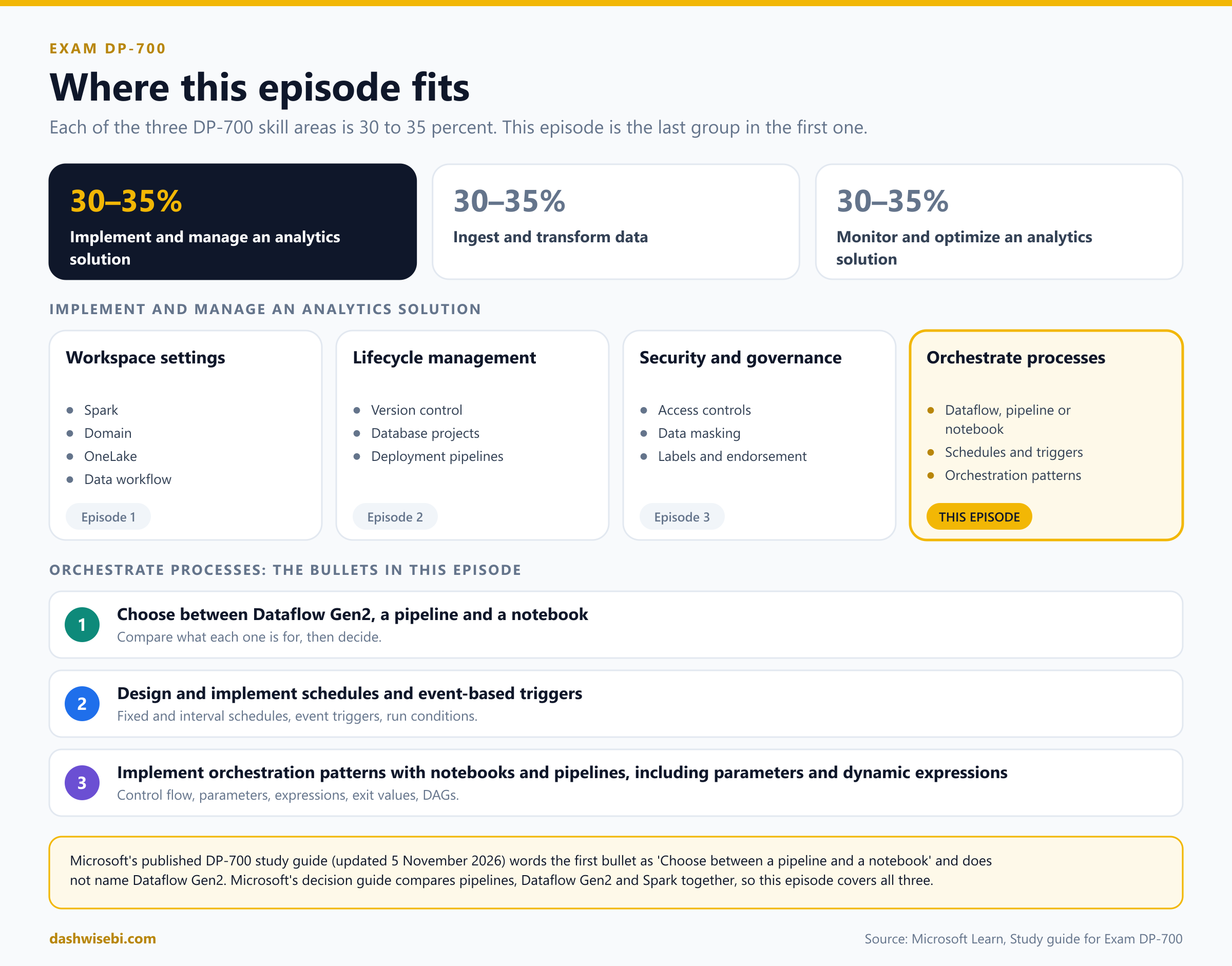
A note on wording. The study guide Microsoft updated on 5 November 2026 words the first bullet a little differently from the session outline: it says "Choose between a pipeline and a notebook" and does not name Dataflow Gen2. Microsoft's own decision guide compares pipelines, Dataflow Gen2 and Spark side by side, so we cover all three here. If an exam question says "pipeline", read the question carefully: it can mean the pipeline as a whole, or only its Copy activity.
The big picture: trigger, orchestrator, engine
Every automated process in Fabric has three parts. Keep them apart in your head and most questions become easy.
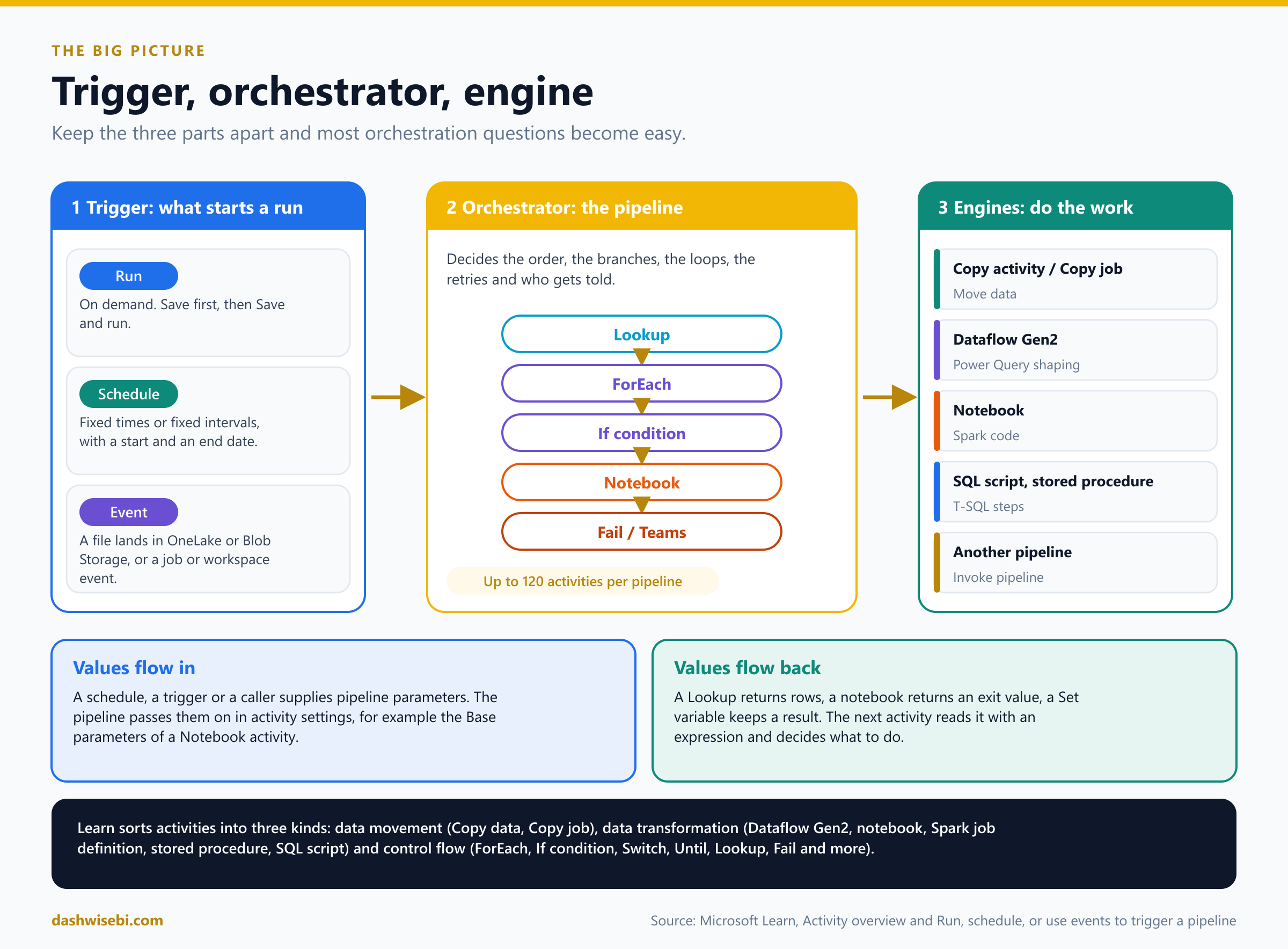
- The trigger starts a run. It can be you pressing Run, a schedule, or an event such as a file arriving.
- The orchestrator decides what runs, in what order, under which conditions, and with which values. In Fabric the orchestrator is the pipeline.
- The engines do the real work: move data, reshape it, run code. Examples are the Copy activity, a Dataflow Gen2, a notebook, a stored procedure or a SQL script.
Microsoft Learn sorts pipeline activities into three kinds, and this matches the picture:
- Data movement activities move data between systems: Copy data and Copy job.
- Data transformation activities process data: Copy data, Dataflow Gen2, Delete data, Fabric notebook, Spark job definition, Stored procedure, SQL script and others.
- Control flow activities manage how the pipeline runs: ForEach, If condition, Switch, Until, Lookup, Set variable, Fail, Invoke pipeline and more.
A dataflow and a notebook can also run on their own, with their own schedule. A pipeline is what you use when several steps must run in a set order. A pipeline can hold up to 120 activities, counting the inner activities inside containers such as ForEach.
1. Choose between Dataflow Gen2, a pipeline and a notebook
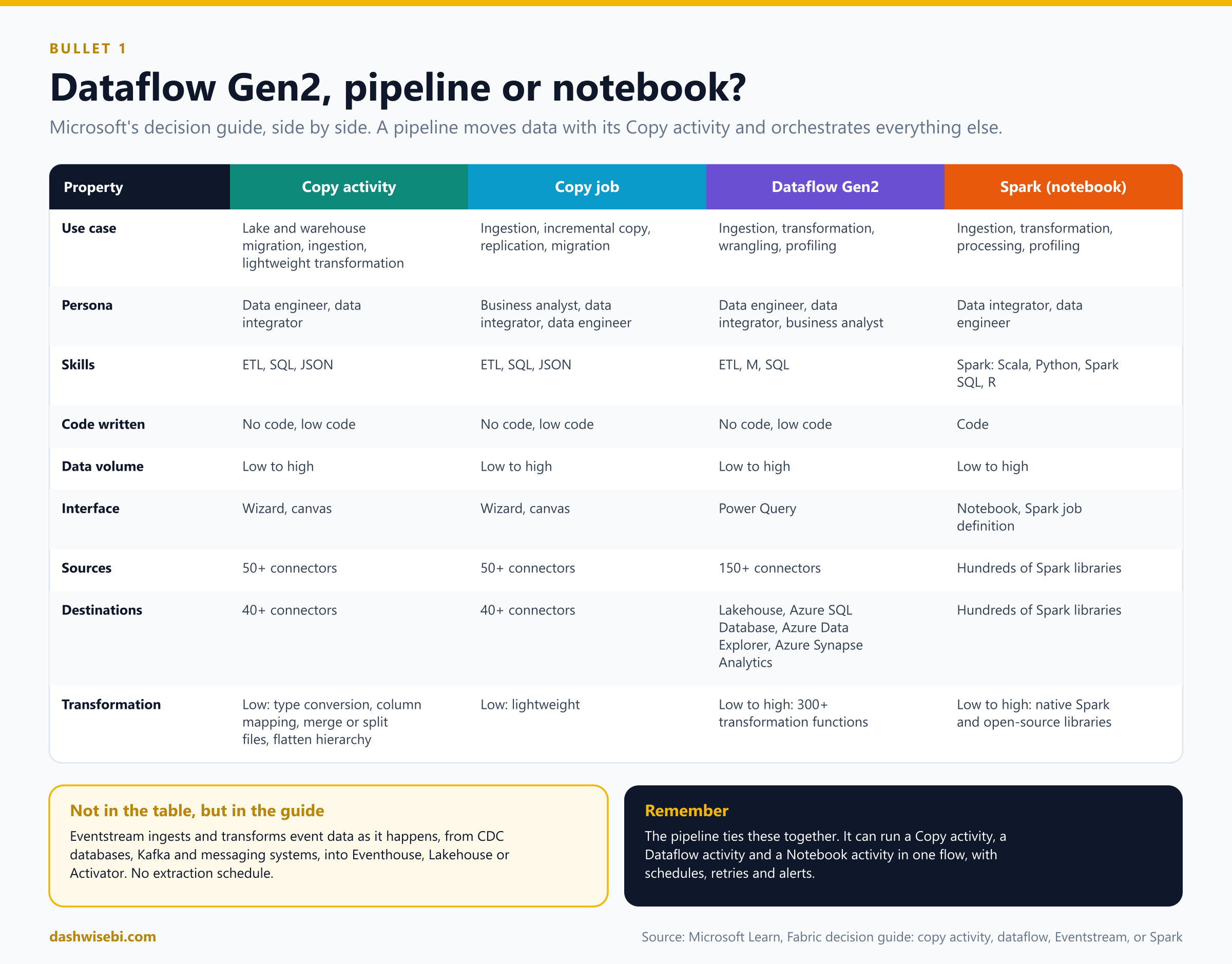
Microsoft's decision guide compares the main ways to work with data in Fabric. The first thing to notice is that these are not all the same kind of thing. The pipeline Copy activity and the Copy job move data. Dataflow Gen2 transforms data with Power Query. A notebook transforms data with Spark code. The pipeline as a whole is the thing that ties them together.
What each tool is for
- Pipeline Copy activity. Data lake and warehouse migration, data ingestion and lightweight transformation such as type conversion, column mapping, merging or splitting files and flattening a hierarchy. It has 50+ source connectors and 40+ destination connectors, works with low to high data volume, and is no code or low code (wizard or canvas). Learn calls it the best low-code choice to move petabytes of data to lakehouses and warehouses, ad hoc or on a schedule.
- Copy job. A simpler way to move data fast: ingestion, incremental copy, replication and migration with a wizard. It suits the person who wants incremental loads without building a pipeline.
- Dataflow Gen2. Data ingestion, transformation, wrangling and profiling with Power Query. It has 150+ connectors and 300+ transformation functions, so complexity can go from low to high. It is no code or low code. Destinations in the guide are Lakehouse, Azure SQL database, Azure Data Explorer and Azure Synapse Analytics.
- Notebook (Spark). You write code: PySpark, Scala, Spark SQL or R. You get hundreds of Spark libraries, any transformation complexity, and any source or destination that a library can reach. It is for data engineers and data integrators who are comfortable with code.
- Eventstream (in the guide too, but not in this episode's bullets). It brings event data in as it happens, without extraction schedules, and routes it to Eventhouse, Lakehouse or Activator.
A pipeline is not a competitor
People often ask "pipeline or notebook?" as if you must pick one. You usually do not. A pipeline can contain a Notebook activity and a Dataflow activity. The pipeline decides when each one runs, the notebook or dataflow does the transformation. When the decision guide puts "pipeline copy activity" next to Dataflow Gen2 and Spark, it asks a narrower question: which engine moves and shapes the data?
How to decide
Ask the questions in this order. The first yes wins.
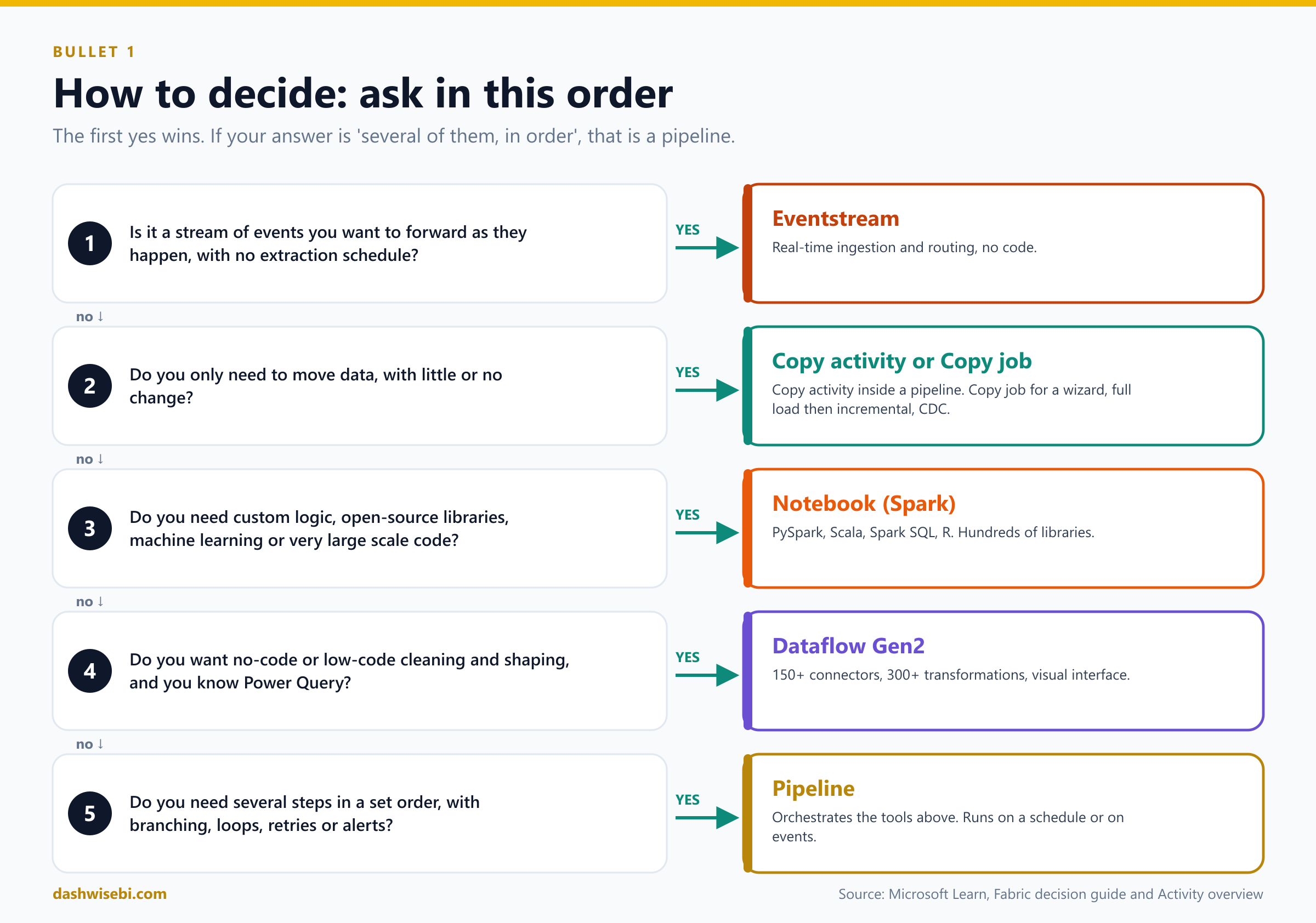
- Is it a stream of events that you want to forward as they occur? Use an Eventstream.
- Do you only need to move data, with little or no change? Use the Copy activity in a pipeline. Pick the Copy job if you want a wizard, an initial full load followed by incremental loads, or CDC based copy.
- Do you need custom logic, open-source libraries, machine learning or very large scale transformation in code? Use a notebook.
- Do you want a no-code or low-code way to clean, combine and reshape data, and you know Power Query? Use Dataflow Gen2.
- Do you need several steps in a set order, with branching, loops, retries or alerts? Put them in a pipeline. This is the answer to "orchestrate".
Five short cases from Microsoft Learn
- Leo must ingest a large volume from on-premises and cloud databases, files and APIs into a bronze lakehouse, on a schedule, with no code and no Spark skills. Answer: the pipeline Copy activity.
- Mary is an experienced Power Query user who must clean data, apply business rules and load several destinations (Azure SQL Database, Azure Data Explorer and a lakehouse), with low to medium volume. Answer: Dataflow Gen2.
- Prashant must forward business events as they happen, without managing extraction schedules. Answer: an Eventstream.
- Adam must cleanse and transform structured, semi-structured and unstructured customer review data in OneLake and write Delta tables. Answer: Spark in a notebook.
- Rajesh must copy incremental data from an on-premises SQL Server with CDC turned on into Azure SQL Database, using a wizard, with a schedule. Answer: the Copy job.
Things to remember about each engine
- Dataflow Gen2 and notebooks can be refreshed or run alone, on their own schedule, or as an activity in a pipeline.
- Some Dataflow Gen2 features need the CI/CD version of the dataflow: timeouts and cancellation from a pipeline, and public parameters. We come back to this in section 3.
- A notebook runs on a Spark session. Starting sessions costs time, which is why session tags exist (section 3).
- To run a Dataflow Gen2 (CI/CD) from a pipeline you need Member access or higher on the workspace and access to every connection the dataflow uses.
2. Design and implement schedules and event-based triggers
Three ways to start a pipeline run
Learn lists exactly three. A run starts when you trigger the pipeline, the pipeline meets any configured run conditions, and the activities begin.
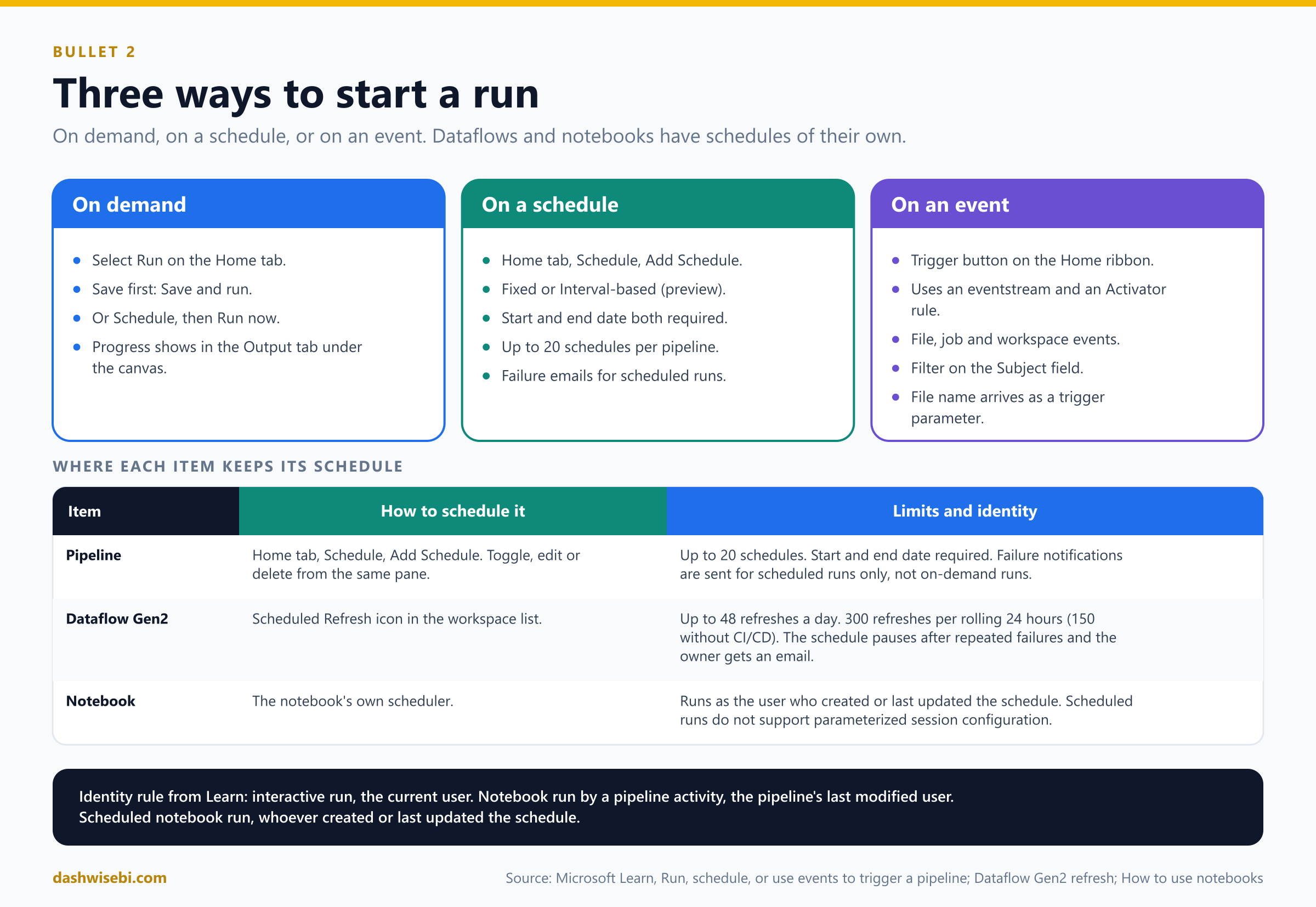
- On-demand. Select Run on the Home tab. You must save your changes first (Save and run). You can also open Schedule and select Run now. Progress shows in the Output tab under the canvas.
- Scheduled. Automatic runs based on time and frequency.
- Event-based. A trigger starts the pipeline when something happens, such as a file arriving in storage.
Schedule a pipeline run
By default a pipeline has no schedule. To add one:
- Open the pipeline and select Schedule on the Home tab.
- Select Add Schedule.
- Choose the schedule type (Fixed or Interval-based), the frequency, the start date and time, the end date and time, and the time zone.
- Select Save.
Rules that the exam likes:
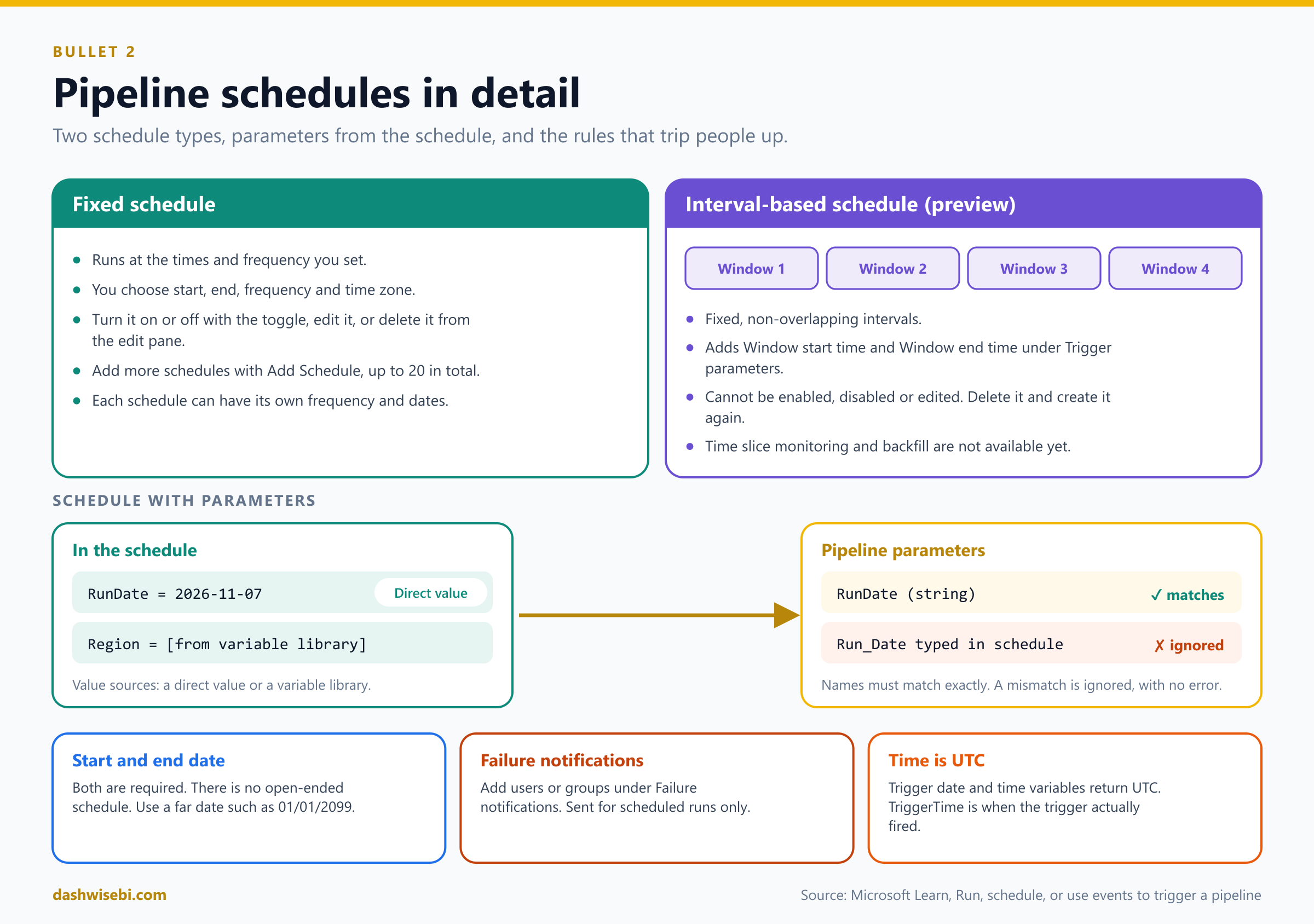
- You must set both a start and an end date. There is no open-ended schedule. To keep a pipeline running for years, use a far date such as 01/01/2099 12:00 AM. You can change or stop the schedule at any time.
- A pipeline can have up to 20 schedules, each with its own frequency and start and end times.
- You can turn a Fixed schedule on or off with the toggle, edit it, or delete it from the edit pane (Delete schedule).
- Scheduled runs can send failure notifications by email to users or groups you add under Failure notifications. Notifications are not sent for on-demand runs.
- Trigger date and time system variables return UTC in ISO 8601 format.
@pipeline().TriggerTimeis when the trigger actually fired, which can differ slightly from the scheduled time.
Pass parameter values from a schedule
If the pipeline has parameters, the schedule can supply their values on every run. For each parameter you pick one of two sources:
- Direct value: a fixed value typed in the schedule.
- Variable library: a value read from a variable library, which centralizes configuration and makes it easier to promote the pipeline between environments.
The parameter names in the schedule must match the pipeline parameter names exactly. Names that do not match are ignored at run time. This is a favorite trap: nothing fails, the pipeline just uses its defaults.
Interval-based schedules (preview)
An interval-based schedule runs the pipeline over fixed, non-overlapping intervals. Each run is tied to a time window. If a pipeline has an interval-based schedule, the expression builder shows two extra items under Trigger parameters: Window start time and Window end time. Use them to load exactly the slice of data for that window.
Limits to remember: you cannot enable, disable or edit an interval-based schedule (delete it and create it again), and time slice monitoring and backfill are not yet available for these schedules.
Schedule a Dataflow Gen2 or a notebook
Pipelines are not the only items you can schedule.
- Dataflow Gen2. A refresh runs on demand or on a refresh schedule. Select the Scheduled Refresh icon in the workspace list and set the frequency and time slots, up to 48 times per day. A refresh also starts on demand when a publish finishes, and when a pipeline Dataflow activity runs. The person who triggers the refresh needs Member access or higher and access to all the connections the dataflow uses.
- Notebook. A notebook has its own scheduler. A scheduled run executes under the identity of the user who created or last updated the schedule.
Dataflow Gen2 refresh limits:
- Each dataflow can refresh up to 300 times in a rolling 24 hours (150 for Dataflow Gen2 without CI/CD). Bursts can be throttled even below that total.
- If a scheduled refresh fails again and again, Fabric pauses the schedule and emails the dataflow owner. The rule is a 100 percent failure rate over 72 hours with at least 6 refreshes, or over 168 hours (one week) with at least 5 refreshes.
- A single query evaluation is limited to 8 hours, and one refresh to 24 hours.
- One dataflow can have at most 50 staged queries or queries with an output destination, counted together.
- You can cancel a refresh that is running from the workspace list or lineage view.
A rule of thumb for design: if three items must run in order, put one schedule on one pipeline that calls them in order, instead of three separate schedules that you hope line up. The pipeline gives you ordering, retries and notifications in one place.
Event-based triggers
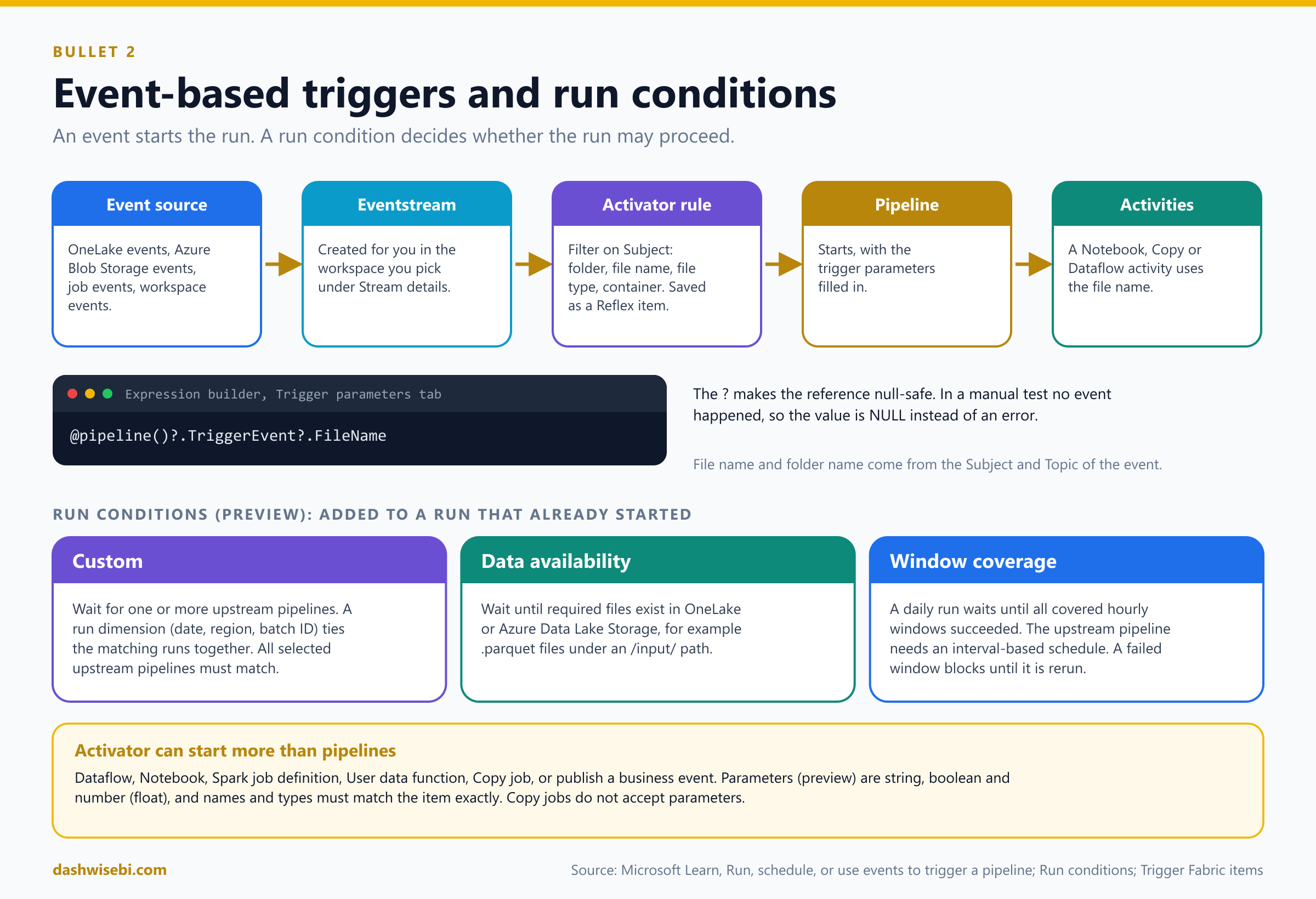
An event trigger starts a pipeline when something happens instead of at a fixed time. Learn says you can trigger from file events, job events and workspace events. Triggers use Fabric platform features, namely eventstreams and Activator (Data Activator) alerts. If you come from Azure Data Factory, storage events will look familiar.
To set up a storage event trigger from the pipeline:
- On the Home ribbon of the pipeline canvas, select Trigger. The Set alert panel opens. It uses the Activator alert service and lets you add values to parameters.
- Pick the type of event source. Choose OneLake events for OneLake files, or Azure Blob Storage events for a storage account.
- Select Source, then Select events. For Blob Storage, choose the Azure subscription and the storage account. Fabric creates a new eventstream in the workspace you choose under Stream details.
- Choose the event types. There are many beyond "file created" and "file deleted".
- Filter events with the Subject field: folder name, file name, file type and container are all part of the subject.
- On the trigger panel choose the workspace that stores the trigger, the pipeline, the pipeline action, and a name for the trigger. It is saved as a Reflex item.
- Select Create. The trigger is active and responds to the events you defined.
To manage triggers, find the Reflex item in the workspace list and open it, or use Triggers > View triggers in the pipeline.
Use the file name from the event
The trigger fills in built-in trigger parameters from the Subject and Topic of the event. In the expression builder, open the Trigger parameters tab and pick the file name or folder name. For example:
@pipeline()?.TriggerEvent?.FileNameNotice the ? after pipeline(). It is a null-safe reference. When you test the pipeline by hand, no event happened, so those values are not set and the expression returns NULL instead of failing. You need this syntax when you test a pipeline that uses trigger parameters.
Activator can start other items too
Activator rules can start more than pipelines. An action can run a Pipeline, Dataflow, Notebook, Spark job definition, User data function, Copy job, or publish a business event. You can pass parameter values to the item (preview) by choosing Edit action and typing the parameter name and type exactly as defined in the item. Activator accepts string, boolean and number (float) values. Copy jobs do not accept parameters.
Run conditions (preview)
Schedules and event triggers decide when to try to start. A run condition decides whether the run may proceed. It does not replace a schedule or trigger. It adds dependency criteria. There are three types:
- Custom. Wait for one or more upstream pipelines to finish for the same logical unit of work. You name a run dimension such as processing date, region plus date, customer ID or batch ID, and the downstream pipeline starts when all matching upstream runs have met the condition.
- Data availability. Wait until required files exist in OneLake or Azure Data Lake Storage, for example
.parquetfiles under an/input/path. - Window coverage. A daily downstream run waits until all the hourly upstream windows it covers have succeeded. The upstream pipeline must use an interval-based schedule. If an upstream window fails, the downstream window stays blocked until a rerun of that window succeeds.
Important detail: a run dimension value is evaluated once for a downstream pipeline. If the downstream pipeline already ran for that value, later upstream runs with the same value do not start another run. Use values that identify a unique logical run.
Which start option fits?
- "Every night at 02:00" or "every hour": a schedule.
- "As soon as the file lands": an event trigger.
- "Hourly slices, each loading its own time window": an interval-based schedule.
- "Only after ingestion and validation have finished for the same region and date": a custom run condition.
- "Only when the input files exist": a data availability run condition.
- "Different parameter values at different times": a schedule with parameters.
Who does the run act as?
Learn gives a clear rule for notebooks, and it is a good way to remember identity in general:
- Interactive run: the current user.
- Notebook run by a pipeline activity: the identity of the pipeline's last modified user, not the pipeline owner or the notebook owner.
- Scheduled notebook run: the user who created or last updated the schedule.
So before you edit a production pipeline or schedule, ask whether you are about to change the identity that its notebooks run as.
3. Implement orchestration patterns with notebooks and pipelines, including parameters and dynamic expressions
This is the biggest section. It has four parts: the control flow building blocks, parameters and expressions, notebooks (from a pipeline and from another notebook), and the patterns that combine everything.
The control flow building blocks
These are the activities that decide how the pipeline runs rather than what it does to data.
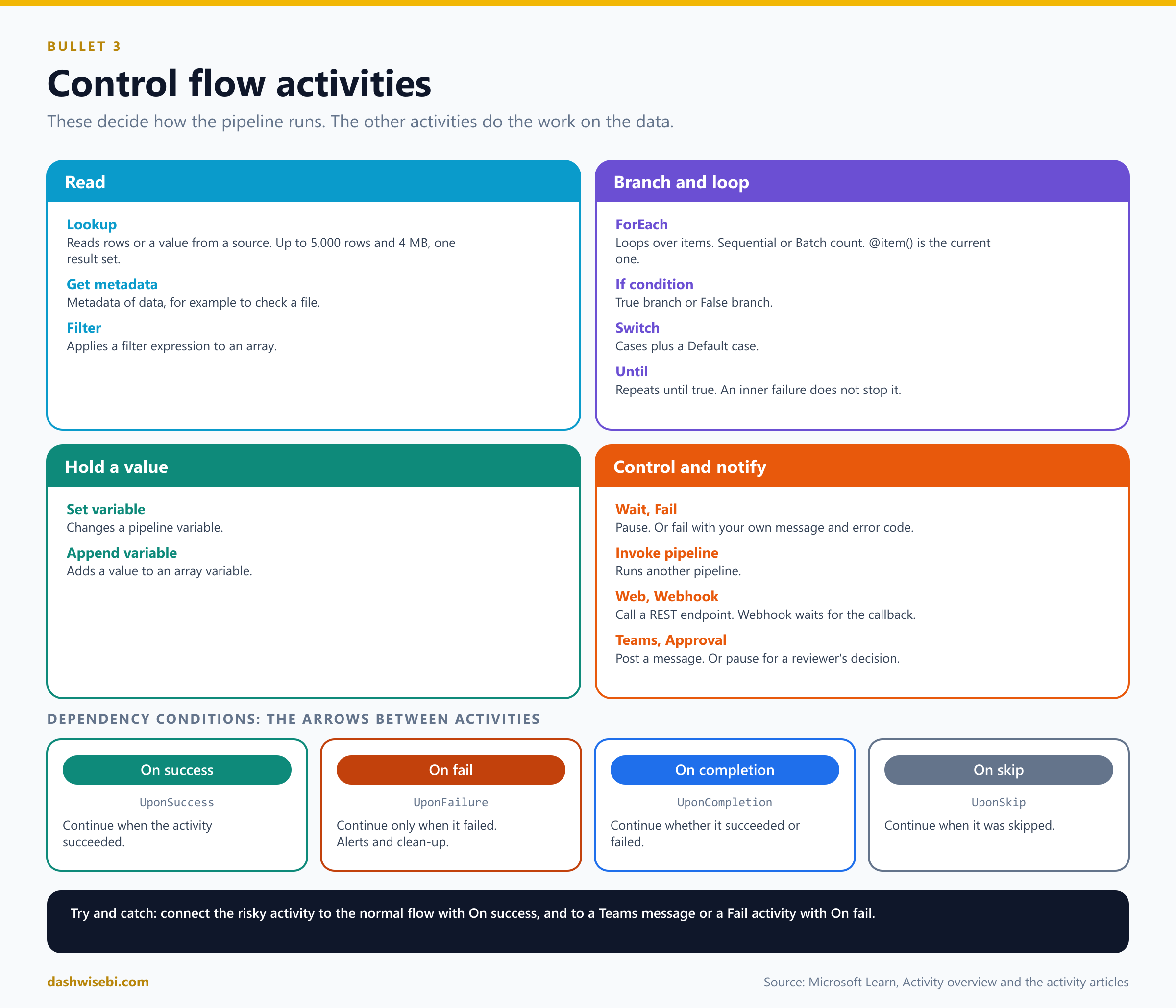
- Lookup reads a record, a table name or a value from a source, or the result of a query or stored procedure. It returns up to 5,000 rows and up to 4 MB; the activity fails if the output is bigger. The longest run time before timeout is 24 hours. A query or stored procedure must return exactly one result set. The output is either a single row (
firstRow) or an array (value), so use Preview data to check the shape before you reference it. - Get metadata retrieves metadata of data, for example to check that a file exists.
- Filter applies a filter expression to an input array.
- ForEach repeats activities for every item in a collection. In the settings you choose Sequential or not (parallel), set a Batch count to cap how many items run at once, and give the Items, which can be dynamic content. Inside the loop,
@item()is the current item. Child activities always run one after another for a given item; with Sequential off, several items run in parallel, each going through the child activities in order. - If condition evaluates a boolean expression and runs the activities in the True or False branch.
- Switch evaluates an expression, matches it to a case and runs that case's activities. If nothing matches it runs the Default case, which can be empty.
- Until is a do-until loop: it repeats child activities until its expression is true. You can set a timeout. If an inner activity fails, the Until activity does not stop.
- Set variable changes a pipeline variable. Append variable adds a value to an array variable.
- Wait pauses the pipeline for a set time.
- Fail ends the run with your own error message and error code. Typical use: put it in the True branch of an If condition when data validation fails.
- Invoke pipeline runs another pipeline. See the pattern below.
- Web calls a REST endpoint. Webhook calls an endpoint with a callback URL and waits for the callback before it continues.
- Teams posts a message to a Teams channel or group chat. Approval pauses the run until designated reviewers approve or reject.
- Deactivate is not an activity but a state: you can switch an activity off and mark it as Succeeded, Failed or Skipped. It keeps the activity on the canvas, skips it in validation and in runs, and drives the branches accordingly.
Activity dependencies
Activities are connected by arrows. Each arrow is a dependency condition, and there are four:
- On success (UponSuccess): continue when the previous activity succeeded.
- On fail (UponFailure): continue only when it failed. Use it for alerts and clean-up.
- On completion (UponCompletion): continue whether it succeeded or failed.
- On skip (UponSkip): continue when it was skipped.
This is how you build a try and catch: put the risky activity first, attach the normal flow to On success and a Teams message or a Fail activity to On fail. When you deactivate an activity, Mark activity as decides which arrows fire: Succeeded fires On success and On completion, Failed fires On fail and On completion, Skipped fires On skip.
One more detail: an inactive activity never really runs, so it has no output fields. A later expression that references those fields can throw an error.
Retries, timeouts and limits
Most activities support automatic retries for transient problems such as a throttled API or a short outage. The settings are on the General tab.
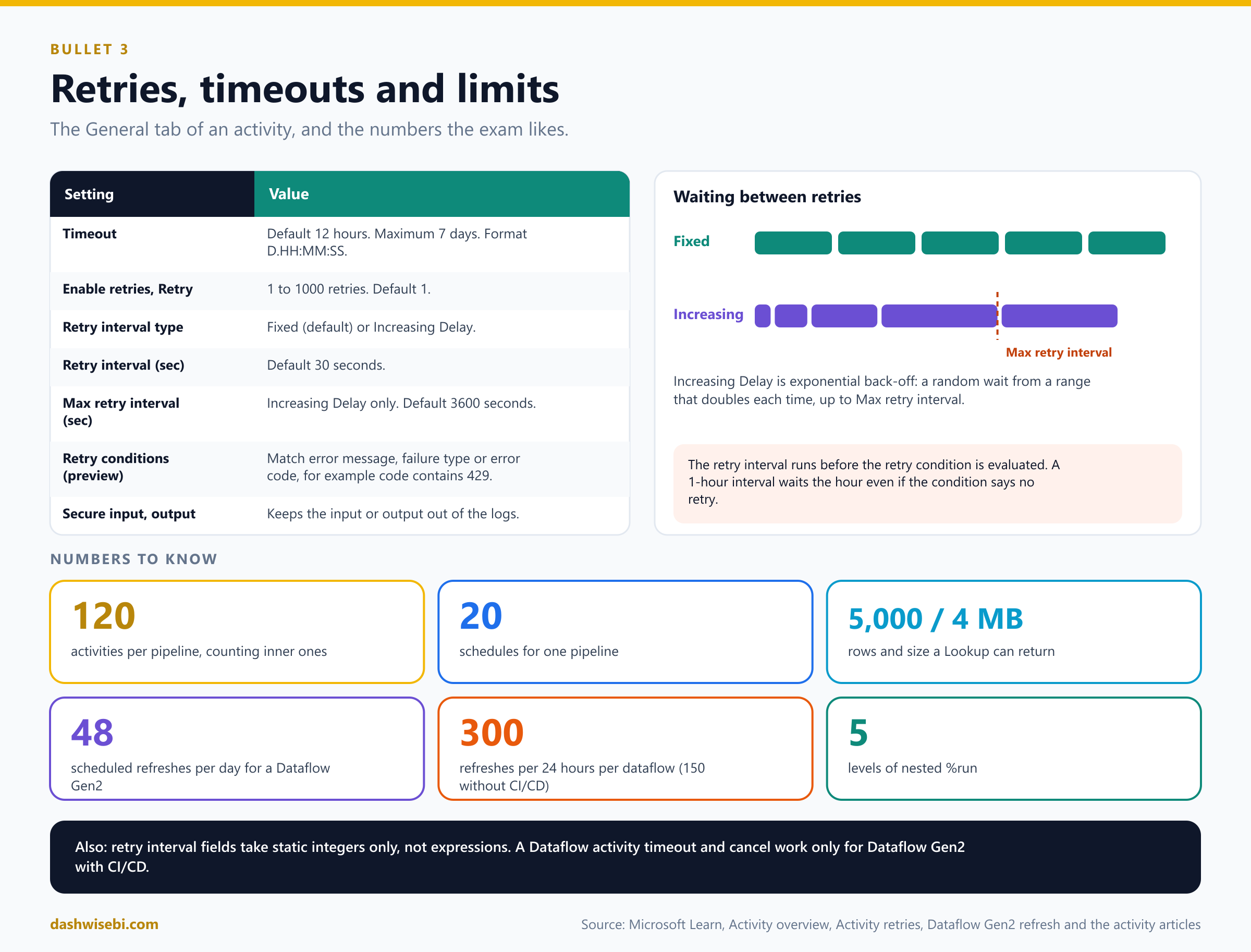
- Timeout: default 12 hours, maximum seven days, in the format
D.HH:MM:SS. - Enable retries and Retry: a count from 1 to 1000. The default is 1.
- Retry interval type: Fixed (default, 30 seconds) waits the same time every attempt. Increasing Delay uses exponential back-off: a random wait from a range that doubles with each attempt, up to Max retry interval (default 3600 seconds).
- Retry conditions (preview): retry only on matching errors. You match on error message, failure type or error code, for example error code
Contains429for rate limiting. Without conditions, every failure is retried. Supported for Copy data, Notebook, Dataflow and Stored procedure activities. - The retry interval runs before the retry condition is evaluated. A one-hour interval means you wait the hour even if the condition says no retry.
- Retry interval fields do not support dynamic expressions. They must be static integers.
- Secure input and Secure output keep an activity's input or output out of the logs.
- Timeout and cancellation for a Dataflow activity only apply to Dataflow Gen2 with CI/CD. For a dataflow without CI/CD, timeouts are ignored and cancelling the pipeline does not stop the dataflow run.
Parameters, variables and library variables
These three look alike, so learn what each is for.
- A pipeline parameter passes an outside value into the pipeline. Once the run starts, its value stays the same. To create one, select the empty background of the canvas, open the Parameters tab at the bottom, select + New, and give it a name, a data type and a default value. Schedules, triggers, Invoke pipeline and manual runs can supply the value.
- A pipeline variable holds a value that changes during the run. You set it with a Set variable activity, or add to an array variable with Append variable. Create it on the Variables tab of the canvas.
- A library variable comes from a variable library item. It is useful for settings that differ between development, test and production, because the value can follow the environment.
Then there are system variables that Fabric sets for you:
@pipeline().RunId: the ID of this run.@pipeline().TriggerIdand@pipeline().TriggerName: the trigger that started it.@pipeline().TriggerTime: when the trigger fired, in UTC.@pipeline()?.TriggeredByPipelineNameand@pipeline()?.TriggeredByPipelineRunId: the parent pipeline and its run, set when an Execute (Invoke) pipeline activity started this one, and Null otherwise. Note the?.
Dynamic expressions
Almost any property that supports Add dynamic content can take an expression. The window lists parameters, system variables, functions and pipeline variables, and writes the correct reference for you when you click one.
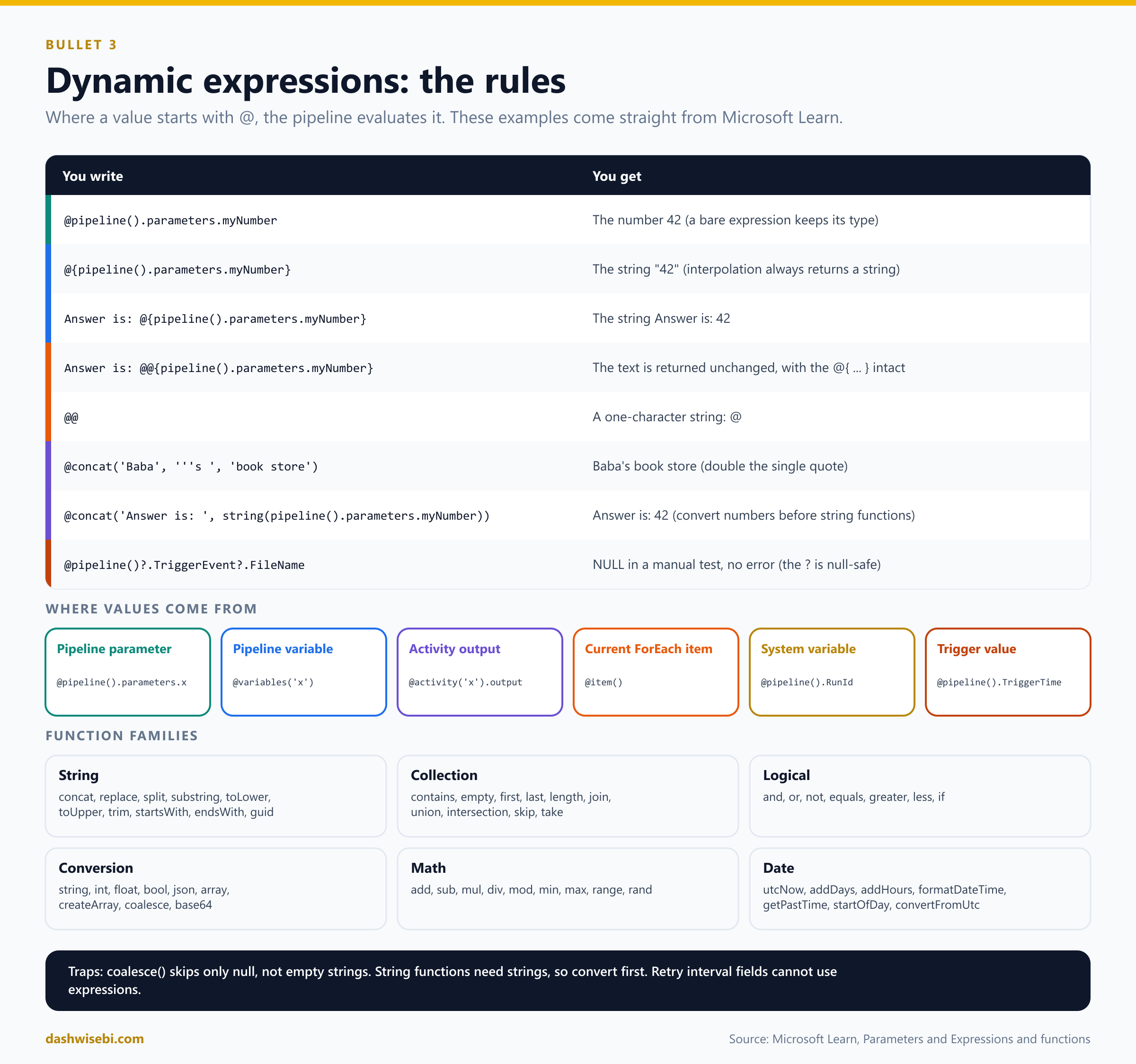
The rules, straight from Microsoft Learn:
- A value is an expression when it starts with
@. To use a literal string that starts with@, type@@. - String interpolation wraps an expression in
@{ ... }inside a longer string, and always returns a string. - A value that is only an expression keeps its type. If
myNumberis 42, then@pipeline().parameters.myNumberreturns the number 42, while@{pipeline().parameters.myNumber}returns the string "42". Answer is: @{pipeline().parameters.myNumber}returns the stringAnswer is: 42.Answer is: @@{pipeline().parameters.myNumber}returns the textAnswer is: @{pipeline().parameters.myNumber}unchanged.- To put a single quote inside a string, double it:
@concat('Baba', '''s ', 'book store')returns Baba's book store. - String functions work only on strings. Convert first with
string()orint(), for example@concat('Answer is: ', string(pipeline().parameters.myNumber)). - To read a deep field of an activity output use dots for fixed names and brackets for a value that comes from a parameter:
@activity('name').output.subfield1.subfield2[pipeline().parameters.subfield3].subfield4. coalesce()returns the first non-null value. Empty strings, empty arrays and empty objects are not null.- The dynamic content editor escapes double quotes and backslashes when you finish editing. This can break a
replace()that uses\nor\t. Microsoft's workaround is to URL-encode the text, replace%0A,%0Dor%09, then decode it.
The functions come in families: string (concat, replace, split, substring, toLower, toUpper, trim, startsWith, endsWith, guid), collection (contains, empty, first, last, length, join, union, intersection, skip, take), logical (and, or, not, equals, greater, less, if), conversion (string, int, float, bool, json, array, createArray, coalesce, base64 and URI functions), math (add, sub, mul, div, mod, min, max, range, rand) and date (utcNow, addDays, addHours, addMinutes, formatDateTime, getFutureTime, getPastTime, startOfDay, startOfMonth, convertFromUtc, convertTimeZone, convertToUtc and more).
Expressions you will meet again and again
-- today's date as a folder path (year/month/day)
@formatDateTime(utcNow(), 'yyyy/MM/dd')

-- yesterday as a string parameter value
@formatDateTime(addDays(utcNow(), -1), 'yyyy-MM-dd')

-- use a parameter, but fall back to today when it is empty
@if(empty(pipeline().parameters.RunDate), formatDateTime(utcNow(), 'yyyy-MM-dd'), pipeline().parameters.RunDate)

-- build a file name from the current item in a ForEach
@concat(item().SourceName, '_', formatDateTime(utcNow(), 'yyyyMMdd'), '.parquet')

-- the rows returned by a Lookup activity
@activity('GetSources').output.value

-- the first row of a Lookup activity (when First row only is on)
@activity('GetSources').output.firstRow.SourceName

-- If condition: did the notebook report success?
@equals(activity('Silver').output.result.exitValue, 'OK')

-- Until condition on a variable
@equals(variables('TestVariable'), 1)
Two more tips. To parameterize a connection, copy the connection's Connection ID (GUID) from Settings > Manage connections and gateways, paste it into a string parameter, and reference that parameter in the connection field. And to run a loop a fixed number of times, @range(0,10) gives the numbers 0 to 9.
Pattern: Lookup, ForEach and @item()
This is the most common metadata-driven pattern. A small config table lists what to process. The pipeline reads it and loops over it, so adding a new source means adding a row, not changing the pipeline.
- A Lookup named
GetSourcesreads the config table (with First row only off, so it returns an array). - A ForEach has Items set to
@activity('GetSources').output.value. Choose Sequential or a Batch count. - Inside the loop, a Copy activity or a Notebook activity uses
@item().SourceNameand the other columns of the current row.
Remember the Lookup limit of 5,000 rows and 4 MB. A bigger config table needs another design.
Run a notebook from a pipeline
The Notebook activity runs a notebook you created in the workspace. Add it from the Activities pane, then on the Settings tab choose the connection (the authentication method), pick the notebook, and set the parameters.
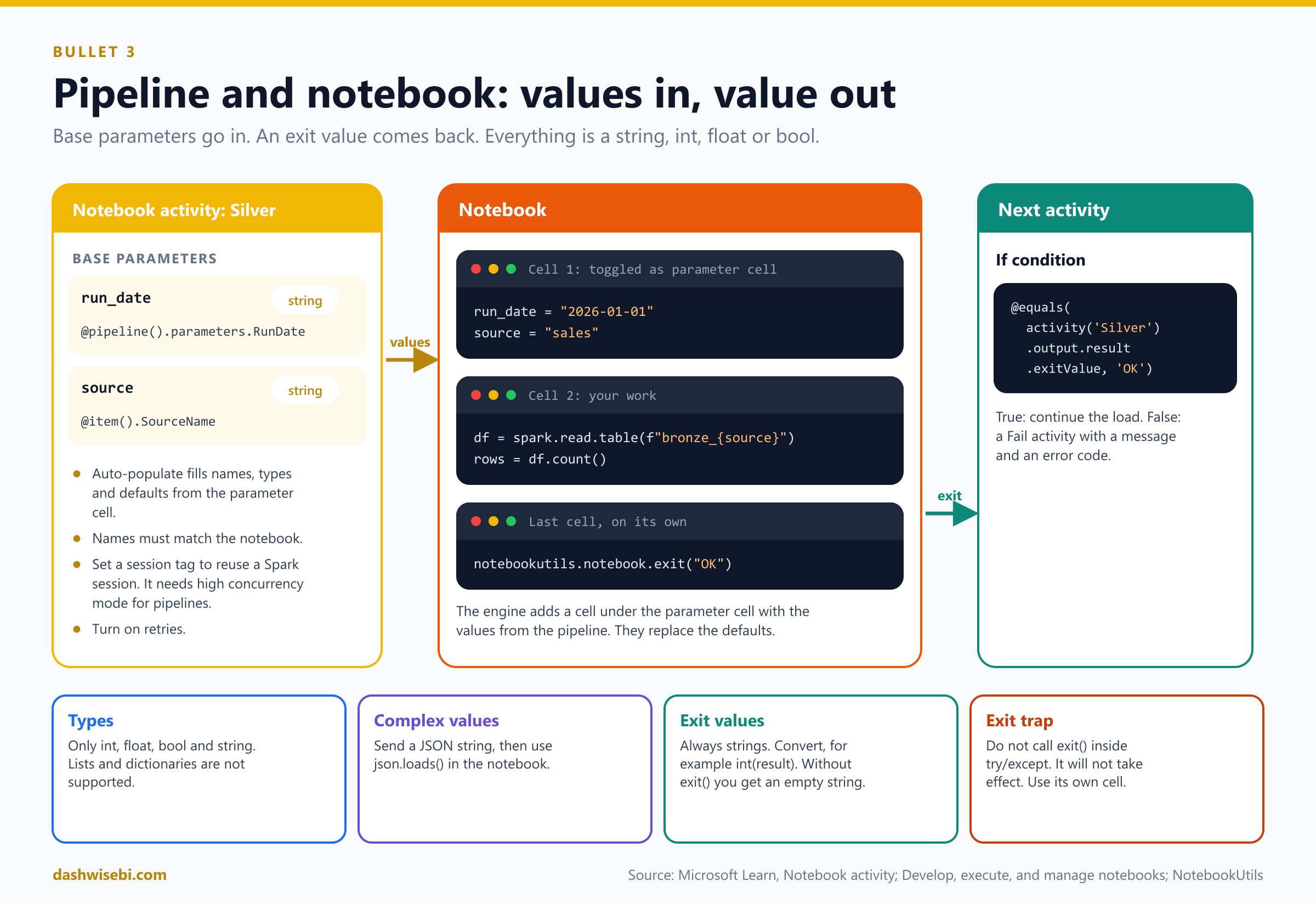
- Mark a parameter cell. In the notebook, put the default values in one cell, open its More menu (the ellipsis) and select Toggle parameter cell. The pipeline looks for this cell and treats it as the defaults. At run time the engine adds a new cell under it with the values passed in, which overrides the defaults.
- Set Base parameters. Select the notebook in the activity and open Base parameters. Fabric can auto-populate the names, types and default values from the parameter cell. Only variables in that cell are detected. If there is no parameter cell, nothing is populated. You can type dynamic content here, such as
@pipeline().parameters.RunDate. - Match the names. The parameter name in the notebook cell and in the activity must be the same.
- Watch the types. Notebook parameters support
int,float,boolandstring. Lists and dictionaries are not supported. To pass something complex, serialize it to a JSON string in the pipeline and usejson.loads()in the notebook. - Send a value back. End the notebook with
notebookutils.notebook.exit("OK"). The activity returns that string, and later activities read it from@activity('Silver').output.result.exitValue. Exit values are always strings, so convert them if you need a number.
# Cell 1 (toggled as the parameter cell): defaults
run_date = "2026-01-01"
source = "sales"

# Cell 2: your work ...
rows = spark.read.table(f"bronze_{source}").where(f"load_date = '{run_date}'").count()

# Last cell, on its own: hand a value back to the pipeline
notebookutils.notebook.exit("OK" if rows > 0 else "EMPTY")
More facts about the Notebook activity:
- Session tag. To cut the Spark start-up time, set a session tag on the activity. Spark then reuses an existing session with the same tag, or creates one if none exists. Any string works. This needs the workspace setting High concurrency mode for pipeline running multiple notebooks to be on. You met that setting in Episode 1, under Spark workspace settings.
- Authentication. You can use a Fabric Workspace Identity. Create it in the same workspace as the pipeline, turn on the tenant setting Service principals can call Fabric public APIs (off by default), and give the identity at least Contributor on the workspace. If the notebook is in another workspace, the identity needs Contributor there too.
- The Notebook activity does not support calling notebooks across regions.
- A notebook that uses Semantic Link under a service principal supports only a subset of Semantic Link functions.
- Parameterized session configuration. In the
%%configurecell you can replace a value with an object that has aparameterNameand adefaultValue. The Notebook activity parameter with the same name overrides it, for example the number of driver cores. In a pipeline,%%configuremust be in the first code cell or the run fails, because the session cannot restart. Scheduled notebook runs do not support this feature.
Run notebooks from another notebook
Sometimes the orchestration happens inside Spark. Fabric gives you three ways to do that.
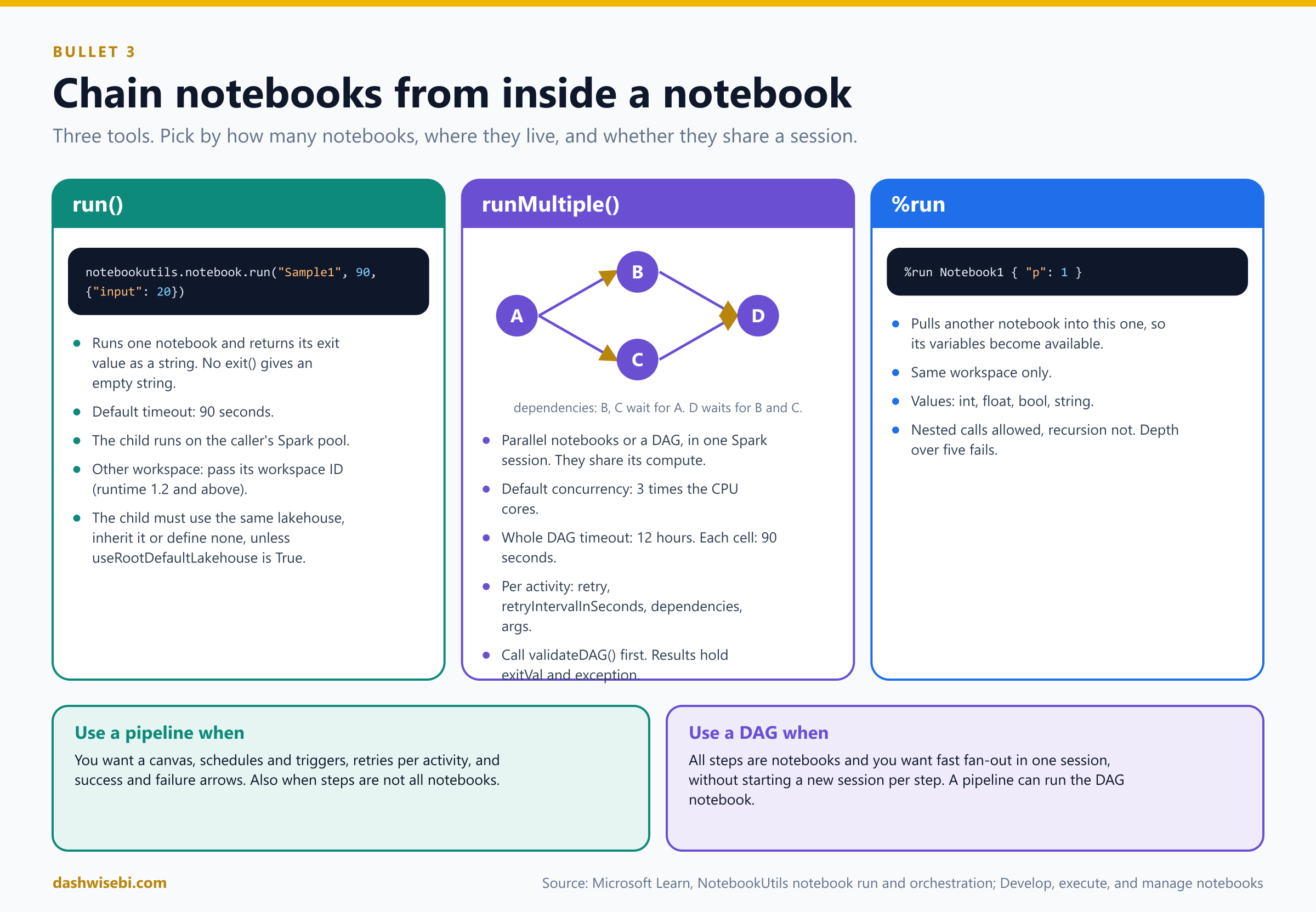
notebookutils.notebook.run(path, timeout_seconds, arguments, workspace)runs one notebook and returns its exit value as a string, or an empty string if the child never calledexit(). The default timeout is 90 seconds. The child runs on the Spark pool of the caller, and you can point to a notebook in another workspace by its workspace ID (runtime 1.2 and above). The child must use the same lakehouse as the parent, inherit it, or define none; a different lakehouse is blocked unless you setuseRootDefaultLakehouse: Truein the arguments.notebookutils.notebook.runMultiple(DAG)runs many notebooks in parallel or in a dependency graph inside one Spark session, so they share its compute.%run <notebook name> { ... }pulls another notebook into the current notebook's context, so its variables become available. It works for notebooks in the same workspace, accepts onlyint,float,boolandstringvalues, supports nested calls but not recursive ones, and fails when the depth is more than five.
A DAG is a list of named activities with optional dependencies:
DAG = {
    "activities": [
        {"name": "Extract", "path": "ExtractData",
         "args": {"source": "prod_db"}},
        {"name": "Transform", "path": "TransformData",
         "args": {"data_path": "@activity('Extract').exitValue()"},
         "retry": 1, "retryIntervalInSeconds": 10,
         "dependencies": ["Extract"]}
    ],
    "timeoutInSeconds": 43200,   # whole DAG, default 12 hours
    "concurrency": 12            # default 3 x CPU cores, 0 = unlimited
}

notebookutils.notebook.validateDAG(DAG)          # catch mistakes early
results = notebookutils.notebook.runMultiple(DAG)
Facts to remember about the DAG:
- Each activity needs a unique
nameand apath(the notebook name). Optional fields areargs,workspace,timeoutPerCellInSeconds(default 90),retry(default 0),retryIntervalInSeconds(default 0) anddependencies. - The whole DAG times out after 43,200 seconds (12 hours) by default. Default concurrency is three times the CPU core count.
- Pass one activity's result to the next with
@activity('Extract').exitValue()inargs. Do not mix this up with the pipeline expression@activity('Extract').output.result.exitValue. runMultiplereturns a dictionary with anexitValand anexceptionper activity. If some fail, it raisesRunMultipleFailedException, and the partial results are inex.result.validateDAG()checks for duplicate names, missing dependencies and circular references. Learn recommends calling it beforerunMultiple()in production.- You can build a DAG with code, for example one
Process_<partition>activity per partition and a finalAggregateactivity that depends on all of them (fan-out and fan-in). - All notebooks in a
runMultipleshare one session, so too much parallelism can cause memory pressure. Lower the concurrency or split the work into several calls.
Two traps about exit():
- Do not call
notebookutils.notebook.exit()inside atry/exceptblock. The exit will not take effect. exit()overwrites the output of its cell, so put it in a cell of its own. In a referenced notebook,exit()stops only that child. The calling notebook carries on with its next cell.
Pipeline or notebook: who orchestrates?
Both can chain notebooks, so the exam may ask which to choose. A pipeline gives you a visual canvas, schedules, event triggers, retries per activity, and arrows for success and failure paths. It can also mix other things in: copy data, dataflows, SQL scripts, notifications. A DAG in a notebook is code, runs in one Spark session, shares its compute, and is best when the steps are all notebooks and you want fast, cheap fan-out without starting a new session for each step. A common design is both: a pipeline is the outer orchestrator and one Notebook activity runs a notebook that fans out with runMultiple.
Dataflow Gen2 in a pipeline
The Dataflow activity runs a Dataflow Gen2 from a pipeline. Pick the workspace and the dataflow on the Settings tab. The notification option is not currently available.
To pass values into the dataflow you use public parameters (preview). They need a Dataflow Gen2 with CI/CD, parameters defined in the dataflow, and the option "Enable parameters to be discovered and override for execution" turned on (Home > Options > Parameters). Then the Dataflow activity shows a Dataflow parameters section:
- A required parameter (shown with an asterisk) must be passed or the run fails. An optional parameter falls back to its current value when you pass nothing.
- Supported types are Text, Integer (int64), Decimal number, Date, DateTime, Time, DateTimeZone, Duration and True/False.
- Limits: a dataflow with public parameters cannot be scheduled or run manually from Fabric unless it has no required parameters. Parameters cannot change the paths of sources or destinations, or the destination schema mapping. Incremental refresh is not compatible. The Monitoring Hub does not show the parameter values used. Only the latest run is kept in the dataflow staging lakehouse, so use a data destination to keep each run. If the same values are submitted several times, only the first request is accepted until it completes.
Pipeline calling a pipeline: Invoke pipeline
Split a large process into small pipelines with one purpose each, and call them from a parent. There are two versions of the activity:
- Invoke pipeline (Legacy): only pipelines in the same workspace. You can monitor only the parent. It can wait for completion, or continue so the child runs in parallel with the next activities. It cannot call Azure Data Factory or Synapse pipelines.
- Invoke pipeline (new): pipelines in other Fabric workspaces, plus Azure Data Factory and Synapse pipelines, and you can monitor child pipelines. It needs a connection with an authentication kind of organizational account, service principal or workspace identity.
In a child pipeline, @pipeline()?.TriggeredByPipelineName tells you which parent started it.
Patterns you should recognize
Exam questions describe a situation and ask for a design. Match it to one of these.
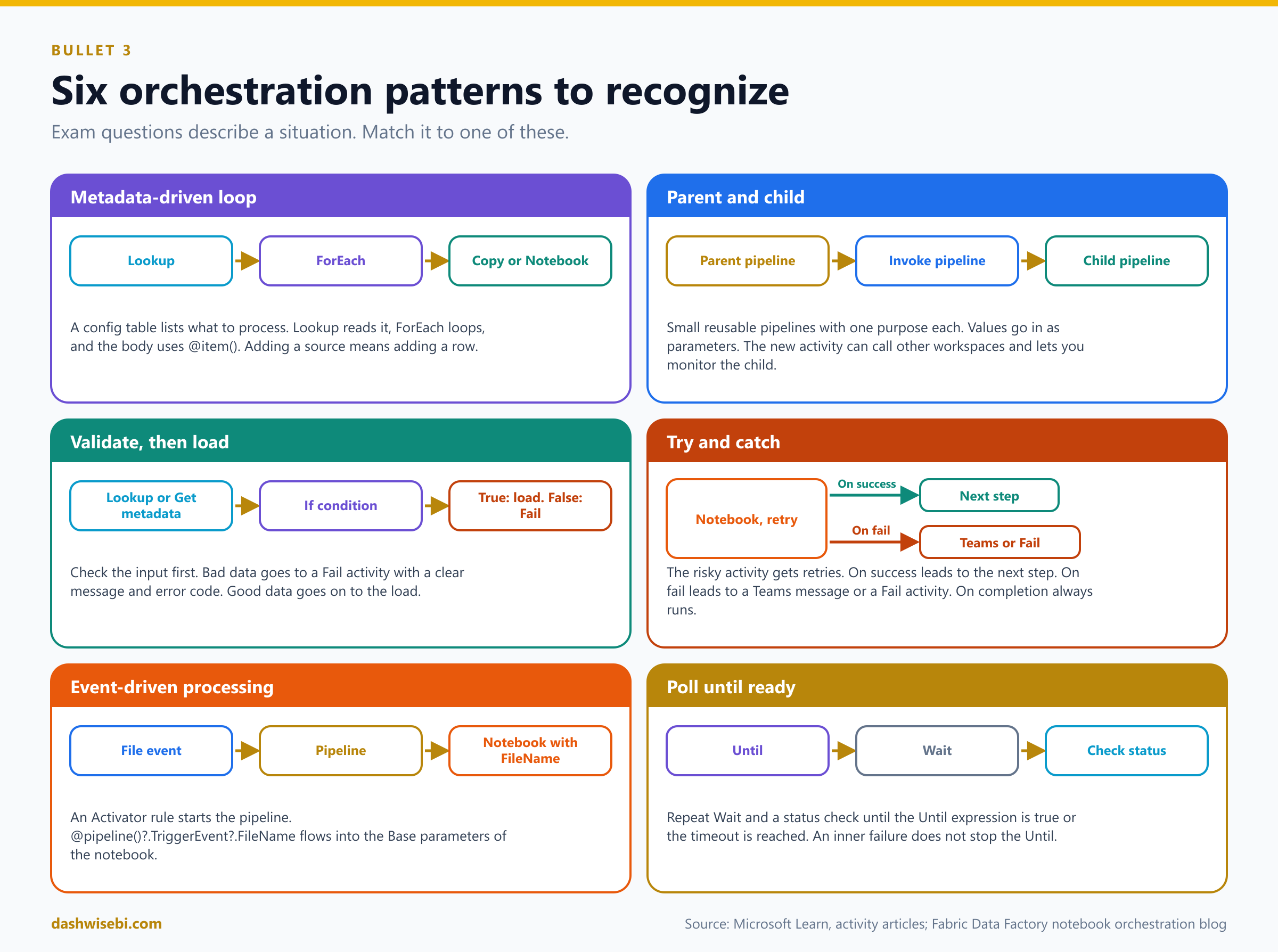
- Metadata-driven loop. Lookup reads a config table, ForEach loops over it, and the body uses
@item(). One pipeline handles any number of tables. - Parent and child. A parent pipeline calls child pipelines with Invoke pipeline. Children are reusable and testable by themselves, and receive their values through parameters.
- Validate, then load. Lookup or Get metadata checks the input. An If condition sends bad data to a Fail activity with a clear message and code, and good data on to the load.
- Try and catch. Connect the risky step to its normal next step with On success, and to a Teams activity or a Fail activity with On fail. Add retries to the risky step first, because Spark sessions can be busy or unavailable for a short time.
- Parallel branches, then join. Two notebooks that both start the pipeline run in parallel. A later activity that depends on one, or both, waits for them. This is how you run independent steps side by side without any code.
- Event-driven processing. A file event triggers the pipeline, the trigger parameter carries the file name, and a Notebook activity gets it in its Base parameters.
- Poll until ready. An Until loop with a Wait and a check inside repeats until the condition is true or the timeout is reached.
- Wait for upstream. A custom run condition holds the downstream pipeline until the matching upstream runs are done.
Learn's training module on this topic, Orchestrate processes and data movement with Microsoft Fabric, also covers creating pipelines from predefined and custom templates, and running and monitoring pipelines. Use a template when a common shape fits, then adjust the parameters.
Putting it together: a daily load
Here is one pipeline that uses most of what you have read. Imagine a retail company that loads several source tables every night.
- Parameters.
RunDate(string, default empty). A schedule runs the pipeline at 02:00 and does not pass a value, so the pipeline works out the date itself. - Set variable
EffectiveDateto@if(empty(pipeline().parameters.RunDate), formatDateTime(utcNow(), 'yyyy-MM-dd'), pipeline().parameters.RunDate). Now a person can run the same pipeline for any past date by typing a value. - Lookup
GetSourcesreads the config table. - ForEach over
@activity('GetSources').output.value, with a Batch count, and for each item:- a Copy data activity writes
@item().SourceNameinto the bronze lakehouse, in a folder named fromvariables('EffectiveDate'); - a Notebook activity named
Silver, with retries turned on, receivesrun_dateandsourcein its Base parameters and ends withexit("OK")orexit("EMPTY").
- a Copy data activity writes
- An If condition checks
@equals(activity('Silver').output.result.exitValue, 'OK'). The False branch holds a Fail activity with the message "No rows for the run date" and an error code. - A Teams activity on the On fail path of the ForEach tells the team when something broke, and failure notifications on the schedule email the owners if the run fails.
Note one design point: a variable is shared across the whole run. If you set a variable inside a parallel ForEach, the iterations can overwrite each other, so keep per-item values in parameters or in @item() instead. Set a variable before the loop, as above, when the value is the same for all items.
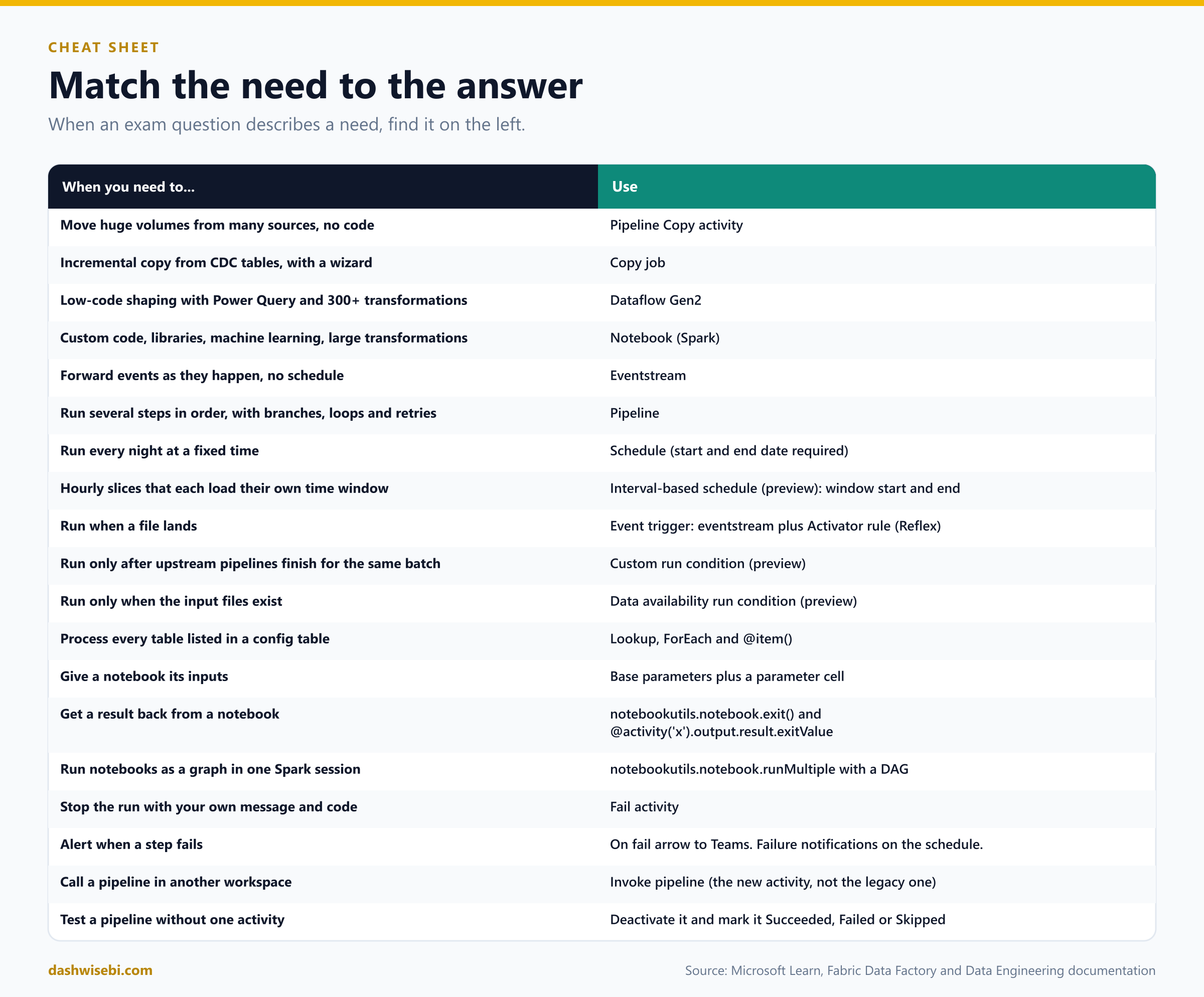
Choosing the right tool
When an exam question describes a need, find it on the left and pick the answer on the right.
Common mix-ups
- "A pipeline and a notebook are alternatives." Not in practice. A pipeline orchestrates, a notebook transforms, and a pipeline can run a notebook in a Notebook activity.
- "Dataflow Gen2 is for big code-first Spark jobs." It is the no-code or low-code Power Query tool. Custom code and open-source libraries point to a notebook.
- "The Copy job and the Copy activity are the same." Both move data. The Copy job is the simplified, wizard-based route, with incremental copy and replication. The Copy activity lives in a pipeline and sits inside your control flow.
- "A pipeline schedule can be open-ended." No. You must set a start and an end date. Use a far-future end date.
- "Failure notifications also cover manual runs." No. They are sent for scheduled runs only.
- "The schedule parameter name can differ from the pipeline's." Mismatched names are ignored at run time, with no error.
- "Interval-based schedules can be edited." Not now. Delete and create them again. They are also still in preview.
- "A run condition replaces the trigger." It does not. It adds a dependency check to a run that a schedule, trigger or manual action already started.
- "Event triggers need no extra items." They use an eventstream and an Activator rule saved as a Reflex item.
- "
@pipeline().TriggerEvent.FileNameis safe in a test run." Use the null-safe?form. In a manual run there is no event, so the value is NULL. - "A notebook run by a pipeline uses the notebook owner's identity." It uses the pipeline's last modified user. A scheduled notebook uses the person who created or last updated the schedule.
- "
exit()insidetry/exceptstill returns the value." It does not take effect there. - "Notebook parameters can be lists or dictionaries." Only
int,float,boolandstring. Pass JSON as a string. - "
coalesce()skips empty strings." It skips only null. An empty string is a value. - "
@{...}keeps the type." Interpolation always returns a string. A bare@expressionkeeps the type. - "Retry interval can be an expression." No. It must be a static integer.
- "Until stops when a child activity fails." It does not.
- "The legacy Invoke pipeline can call another workspace." Only the new activity can.
Try these scenarios
Eight exam-style questions. Cover the answers and test yourself.
1. The wizard and the CDC tables
A data integrator must copy incremental changes from an on-premises SQL Server with CDC enabled into Azure SQL Database. They want a wizard, an initial full load, automatic incremental loads and a schedule, and no custom orchestration. Which item?
Answer: A Copy job. It is made for incremental copy with a simple setup. A notebook would be heavy and a full pipeline is more than needed.
2. The Power Query expert
An analyst who knows Power Query must clean data from many sources, apply business rules and write the result to a lakehouse and an Azure SQL database. Volume is low to medium. Which tool?
Answer: Dataflow Gen2. It offers 150+ connectors, 300+ transformation functions, a visual interface and multiple destinations without code.
3. The missing parameter
A pipeline has a parameter named RunDate. You schedule it daily and type a parameter named Run_Date in the schedule. The pipeline runs but always uses its default date. Why?
Answer: Parameter names in the schedule must match the pipeline's names exactly. A mismatched name is ignored at run time. Rename it to RunDate.
4. The file that arrives at random times
Files land in a OneLake folder at unpredictable times. You want a pipeline to run for each new file and process that file. What do you set up?
Answer: An event trigger from the pipeline's Trigger button (OneLake events, filtered on the folder with the Subject field). Use @pipeline()?.TriggerEvent?.FileName in the expressions to pass the file name on to a notebook or a Copy activity.
5. The downstream pipeline that starts too early
A transformation pipeline must run only after both the ingestion pipeline and the validation pipeline finish for the same region and date. Schedules sometimes drift. What feature fits?
Answer: A custom run condition (preview) on the downstream pipeline, with a run dimension of region plus date and both upstream pipelines selected. The downstream pipeline waits for all matching upstream runs.
6. The notebook that returns nothing
A notebook ends with try: ... notebookutils.notebook.exit("OK") except: .... The pipeline's If condition on @activity('Silver').output.result.exitValue never sees OK. What is wrong?
Answer: exit() does not take effect inside a try/except block. Move it to its own top-level cell.
7. A hundred tables, one pipeline
You must copy 100 tables listed in a config table. You do not want 100 Copy activities. Which design?
Answer: A Lookup that reads the config table, followed by a ForEach over @activity('GetSources').output.value with a Copy activity inside that uses @item(). Use a Batch count to control the parallelism. Remember Lookup returns at most 5,000 rows and 4 MB.
8. Notebooks in a graph
Five notebooks must run so that notebooks B and C start after A, and D starts after both B and C. Everything is in one workspace and you want one Spark session. How?
Answer: Use notebookutils.notebook.runMultiple() with a DAG. Give each notebook a unique name and set dependencies: B and C depend on A, D depends on B and C. Call validateDAG() first. A pipeline with arrows between Notebook activities also works, but each activity can start its own session unless you use a session tag.
Where to go next
- Open a trial workspace and build the daily load from this post: Lookup, ForEach, a Notebook activity with a parameter cell and an exit value, an If condition, a Fail activity and a Teams message. Then add a schedule with a parameter, and a file event trigger.
- Work through the Learn module Orchestrate processes and data movement with Microsoft Fabric and its exercise.
- Read the notebook-focused post from the Fabric team, Use Fabric Data Factory data pipelines to orchestrate notebook-based workflows. It shows parallel notebooks, an If condition on the exit value, a failure path that sends a Teams message, and retries on the notebook activities.
- Read the sources behind this post: DP-700 study guide, Fabric decision guide: copy activity, dataflow, Eventstream or Spark, Run, schedule, or use events to trigger a pipeline, Run conditions in Fabric pipelines, Trigger Fabric items with Activator, Dataflow Gen2 refresh, Public parameters in Dataflow Gen2, Dataflow activity, Activity overview, Activity retries, Parameters, Expressions and functions, Lookup activity, ForEach activity, If Condition activity, Switch activity, Until activity, Fail activity, Invoke pipeline activity, Notebook activity, NotebookUtils notebook run and orchestration, Develop, execute, and manage notebooks and How to use notebooks.
Keep reading
DP-700 Episode 3: Security & Governance
DP-700 study guide to Fabric security: workspace and item access, RLS, CLS, OLS, folder access, masking, sensitivity labels, endorsement, audit logs and OneLake security.
DP-700 Episode 2: Lifecycle Management
DP-700 study guide to Git version control, warehouse database projects and deployment pipelines in Fabric, with 12 diagrams, exam traps and practice scenarios.