PL-300 Episode 7: Secure & Govern Power BI

PowerBI consultant ·
Monday, 9:05. An email lands in Neha's inbox with the subject line “Internal audit: Power BI, six findings”. She is the new BI admin at Monsoon Mart, a retail chain with 140 stores. The auditor, Rohan, wants every finding closed by Friday.
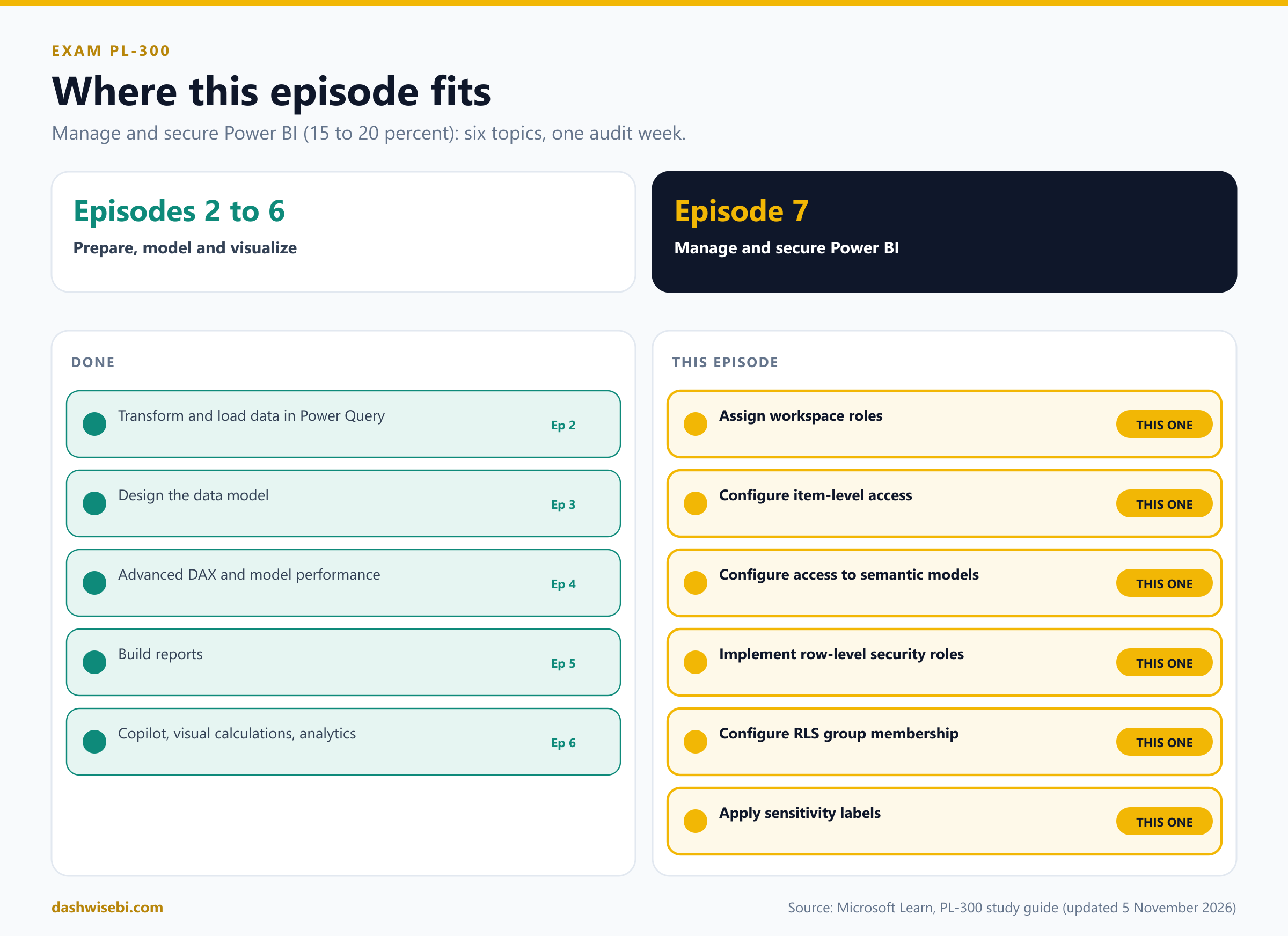
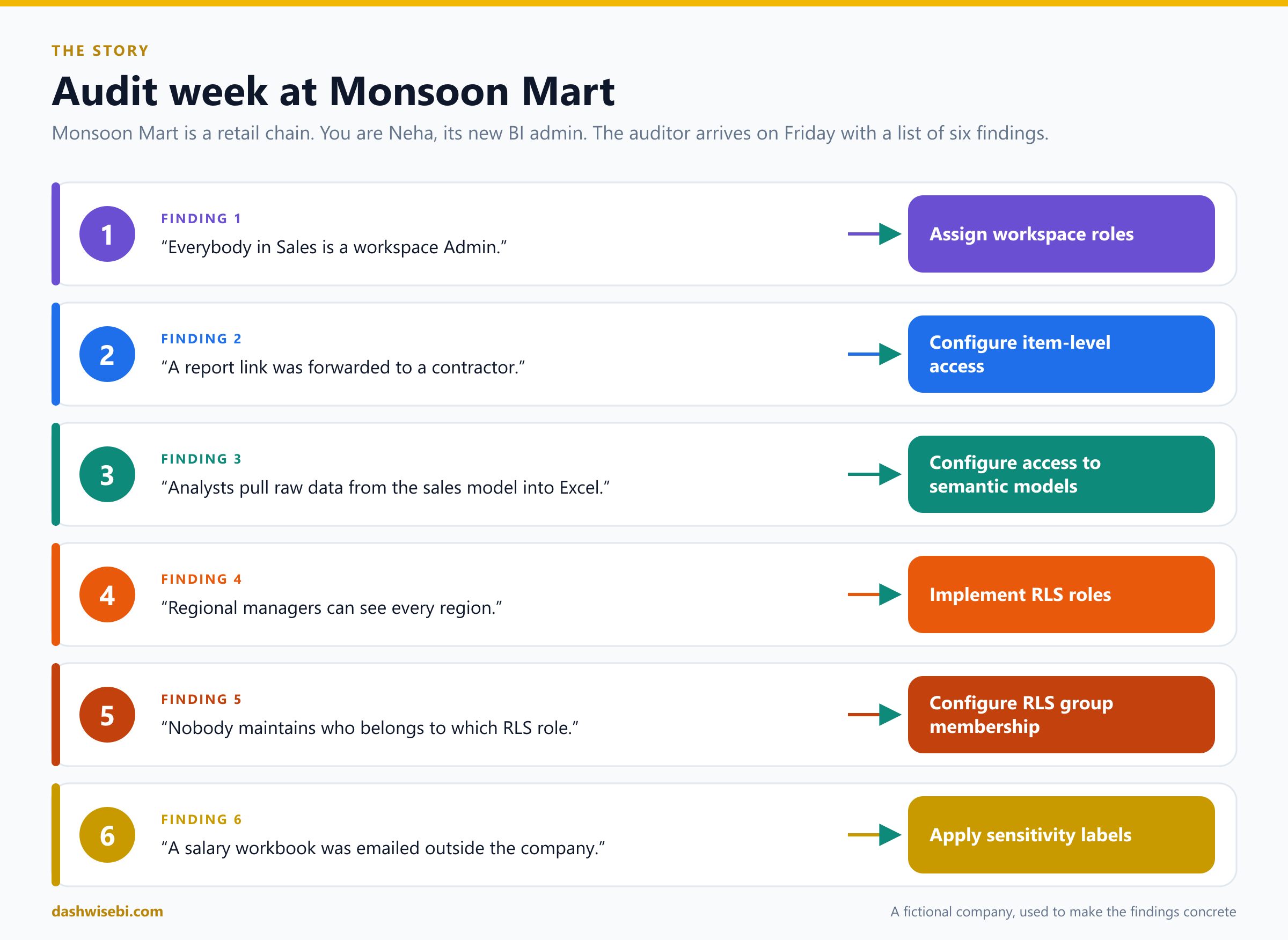
Welcome to Episode 7 of our PL-300 series. In Episode 6 you analyzed the data. Now you protect it. This episode covers the skill area Manage and secure Power BI (15 to 20 percent of the exam), and the six topics are the six findings on Rohan's list:
- Assign workspace roles
- Configure item-level access
- Configure access to semantic models
- Implement row-level security roles
- Configure row-level security group membership
- Apply sensitivity labels
As in the last episodes, this is a working week and not a reference list. Each chapter is one finding, with the same rhythm:
- The finding. What Rohan wrote.
- Pause and decide. Choose first. The answer is behind a click.
- Why. The reasoning, with diagrams.
- Exam lens. What PL-300 tends to ask, and the traps.
A few honest notes. Monsoon Mart is a made-up company, and I have not run every step on a live tenant, so I follow Microsoft Learn and say so where it is thin. Several settings here depend on what your tenant admin has enabled (sharing links, sensitivity labels), so what you see may differ. Learn pages change often, so check the live pages before an exam.
Finding 1. “Everybody in Sales is a workspace Admin”
Neha opens the Sales workspace. Of its 23 people, 19 have the Admin role. Kavya from Sales Ops shrugs. “It was the only way to let them publish reports.”
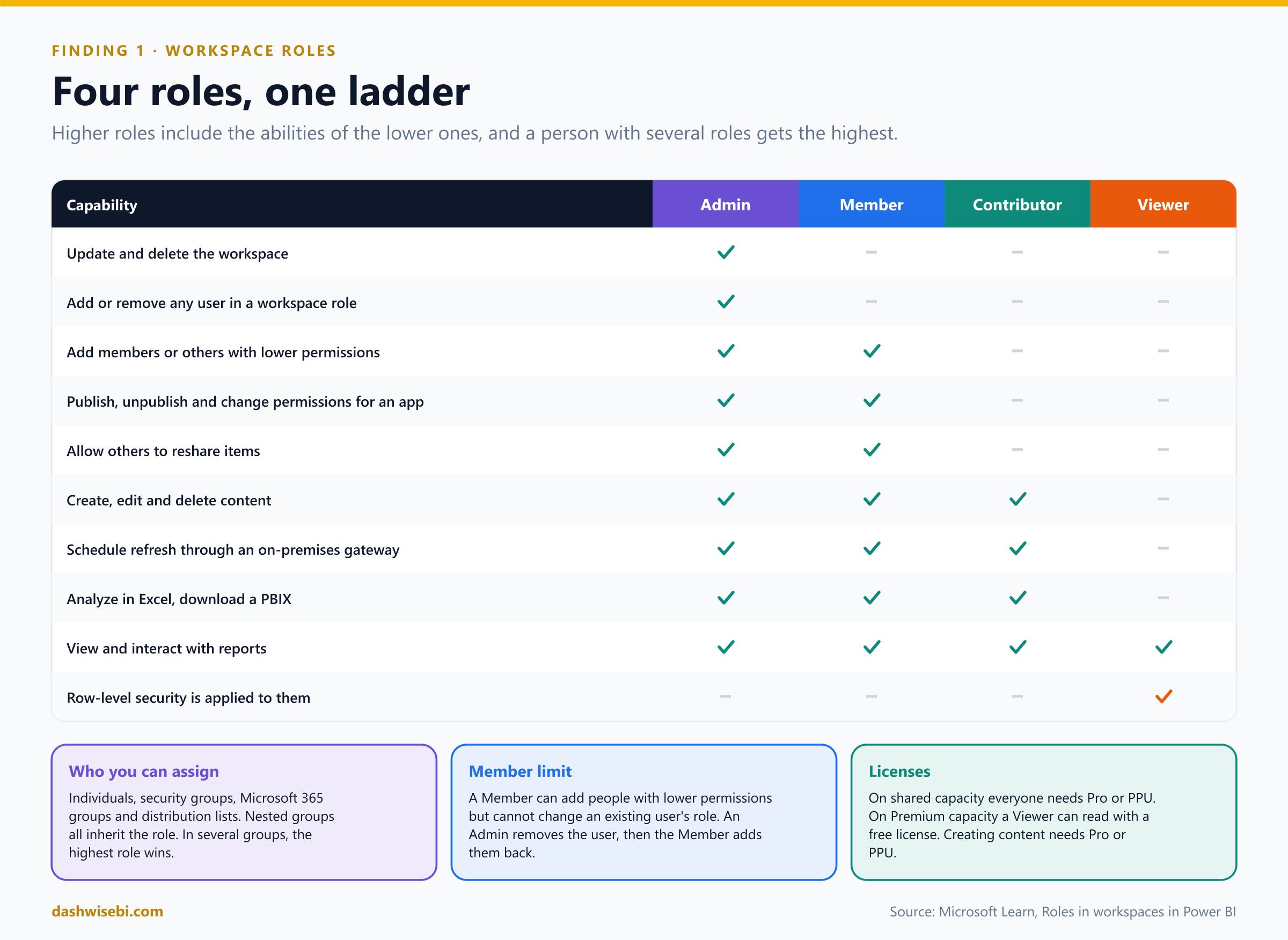
A workspace role decides what a person can do with everything in the workspace. There are four, and each is a step up from the one before.
Pause and decide. Kavya's analysts must create and publish reports but must not add or remove people. Which role?
Contributor. A Contributor can create, edit and delete content in the workspace and publish to it. A Contributor cannot add people or publish an app, and can update the workspace app only if the Admin allows it. Member goes further: a Member can add people with lower permissions and publish apps.
Pause and decide. Regional managers only read reports, and their data must be filtered by row-level security. Which role?
Viewer. A Viewer can view and interact with content. RLS applies to Viewers. It does not apply to Admin, Member or Contributor, because those roles can edit the semantic model.
Pause and decide. Kavya is a Member and wants to upgrade a Viewer to Contributor. She cannot find the option. Why?
A Member can add people with lower permissions but cannot change an existing user's role. An Admin must first remove the user, and then the Member can add them back at the new role. This is a typical trick question.
Pause and decide. A user is in a security group with the Viewer role and in another group with the Contributor role. What can they do?
They get the highest level of permission across their roles, so Contributor. The same rule holds for nested groups: assign a role to a group and all the contained users get it.
Pause and decide. Tara, a Viewer, has a free Power BI license. Can she read the reports?
It depends on where the workspace lives. On a workspace in Premium capacity, a Viewer can read with a free license. On shared capacity, everyone needs a Pro or Premium Per User license. All capabilities other than viewing and interacting require Pro or PPU. If you want free-license users to use the Viewer role, make sure they have no other workspace role, directly or through a group.
Why: assign groups, not individuals
- You can assign a role to individuals, security groups, Microsoft 365 groups and distribution lists. For maintenance, assign groups: the group changes and the workspace follows.
- Only the Admin can update or delete the workspace and remove people. Keep Admins few.
- Disabling a user in Microsoft Entra ID does not remove their workspace access records. They only lose the access while the account is disabled. The records stay until the user is permanently deleted.
- A Pro user can be a member of at most 1,000 workspaces.
- Microsoft Entra B2B guests who are assigned a role keep it even if the tenant setting that lets guests edit content is turned off.
Neha creates three security groups: Sales Publishers (Contributor), Sales Readers (Viewer) and Sales Leads (Member). Admin goes back to two people. Rohan reads the new access list and ticks his first box.
Exam lens
- Admin manages the workspace and people. Member adds lower roles and publishes apps. Contributor creates and edits content. Viewer views, with RLS applied.
- Highest role wins. A Member cannot change an existing user's role.
- Viewer on Premium capacity needs no Pro license to read.
Finding 2. “A report link was forwarded to a contractor”
Rohan has attached a screenshot. A contractor from outside Monsoon Mart opened a margin report. Somebody had pasted a link into a group chat.
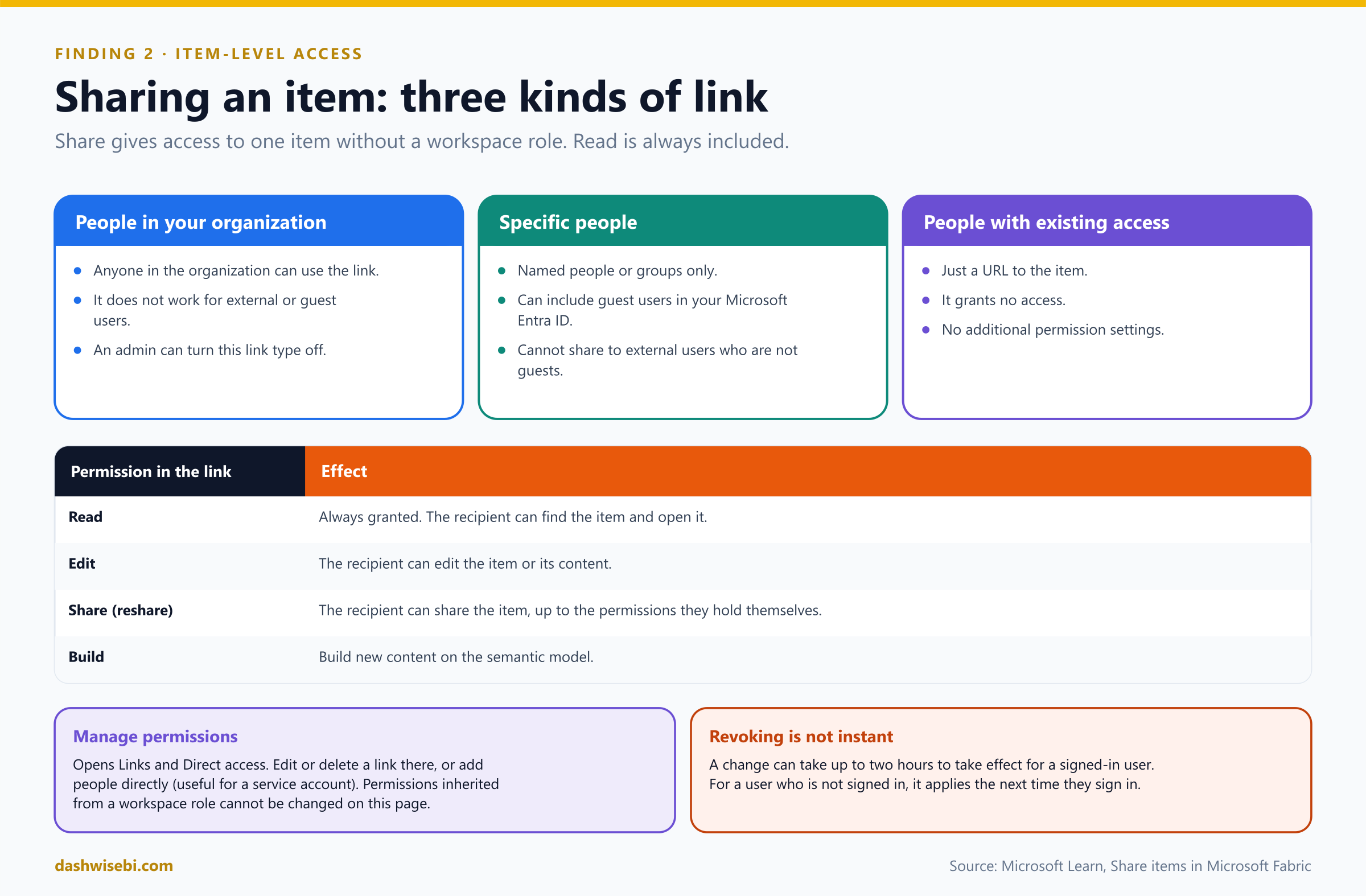
Besides workspace roles, you can grant access to one item by sharing it. This is for colleagues who do not have a role in the workspace, or for extra permissions for colleagues who already have one. When you select Share, you choose the kind of link.
Pause and decide. The report link was created for “People in your organization”. Would it have worked for the external contractor?
Not by itself. The organization link does not work for external or guest users. So either the link was a different type, or the contractor had another route in: a guest account with a link for Specific people (which can include guests in your Microsoft Entra ID, but not external users who are not guests), a workspace role, or an app. The Manage permissions page shows links and direct access, so check it to find out how the contractor really got in.
Pause and decide. Which link type sends someone a URL without granting any access?
People with existing access. It generates a URL to the item but grants nothing. Use it when you only want to point to an item that the person can already open. It has no additional permission settings.
Pause and decide. Rohan asks: “Can an admin stop people creating links for the whole company?”
Yes. A tenant admin can disable shareable links for People in your organization. Then you can only copy links of the types People with existing access and Specific people.
Pause and decide. Neha deletes the forwarded link on the Manage permissions page, and the contractor can still open the report a few minutes later. Is it broken?
Not necessarily. When a permission is revoked through the manage permissions experience, it can take up to two hours to take effect if the user is signed in. If the user is not signed in, the change is evaluated at their next sign-in.
Pause and decide. Neha wants to remove the Viewer permission that a user inherited from a workspace role, on an item's Manage permissions page. Where is the button?
There is none. You cannot modify or remove permissions inherited from a workspace role on that page. Change or remove the person's role in the workspace instead.
Why: the permission model
- Read is always granted when you share, so the recipient can find the item and open it. You can add Edit, Share (the recipient can pass access on, up to the permissions they hold themselves) and, for a semantic model, Build.
- Manage permissions shows links and direct access. In the advanced view you can create, edit and delete links, and add people directly. Direct access is the right tool for a service account.
- A Share link on a report can also grant access to its underlying semantic model. That is why Finding 3 matters.
- You can share by copying a link, by email, by Teams, or by sending it to specific people or groups (security groups and distribution groups).
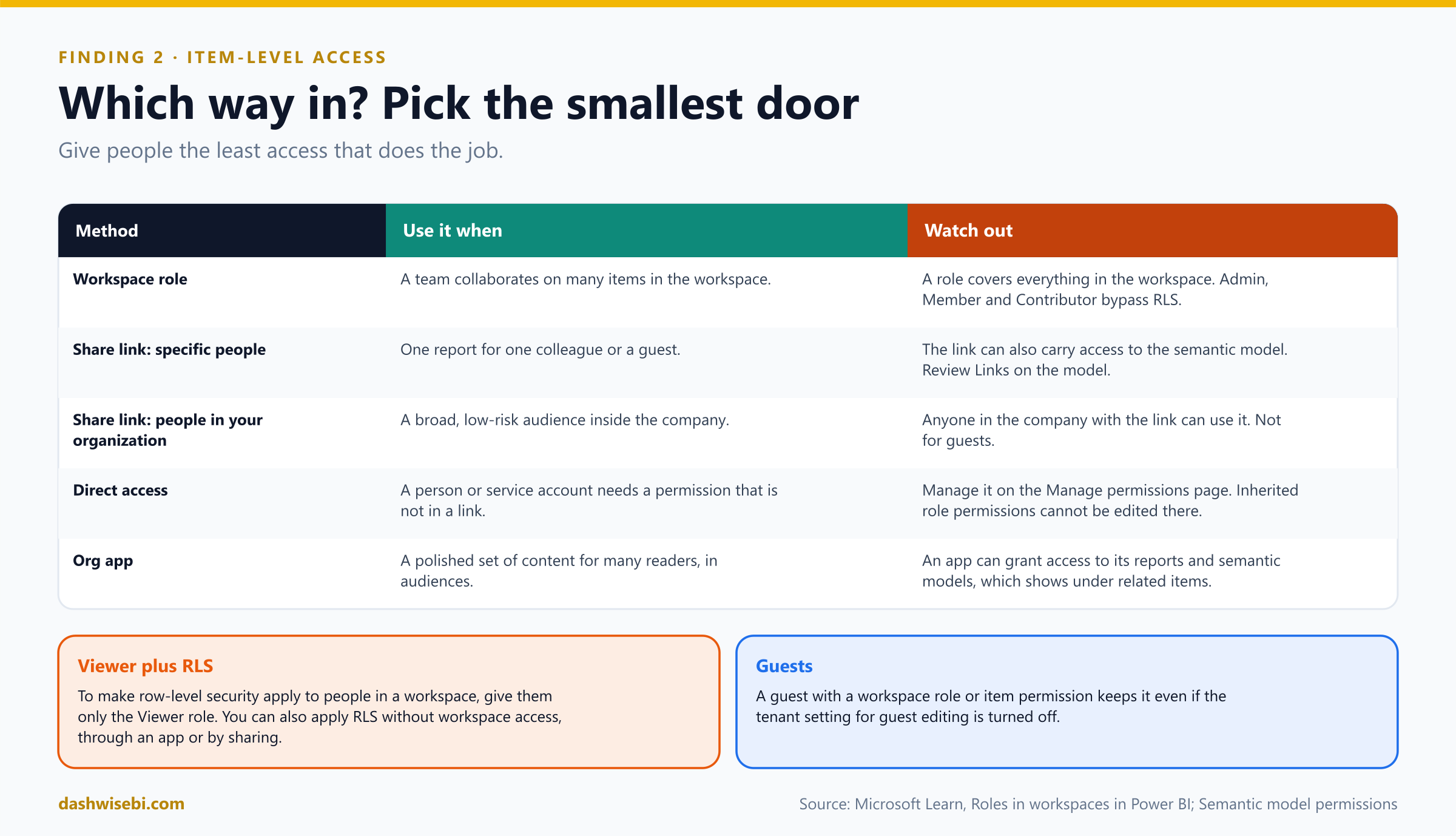
Neha replaces the company-wide links with links to specific people, and sends the contractor's team an invitation as guests with Read access to the one report they need. Rohan nods and moves to the next line.
Exam lens
- Three link types: People in your organization, Specific people (guests possible), People with existing access (no access).
- Read is always included. Share and Build are additional.
- Revoking can take up to two hours. Inherited workspace-role permissions are not editable on the permissions page.
Finding 3. “Analysts pull raw data from the sales model into Excel”
Rohan's third note has a screenshot of an Excel PivotTable with 800,000 rows of sales, customer names included. “The analysts were only supposed to read reports,” he writes.
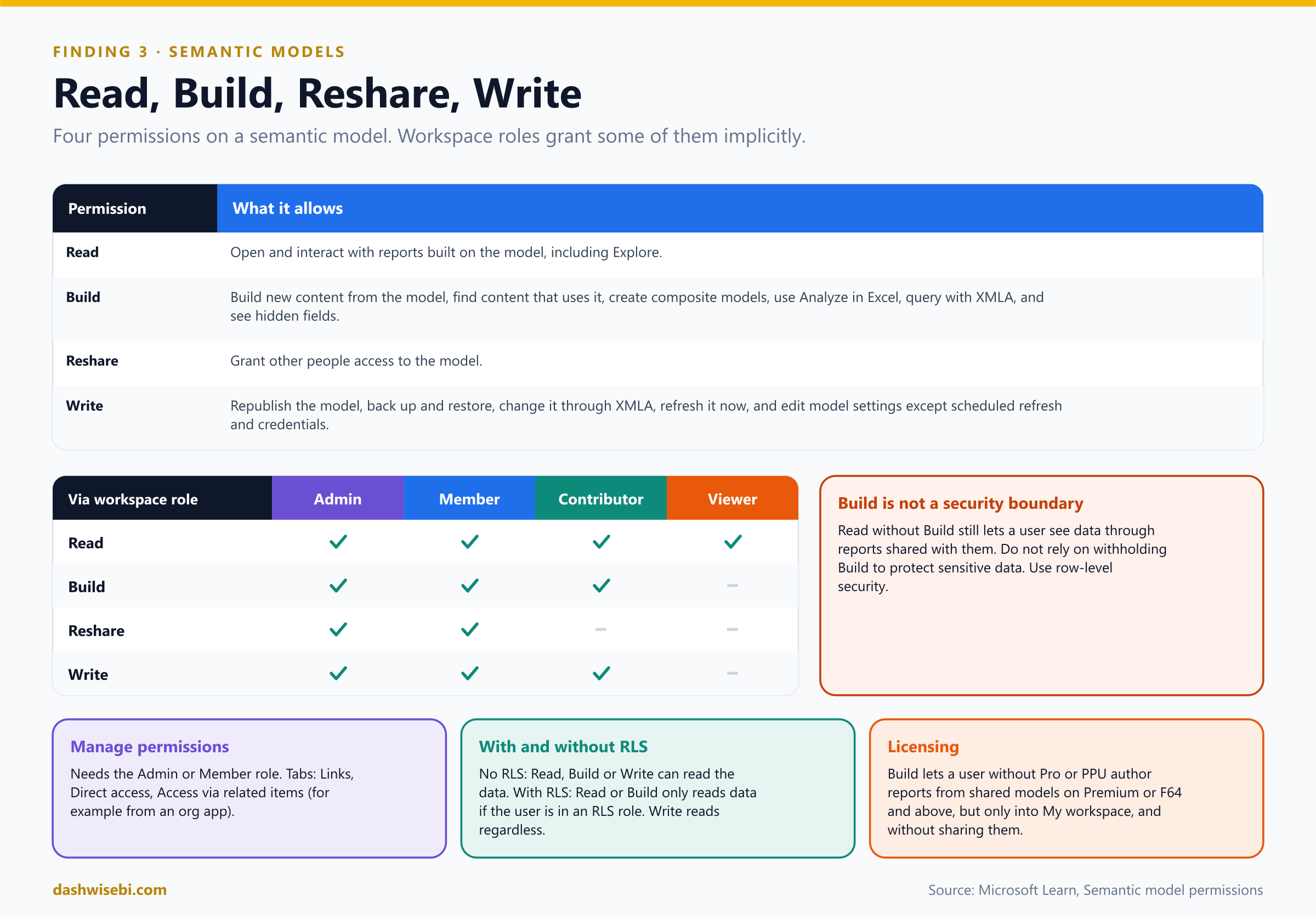
The shared semantic model is where the data lives, so it has its own permissions: Read, Build, Reshare and Write. Workspace roles grant some of them for you.
Pause and decide. A Viewer with the default permissions tries Analyze in Excel on the sales model and is refused. Which permission is missing, and how do you grant it if you decide it is right?
Build. Viewers get Read but not Build through their workspace role. To let Viewers use Analyze in Excel or export underlying data, grant them Build on the semantic model. Build also lets a user create new content from the model, create composite models, query it with XMLA and see hidden fields.
Pause and decide. Neha removes Build from the analysts and says the sales model is now protected. Is it?
No. Build is primarily a discoverability feature. A user with Read but not Build can still consume and interact with reports shared with them and can access the data in the model. Do not rely on withholding Build to secure sensitive data. Use row-level security (Findings 4 and 5), and think about who gets Read.
Pause and decide. Which people can open the Manage permissions page for a semantic model, and which tabs does it have?
People with the Admin or Member role in the workspace. The tabs are Links (links for shared reports that use the model), Direct access (people and groups, including security and distribution groups) and Access via related items (for example an org app).
Pause and decide. Kavya's Contributor role gives her Write on the model. Can she also grant others access to it?
No. Granting access needs Reshare, which Admin and Member roles have and Contributors do not. A Contributor does have Build and Write: she can republish the model, refresh it now and edit its settings.
Pause and decide. An analyst without a Pro license has Build on a model that lives on a Premium capacity. What can they do?
On Premium (or Fabric F64 and above) they can author reports from the shared model, but only store them in My workspace, and they cannot share them. Storing reports in another workspace or sharing them needs Pro or PPU.
Why: four ways to get a permission
- Implicitly, from the workspace role. These can only be changed by changing the role, not on the permissions page.
- Explicitly, on the Manage permissions page, by an Admin or a Member.
- Through a link, when someone shares a report or model.
- Through an app, if the app owner allows it in the audience settings. REST APIs can also set permissions.
RLS decides what Read and Build can see. When a model has no RLS, users with Write, Read or Build can read its data. When the model has RLS, users with only Read or Build cannot read data unless they belong to an RLS role, but users with Write can read it regardless of role. That is the bridge to the next two findings.
Neha gives Viewers Read only, adds the analysts to a Build group only for the two models they really need, and watches the Links tab for stray links. The sales model now has a short list of who and why.
Exam lens
- Read = use reports. Build = new content, Analyze in Excel, XMLA, hidden fields. Reshare = grant access. Write = republish, refresh, settings.
- Viewer: Read only. Contributor: Read, Build, Write. Member and Admin: all four.
- Manage permissions needs Admin or Member. Withholding Build does not protect data.
Finding 4. “Regional managers can see every region”
Asha manages the West, and her report shows every region. “It is nice to see the competition,” she says, smiling. Rohan is not smiling.
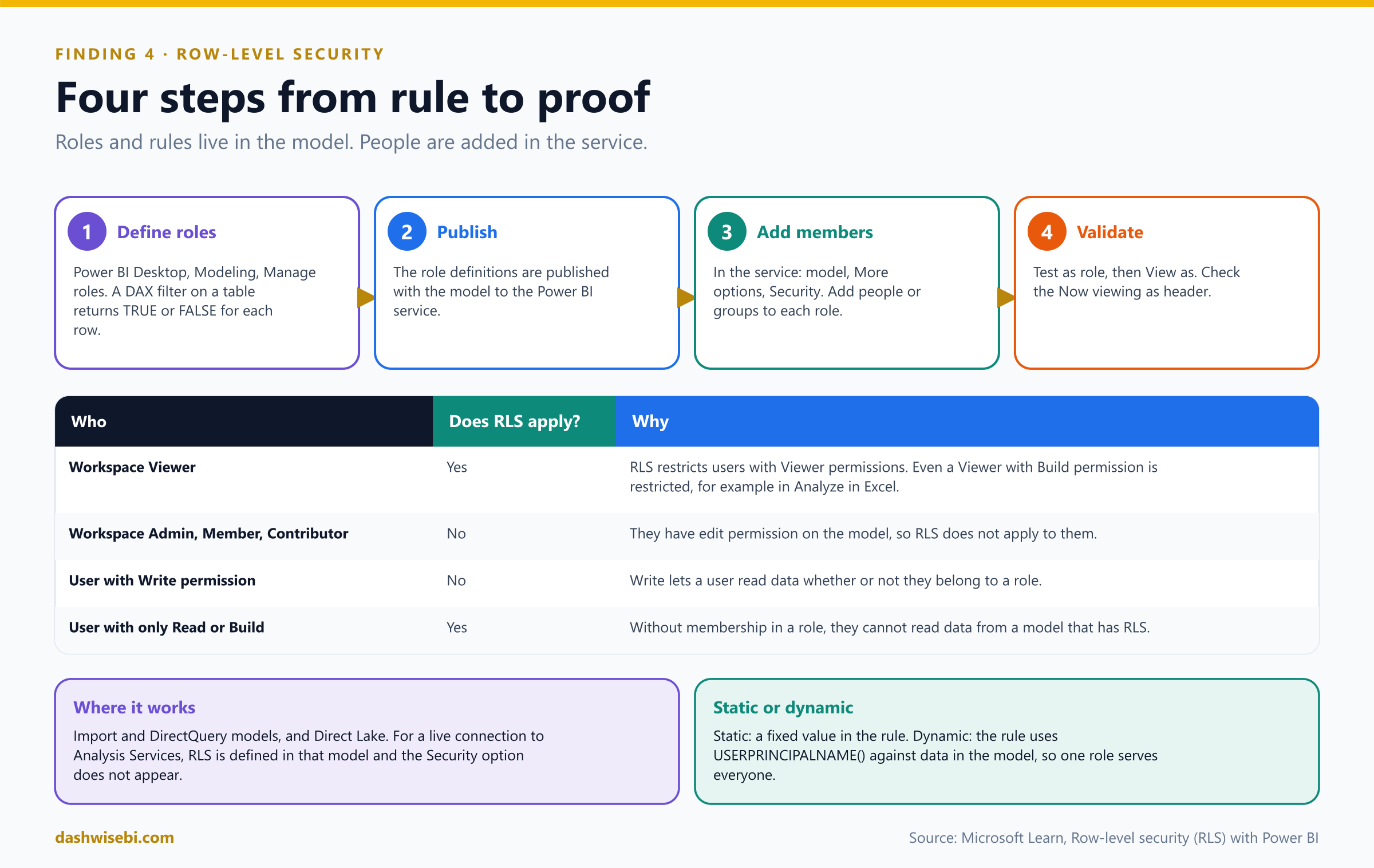
Row-level security (RLS) filters rows by who is looking. You define roles with DAX filter expressions, and the filter is evaluated for each row of a table. Only rows that return TRUE stay visible. The workflow has four steps:
Pause and decide. Where do you define the roles and rules, and where do you add people to them?
You define roles in Power BI Desktop (Modeling, Manage roles) and you add members in the Power BI service (the model's More options, then Security). You cannot assign people to a role inside Desktop. The role definitions are published together with the model.
Pause and decide. The simplest rule: a role named West for the Region table. What is the filter expression?
A static rule: [Region] = "West". Everyone in this role sees only West rows. It works, but you need one role per region.
-- static: one role per region
[Region] = "West"
Pause and decide. Monsoon Mart has 140 stores and managers who change jobs. What is the better design?
Dynamic RLS. One role, with a filter that uses USERPRINCIPALNAME() (or USERNAME()) against a column in the model that holds each person's sign-in name. The role works for everyone, and a change of manager is a data change.
-- dynamic: one role, one rule for everyone
-- table: Region (one row per region, with a ManagerEmail column)
[ManagerEmail] = USERPRINCIPALNAME()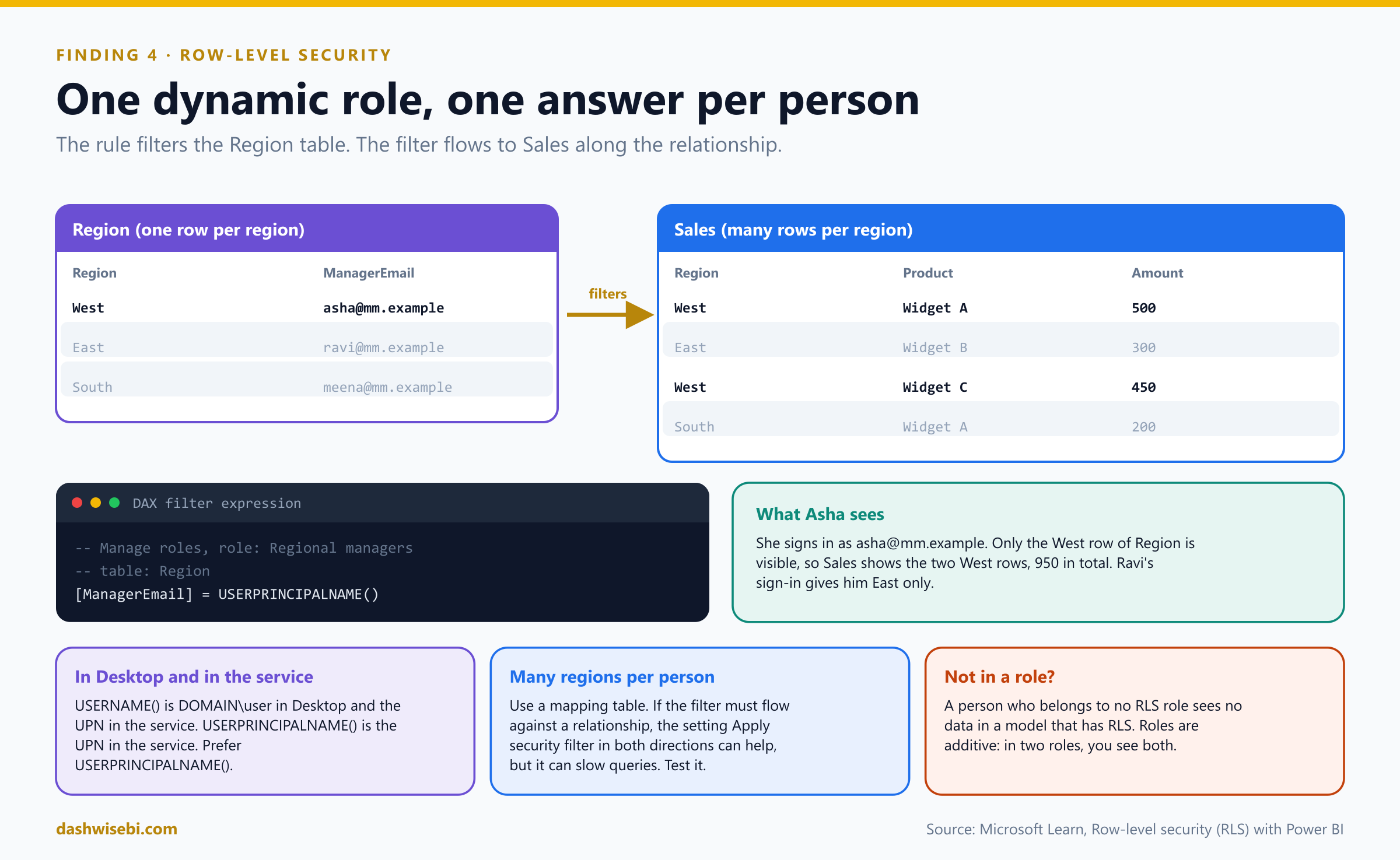
Pause and decide. Asha opens the report in Desktop on her laptop while building a new page, and USERNAME() returns MM\asha. In the service it returns asha@monsoonmart.example. Which function is more consistent?
USERPRINCIPALNAME(). In Desktop, USERNAME() returns DOMAIN\user and USERPRINCIPALNAME() returns the user principal name. In the service, both return the UPN, which looks like an email address. Use the UPN everywhere, and store the same format in your user column.
Pause and decide. Kavya, a workspace Contributor, opens the report to check RLS and sees all regions. Is RLS broken?
No. RLS does not apply to Admin, Member or Contributor, because they have edit permission on the model. RLS restricts users with Viewer permissions (and users with only Read or Build on the model). Even a Viewer with Build permission is restricted, for example when they use Analyze in Excel. To make RLS apply to someone in a workspace, give them only the Viewer role.
Pause and decide. A user is a member of two roles: West and East. What do they see? And a user who belongs to no role at all?
Roles are additive, so the user in two roles sees the rows of both. A user who is assigned to no role on a model that has RLS sees no data.
Pause and decide. How do you check that a role works, before real users complain?
In the service use Test as role (More options beside the role), then Now viewing as to test other roles, a combination of roles or a specific person. In Desktop there is View as. For models with DirectQuery and single sign-on, Test as role does not work: sign in as a real Viewer. It also uses your identity, so it cannot show what a particular guest would see.
Why: what RLS can and cannot do
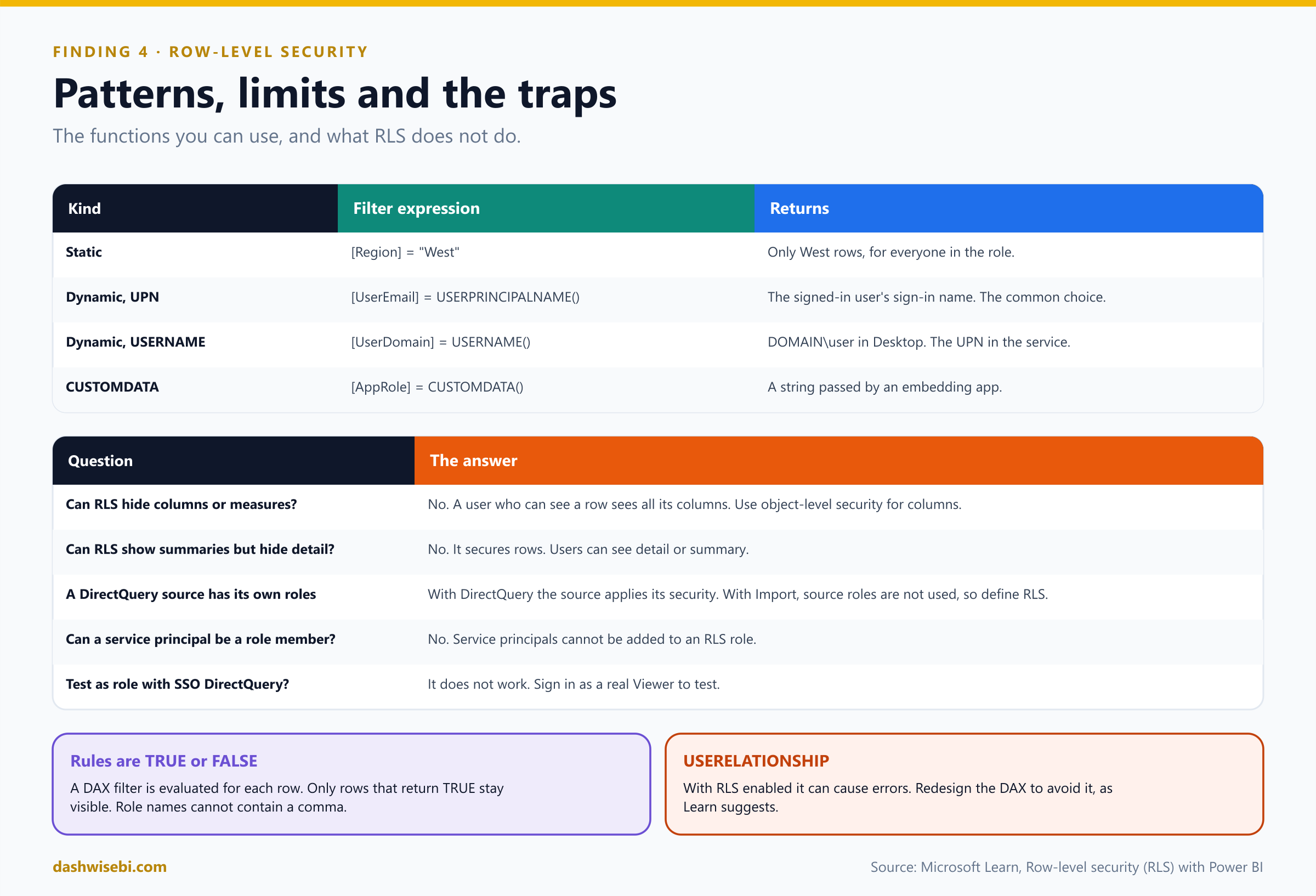
- It secures rows, not columns. A user who sees a row sees all of its columns. To restrict columns, use object-level security. It also cannot show summarized data while hiding the detail.
- Where it works. Import and DirectQuery models and Direct Lake. For a live connection to Analysis Services you define security in that model, and the Security option does not appear in the service. With DirectQuery, the roles in the data source are used. With Import, they are not, so define RLS in Power BI.
- Relationship direction. Filters follow the model's relationships. By default, RLS filters in a single direction even if the relationship is bi-directional. The checkbox Apply security filter in both directions is for specific dynamic cases, and it can slow queries.
- Odds and ends. Role names cannot contain a comma. In the DAX editor, use commas between arguments even in locales that normally use semicolons.
USERELATIONSHIP()with RLS can cause errors. You can define RLS only on models created with Power BI Desktop. Roles defined earlier in the service must be re-created in Desktop. - Embedding.
CUSTOMDATA()and the effective identity of the embed token are for embedded apps. A service principal cannot be a role member.
The next morning Asha opens the report and sees 62 West stores. She frowns. “Where is everyone else?” Neha grins. “That is the point.”
Exam lens
- Define roles in Desktop. Add members in the service. Validate with Test as role.
- Static: a fixed value. Dynamic:
USERPRINCIPALNAME()against a user column. - RLS applies to Viewers, not to Admin, Member or Contributor. Roles are additive. No role means no data.
- RLS secures rows, not columns.
Finding 5. “Nobody maintains who belongs to which RLS role”
Rohan opens the model's Security page. West has 31 individual names. Eleven of them left the company. “Who cleans this up?” he asks.
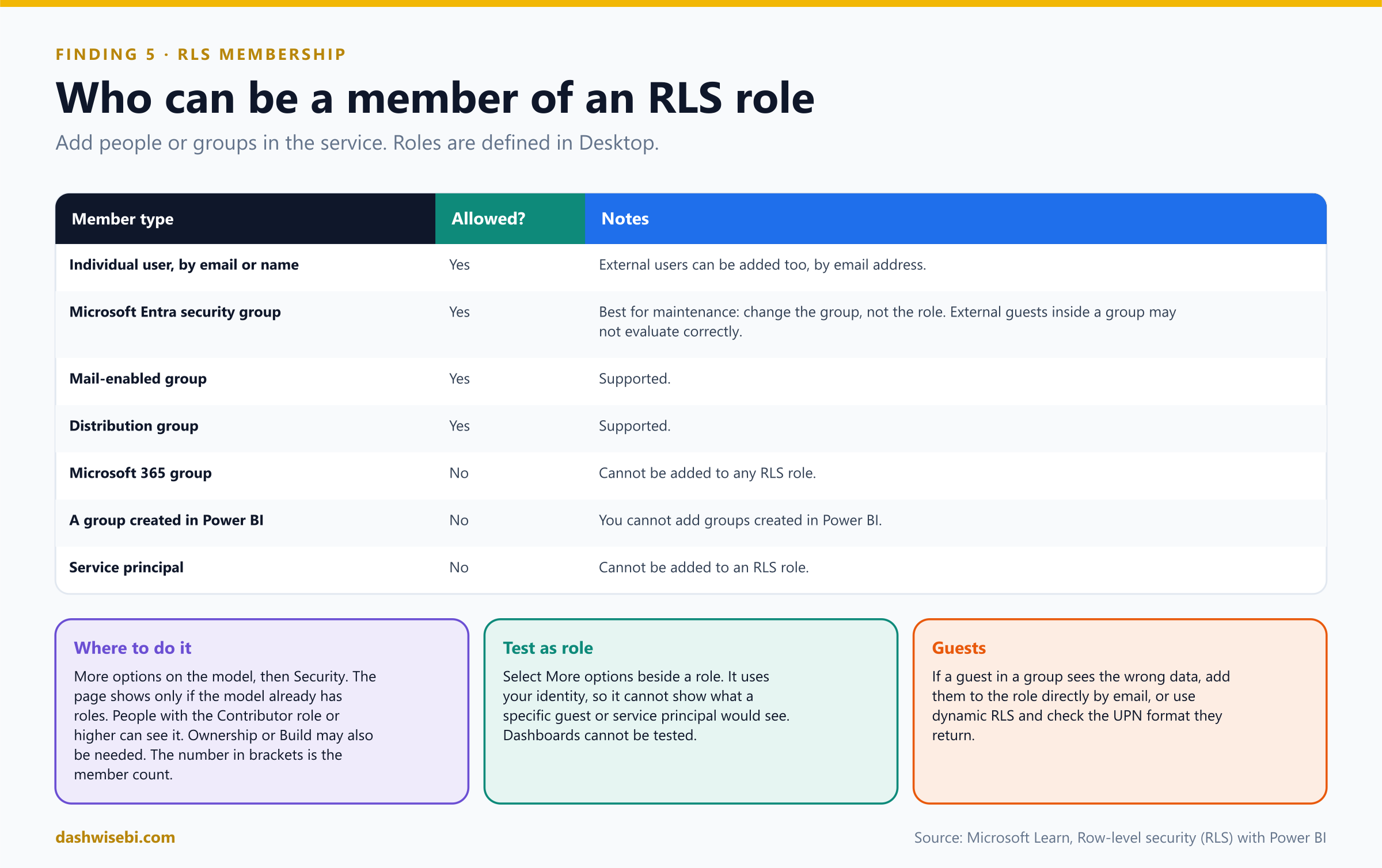
Adding people one by one does not scale. In the service you add members to a role: individuals, or groups, so that membership follows the directory and not a spreadsheet.
Pause and decide. Neha wants to put the West managers in a group and add that group to the West role. Which group types can she use?
A Microsoft Entra security group, a mail-enabled group or a distribution group. A security group is the best choice, because you manage membership in your directory.
Pause and decide. Her first choice was the existing Microsoft 365 group West Managers. Does it work?
No. Microsoft 365 groups are not supported and cannot be added to any RLS role. The same is true for groups created in Power BI. And a service principal cannot be added to an RLS role either.
Pause and decide. The Security option is missing for a model Neha just published. Why?
You can manage security only on models that already have RLS roles defined (in Desktop, or when editing the model in the service). The option also does not show up for live-connection models. People with the Contributor role or higher see Security, and ownership or Build permission may also be required.
Pause and decide. An external partner is a B2B guest and sits in the security group, but sees an empty report. What do you try?
Guests inside Entra security groups might not be evaluated correctly. The documented workaround is to add the guest directly to the role by email address, or to use dynamic RLS and check what USERPRINCIPALNAME() returns for guests. It can be user@partner.com or a #EXT# format, so your user column must match. Test with the real guest account, not Test as role.
Pause and decide. How can you see how many people are in a role?
The number in parentheses next to the role name, or next to Members, on the Security page.
-- a test measure to see which identity Power BI sees
Who am I = USERPRINCIPALNAME()
Put that measure in a card and have the guest open the report. It is the quickest way to find out why a filter returns nothing.
Why: three pieces fit together
- Roles are rules. They live in the model and travel with it.
- Groups are people. They live in the directory. Neha now changes membership in Entra, and RLS follows.
- Workspace Viewers or an app. RLS applies to Viewers in the workspace. You can also enforce RLS for people who have no workspace access, by publishing an app, or by sharing content.
- Test as role works for reports in the same workspace as the model. It does not support dashboards or paginated reports, and cannot validate every aspect (for example Q&A, quick insights and Copilot).
The West role now has one member, the group MM West Managers. When a manager leaves, HR removes them from the group, and by the next day their access is gone. Rohan writes “remediated”.
Exam lens
- RLS members: individuals, Entra security groups, mail-enabled groups, distribution groups.
- Not allowed: Microsoft 365 groups, groups created in Power BI, service principals.
- Security page: service, model, More options, Security. Needs defined roles. External guests: add directly by email.
Finding 6. “A salary workbook was emailed outside the company”
The last finding is the one Rohan underlined twice. An analyst exported a report to Excel, saved it, and emailed it to a personal address. It contained salary bands.
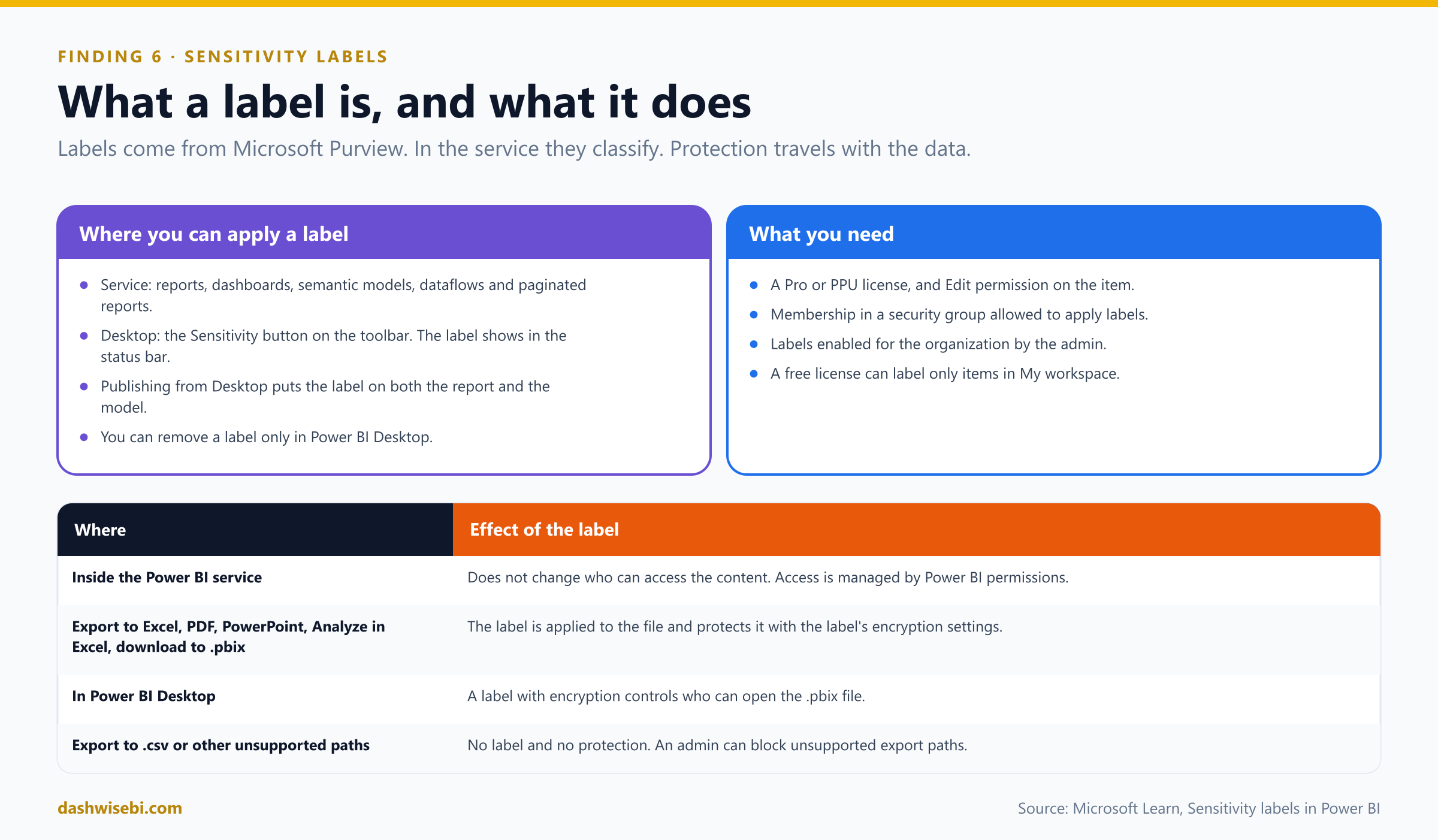
Access control stops people from opening data. Sensitivity labels from Microsoft Purview make the data carry its own rules when it leaves. You apply a label such as Confidential, and if the label has protection settings, the exported file is protected with them.
Pause and decide. Neha labels the salary report Highly Confidential in the service. Does this stop a colleague from opening it?
No. In the Power BI service, sensitivity labeling does not affect access to content. Access is managed solely by Power BI permissions. The label and its encryption apply when data leaves the service through a supported export path: export to Excel, PowerPoint or PDF, Analyze in Excel, and download to .pbix.
Pause and decide. A report author exports the labeled report to Excel. What happens to the file?
Power BI automatically applies the sensitivity label to the exported file and protects it according to the label's file encryption settings. The user who exports gets the permissions that the label grants, not owner permissions on the file. Exporting to .csv is not a supported path: no label and no protection are applied.
Pause and decide. Where do you apply a label to a semantic model in the service, and where on a report?
On the item's More options menu, select Settings. For a report or dashboard, use the Sensitivity label section of the settings pane. For a semantic model or dataflow, go to the Settings view, open the Semantic models (or Dataflows) tab and expand Sensitivity label. In Desktop use the Sensitivity button on the toolbar, and the label shows in the status bar.
Pause and decide. A report author has a free license. Where can they apply labels?
Only to items in My workspace. Applying a label in other workspaces needs a Pro or Premium Per User license, Edit permission on the item, membership of a security group that is allowed to apply labels, and sensitivity labels enabled for the organization.
Pause and decide. Where can you remove a label?
You can remove sensitivity labels only in Power BI Desktop, by selecting the Sensitivity option and choosing the current label again. In the service you change it to another label if you have the rights.
Why: labels travel
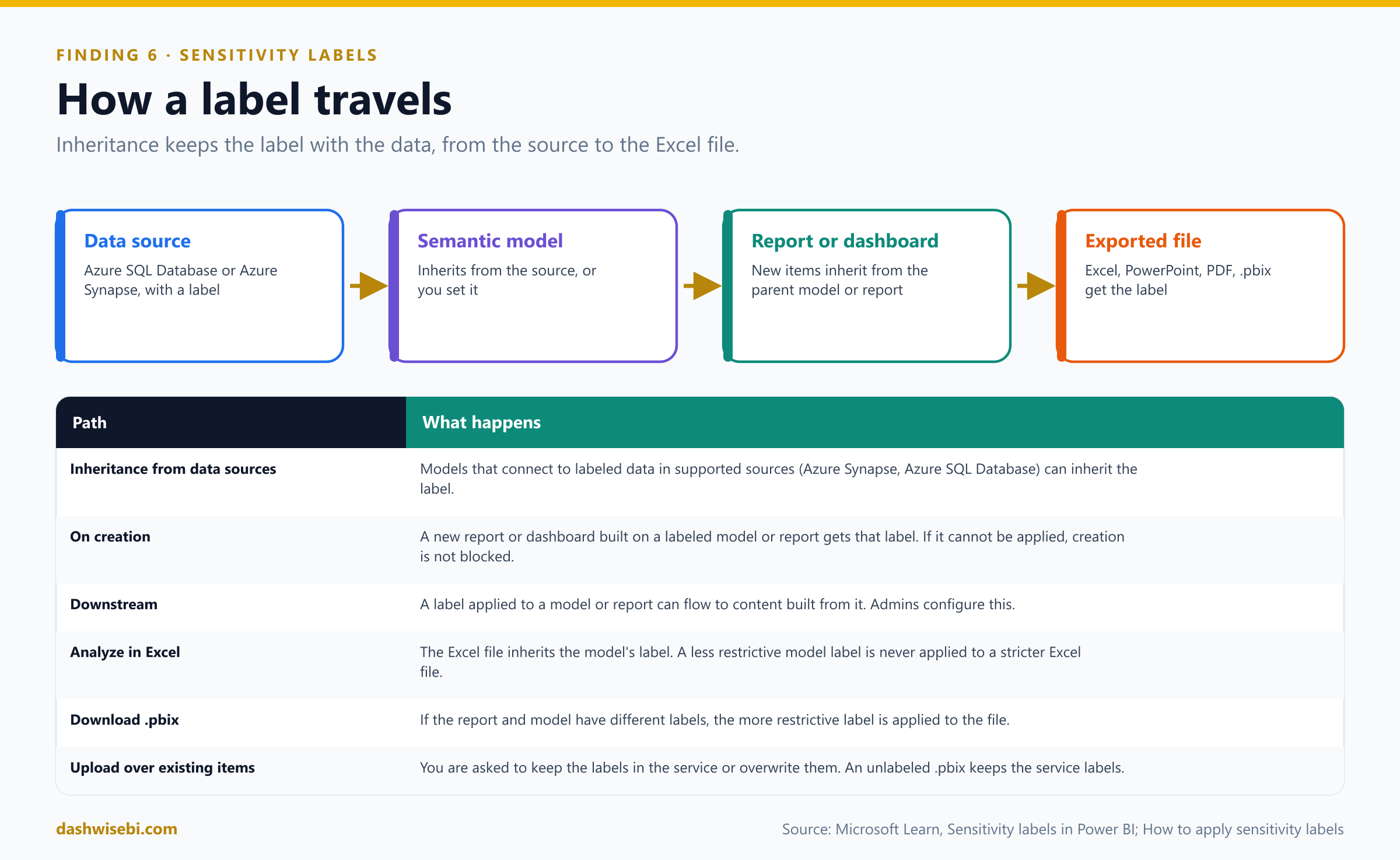
- On creation. A new report or dashboard built on a labeled model or report inherits the label automatically. If the label cannot be applied, the item is still created.
- From data sources. Models that connect to labeled data in Azure Synapse Analytics or Azure SQL Database can inherit those labels.
- Downstream inheritance. A label on a model or report can flow to the content built from it.
- Analyze in Excel. The Excel file inherits the model's label. If the model's label is less restrictive than the Excel file's own label, nothing changes: a file never inherits a less restrictive label.
- Download as .pbix. If the report and the model have different labels, the more restrictive label is applied. A labeled
.pbixpublished from Desktop puts the label on both the report and the model. - In Desktop, a label with encryption does affect access: a user without the right permissions cannot open the file. Free-license users cannot open protected files.
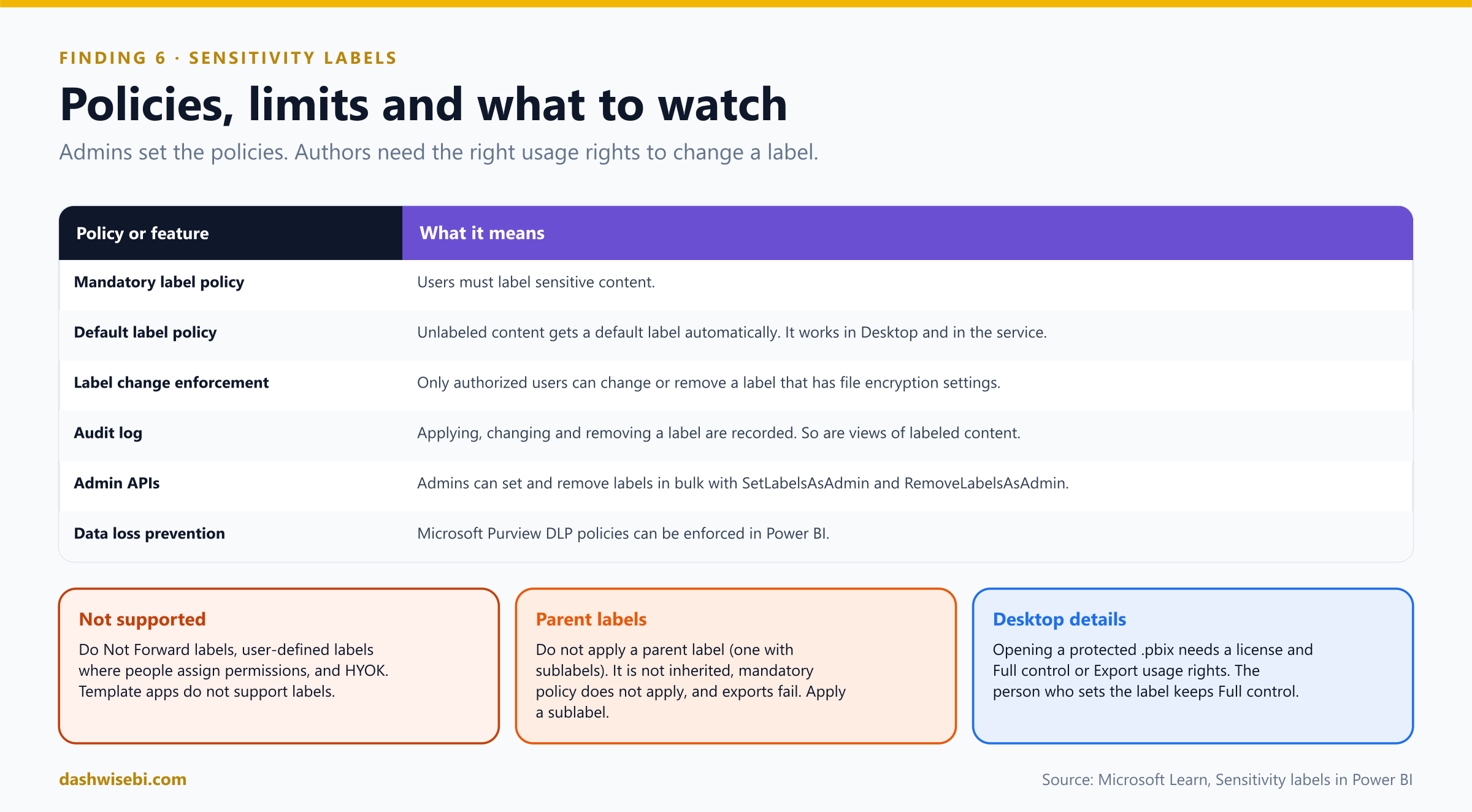
Pause and decide. The admin wants every report to carry a label, and unlabeled new reports to get a sensible default. Which two policies?
A mandatory label policy (users must apply a label) and a default label policy (unlabeled content gets a default label, in Desktop and in the service).
Pause and decide. Some labels cannot be applied in Power BI. Name them.
Do Not Forward labels, user-defined labels (where users assign permissions themselves), and HYOK (hold your own key). Also avoid parent labels (labels that have sublabels): apply a sublabel instead. A parent label is not inherited, mandatory policy does not apply to it, and exporting from such an item fails.
- Only authorized users can change or remove labels that have file encryption settings (label change enforcement).
- Auditing. Applying, changing and removing labels are recorded in the audit log, together with activity such as viewing labeled reports. Admins can also set or remove labels in bulk with the admin APIs.
- DLP. Microsoft 365 data loss prevention policies can be enforced for Power BI.
- Labels are created in Purview (Classification, Sensitivity labels). If your organization still uses Azure Information Protection labels, they must be migrated before use in Power BI.
Neha labels the salary model Highly Confidential. A new report built on it inherits the label, and the Excel export from last week's incident, re-created in a test, opens only for people the label allows. Rohan reads, nods, and puts a green tick on the last line.
Exam lens
- Labels come from Microsoft Purview. In the service they do not change access. Protection applies on export and in Desktop.
- Apply in the service (item Settings) or in Desktop (Sensitivity button). Remove only in Desktop.
- Inheritance: creation, data sources, downstream, Analyze in Excel, and the more restrictive label on .pbix download.
- Not supported: Do Not Forward, user-defined, HYOK. Avoid parent labels.
Friday: ten quick calls
Rohan has one last request: answer ten questions, then he signs the report. Answer in your head first, then open each one.
Pause and decide. 1. A group must publish reports but not manage people. Which role?
Contributor.
Pause and decide. 2. Which role is subject to RLS, and which are not?
Viewer is. Admin, Member and Contributor are not.
Pause and decide. 3. Which share link grants no access?
People with existing access.
Pause and decide. 4. Which permission lets a Viewer use Analyze in Excel on a model?
Build on the semantic model.
Pause and decide. 5. A Member needs to turn a Viewer into a Contributor. How?
An Admin removes the user, then the Member adds them again as Contributor.
Pause and decide. 6. Where are RLS roles defined, and where are members added?
Roles in Desktop. Members in the service.
Pause and decide. 7. Which DAX function gives the signed-in user's sign-in name for dynamic RLS?
USERPRINCIPALNAME().
Pause and decide. 8. Name two group types you cannot add to an RLS role.
Microsoft 365 groups and groups created in Power BI. (A service principal also cannot be added.)
Pause and decide. 9. Does a sensitivity label stop someone opening a report in the Power BI service?
No. It protects exported files and Desktop files. Service access is governed by Power BI permissions.
Pause and decide. 10. Where can you remove a sensitivity label from a .pbix?
Only in Power BI Desktop.
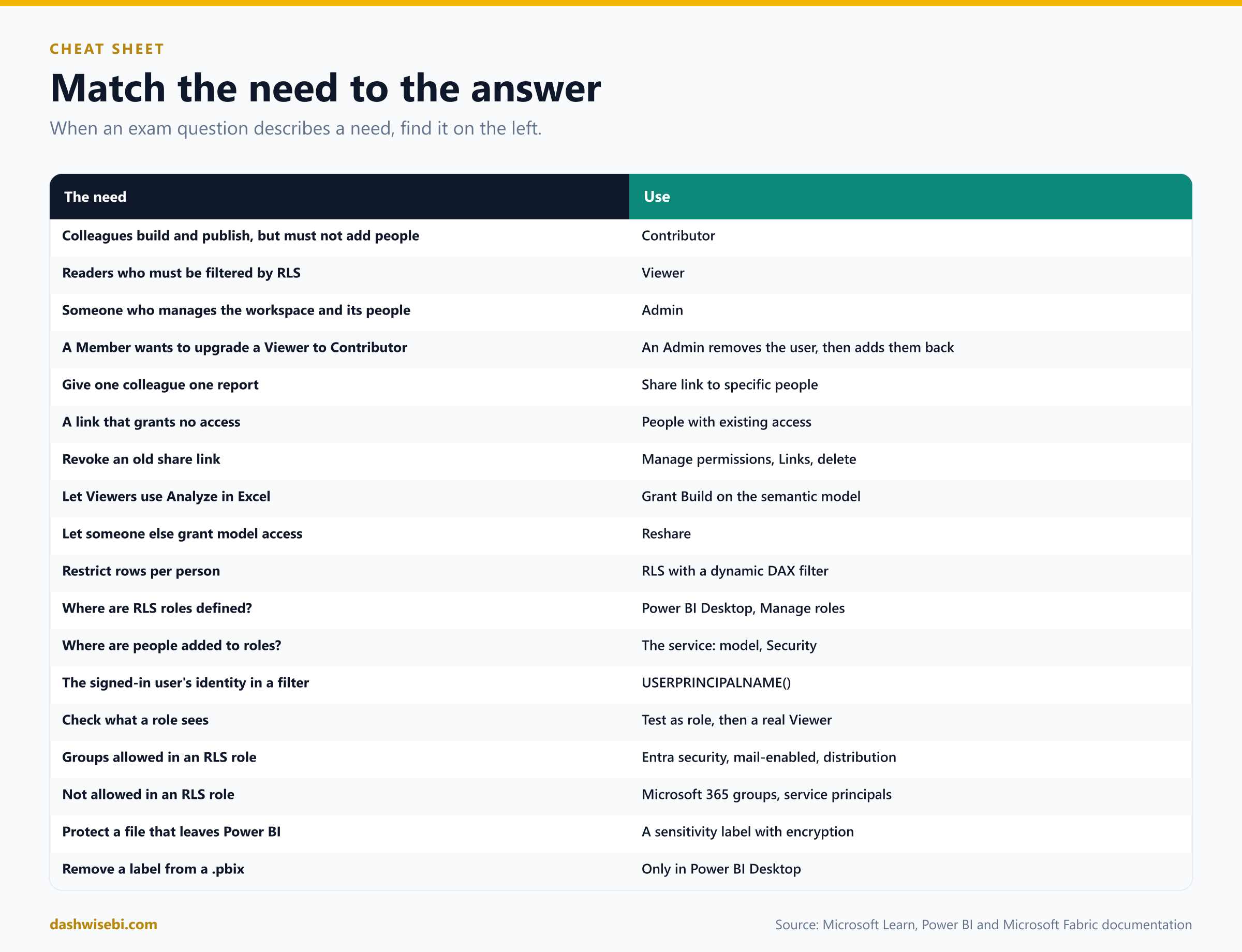
The cheat sheet
Myth or fact?
- “Contributors are filtered by RLS.” Myth. Only Viewers are.
- “A Member can change a user's role.” Myth. Members can add lower roles but not change existing ones.
- “An organization link works for guests.” Myth. Use Specific people.
- “Removing Build protects the data.” Myth. Read can still see data. Use RLS.
- “You assign RLS members in Desktop.” Myth. You do it in the service.
- “RLS can hide a column.” Myth. Use object-level security.
- “A user in no RLS role sees everything.” Myth. They see nothing.
- “Microsoft 365 groups can be RLS members.” Myth. They cannot.
- “Test as role shows exactly what a guest would see.” Myth. It uses your identity.
- “A label in the service blocks access.” Myth. It protects exports and Desktop files.
Where to go next
- Create three security groups and assign them as Contributor, Viewer and Member in a test workspace. Check what each person can do.
- Share a report with a link for specific people, then open Manage permissions and delete the link.
- On a sample model, build a Region table with a ManagerEmail column, write the dynamic role, publish, add a group in Security, and use Test as role.
- Add the
Who am Icard and have a colleague open the report. - If your tenant has sensitivity labels, label a test report, export it to Excel, and look at the label on the file.
- Read the sources behind this post: PL-300 study guide, Roles in workspaces in Power BI, Roles in workspaces in Microsoft Fabric, Share items in Microsoft Fabric, Semantic model permissions, Manage semantic model access permissions, Row-level security (RLS) with Power BI, Sensitivity labels in Power BI and How to apply sensitivity labels in Power BI.
Keep reading
PL-300 Episode 9: Usability, Mobile & Accessibility
PL-300 as a rollout week: export settings, mobile layouts, personalized visuals, accessibility and automatic page refresh.
PL-300 Episode 8: Interactivity & Navigation
PL-300 as a usability test: sorting, interactions, sync slicers, tooltips, drillthrough, navigation, the Selection pane and bookmarks.